
Welcome to the Map Tool. This guide will help you navigate and use the various features of the map interface. The map tool is designed to provide you with detailed insights into roadway conditions, quality, and more. This document is organized into three main sections: Road Filters, Map Views, and Map Tools.
Road Filters
Overview
The Road Filters section allows you to customize the map display for your agency’s needs. You can access this feature by clicking the Road Filters dropdown on your screen's right side.
Hide Road Photos/Show Road Photos
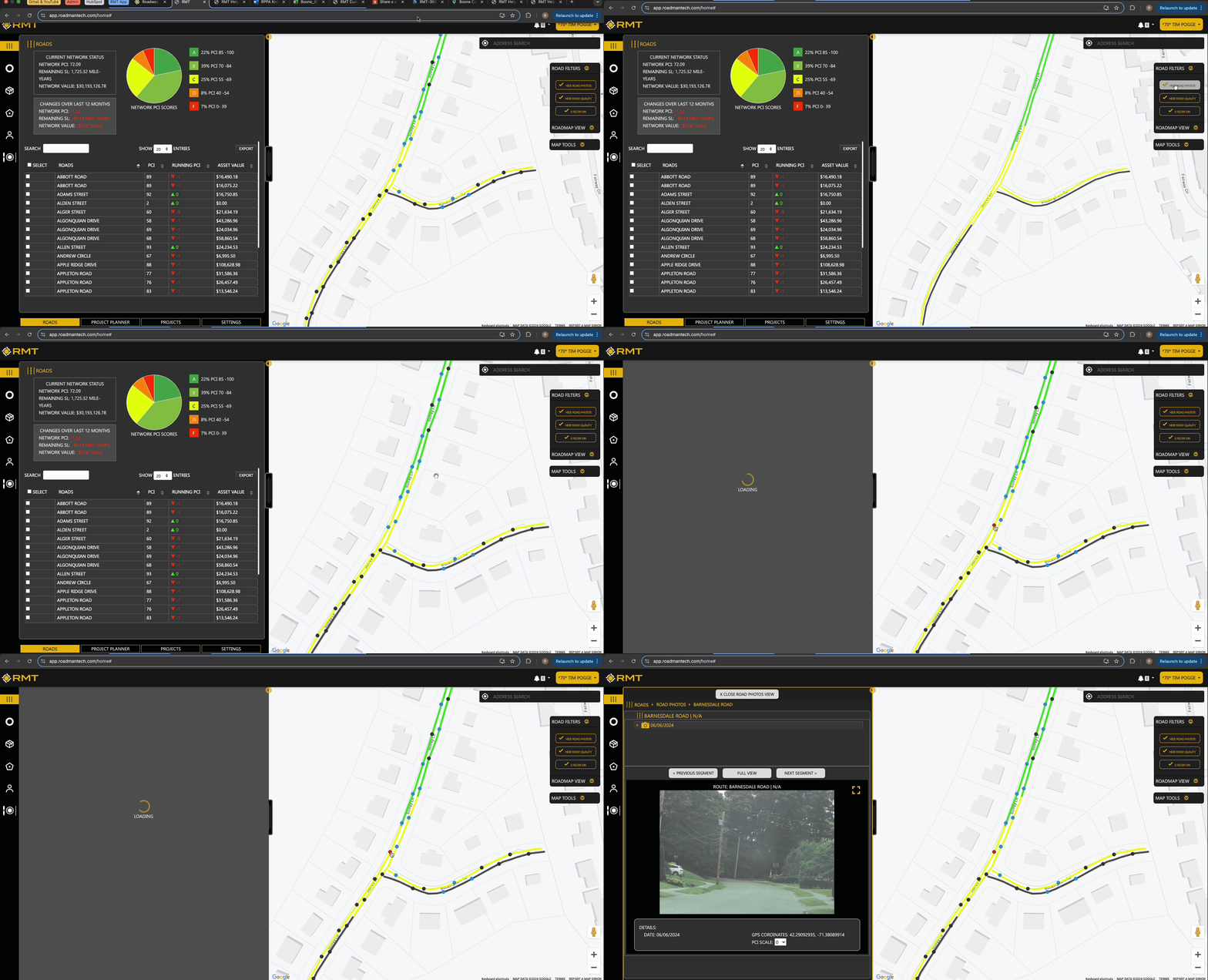
- Hide Road Photos: Select this option to hide all road photo points from the map. Road photo points will appear as grey icons if no photos are available.
- Show Road Photos: This option will display road photo points. A blue icon indicates that road photos are available for that segment. Clicking a blue icon will open a panel on the left side showing the most recent photo. Use the "Full View," "Next Segment," and "Previous Segment" buttons to navigate through the photos. Click the "Close Road Photos View" button to exit.
Hide Road Quality/Show Road Quality
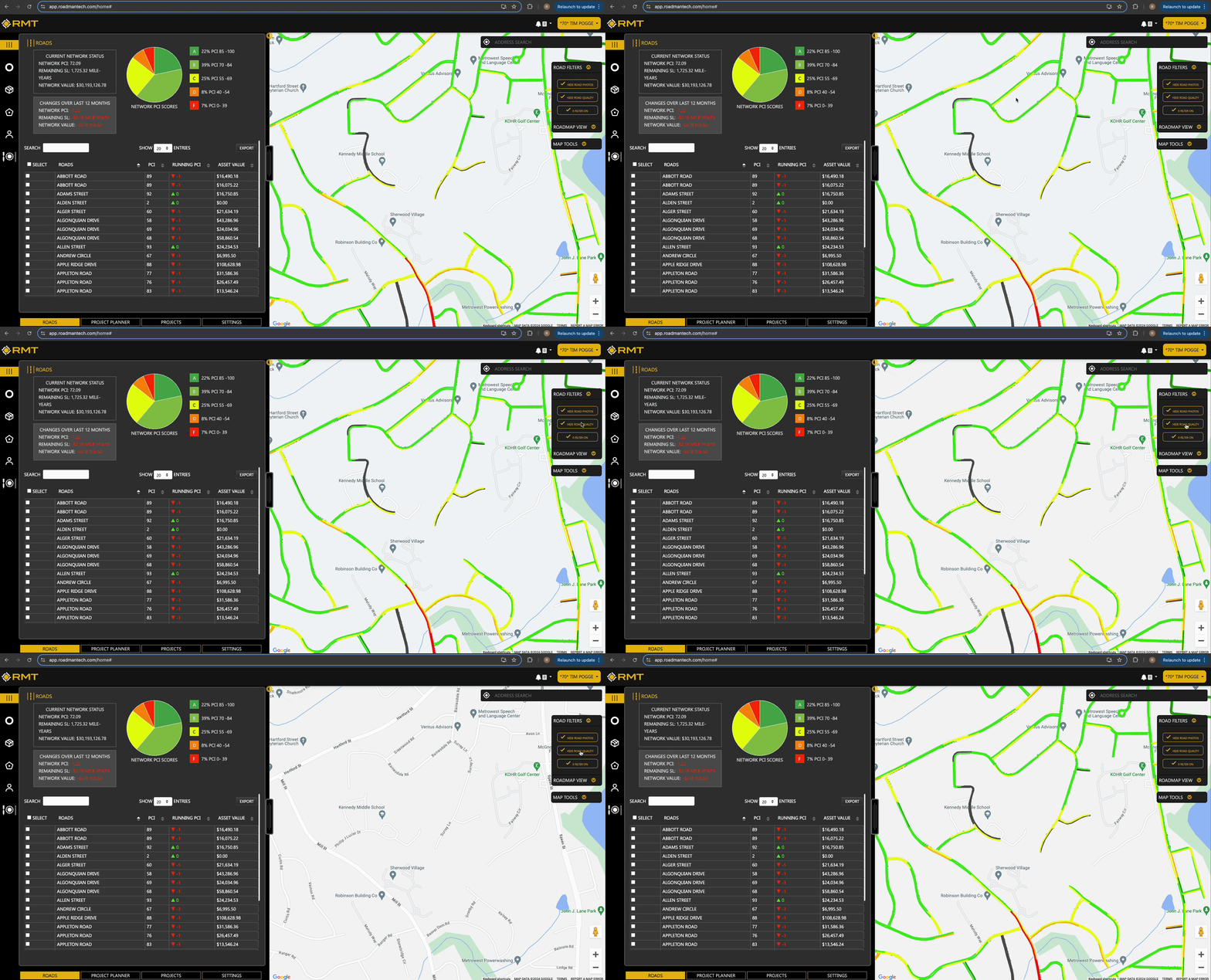
- Hide Road Quality: Selecting this will remove the quality indicators from the map.
- Show Road Quality: This option highlights road segments based on their quality. Segments will be visually distinct to help you quickly assess road conditions.
Additional Filters
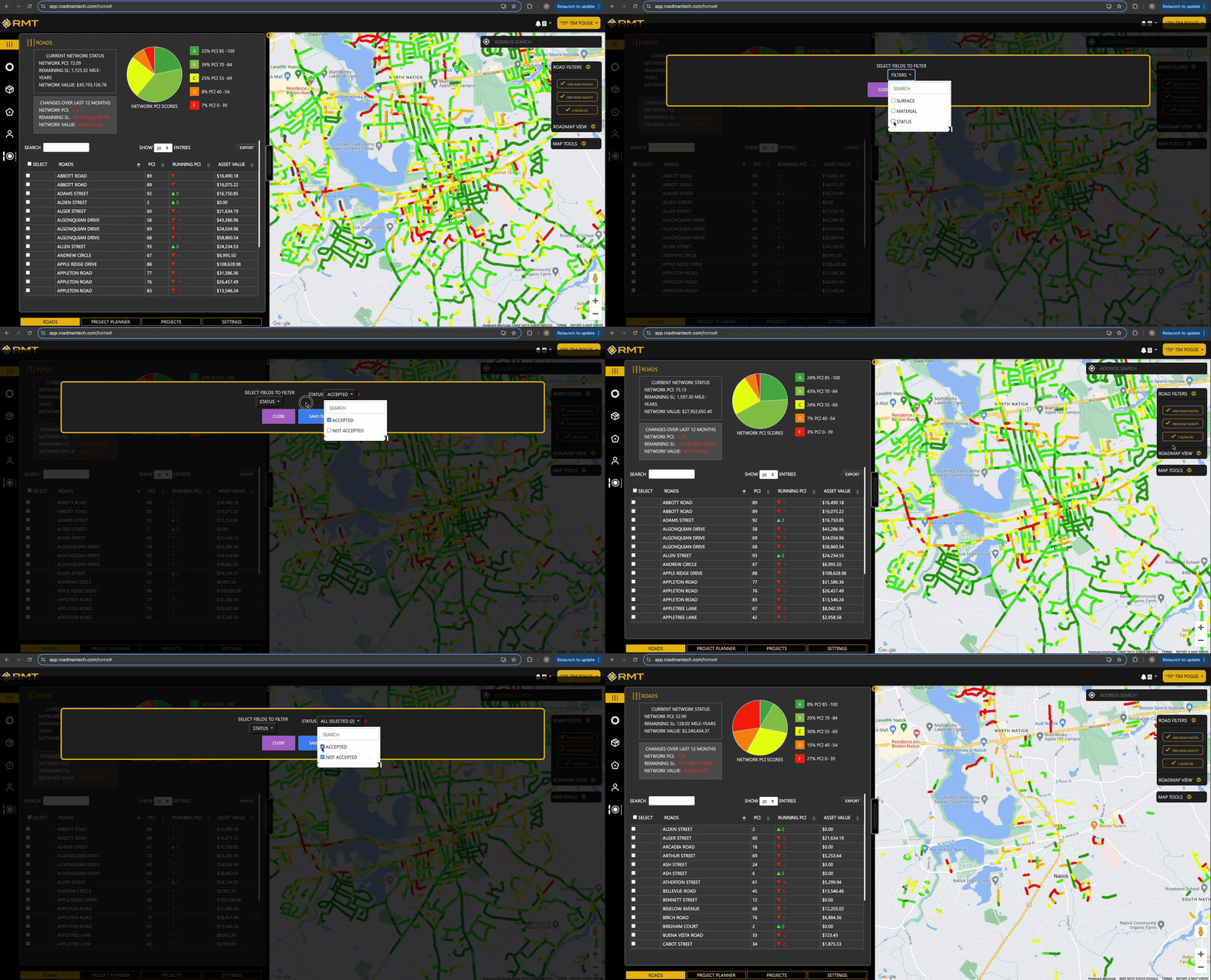
- # of Filters On: This shows how many filters are currently applied. By default, it displays "0 Filters On."
- To apply additional filters, click this option. An interface will appear allowing you to select filters such as Surface, Material, District, Road Ownership, etc. After choosing your filters, click "Save Filter" to update the map. Only roads that match your selected criteria will be shown.
Map Views
Overview
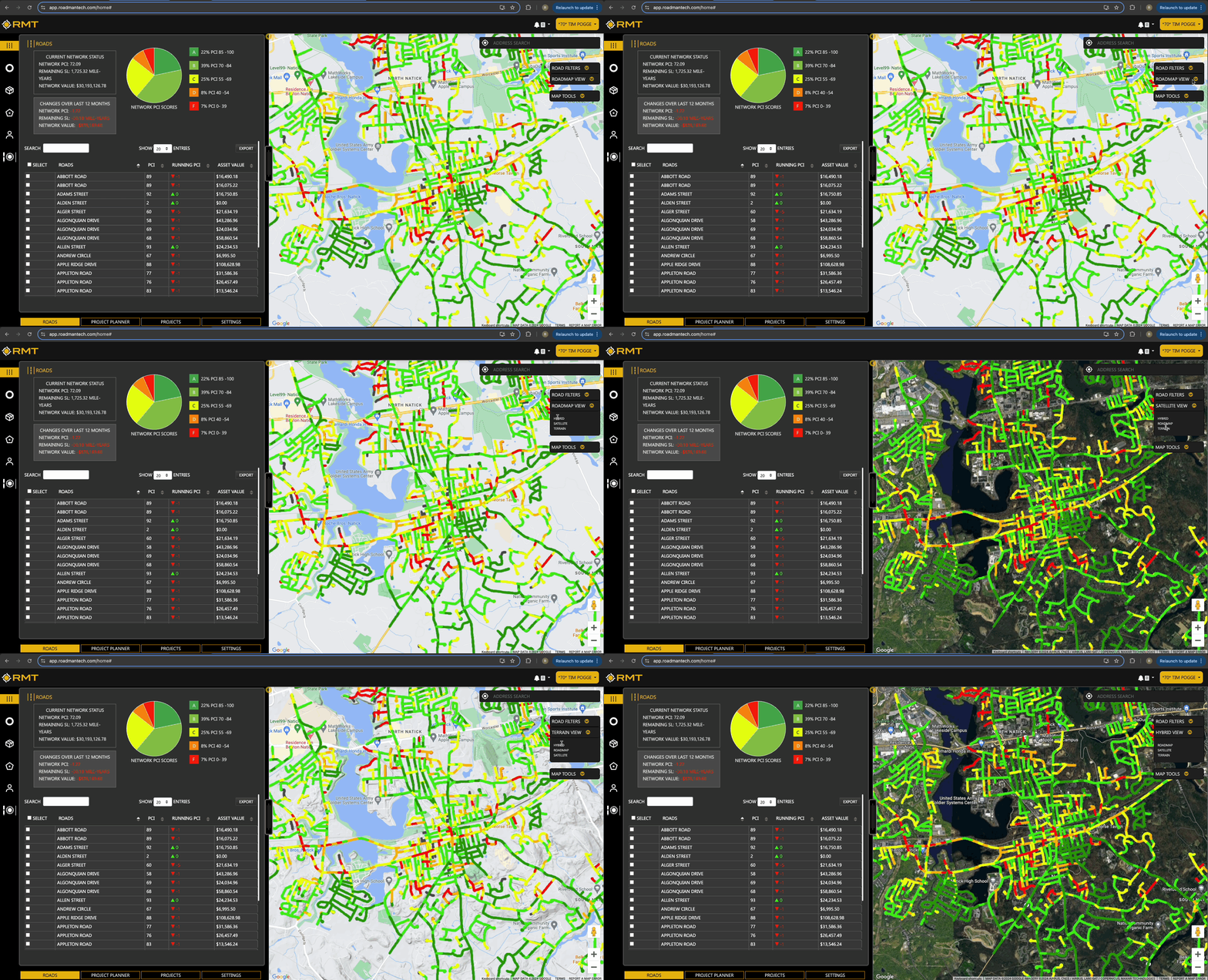
Map Views allow you to change the map's display mode to suit your preferences or needs.
- Hybrid (default): Displays a combination of satellite imagery and road information.
- Satellite: Provides a view with detailed satellite images.
- Terrain: Shows topographical details, including elevation changes and natural features.
- Roadmap: Displays a traditional map view with road details.
To switch between these views, simply click the desired option from the dropdown menu on the right side of the screen.
Map Tools
Overview
The Map Tools section provides interactive features to help you analyze the map data. Access this by clicking the "Map Tools" option.
Click
- Drag and Pan: Move the map by dragging it in any direction.
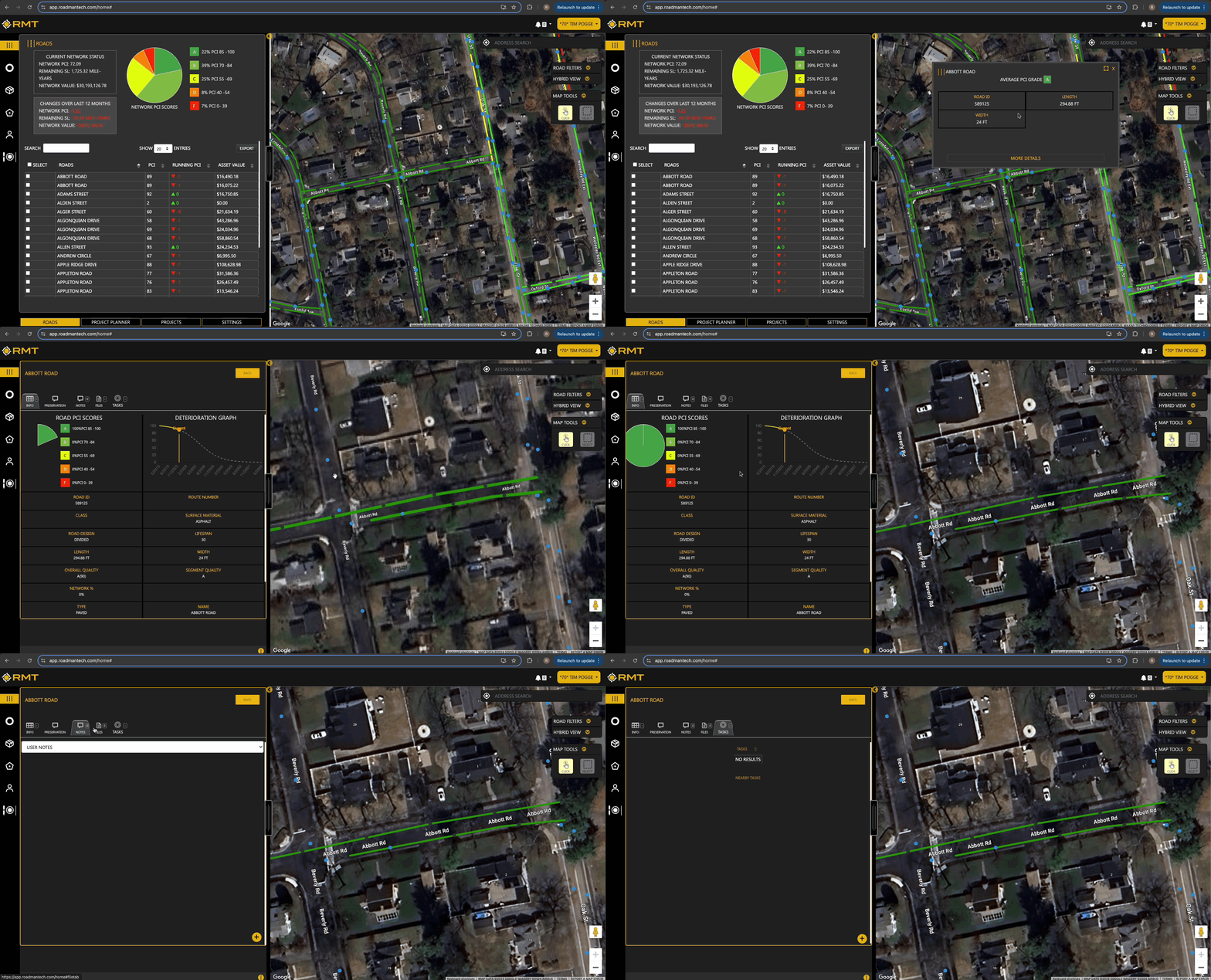
- Click on Roads: Clicking on a road segment opens an interface showing detailed information on the currently viewed map section, including Average PCI Grade, Road ID, Length, and Width. Click "More Details" to view additional tabs:
-
- Info: General information about the road.
-
- Preservation: Data related to road preservation efforts.
-
- Notes: Any notes added for the road.
-
- Files: Associated files for the road segment.
-
- Tasks: Tasks related to the road.
-
- Road PCI Scores: Visual representation of road condition grades via a pie chart.
-
- Deterioration Graph: Displays the expected lifespan of the road if no preservation actions are taken.
-
- To learn more about the Single Roads View, click here.
Select
Introduction – brief intro on the Select tool giving more description.
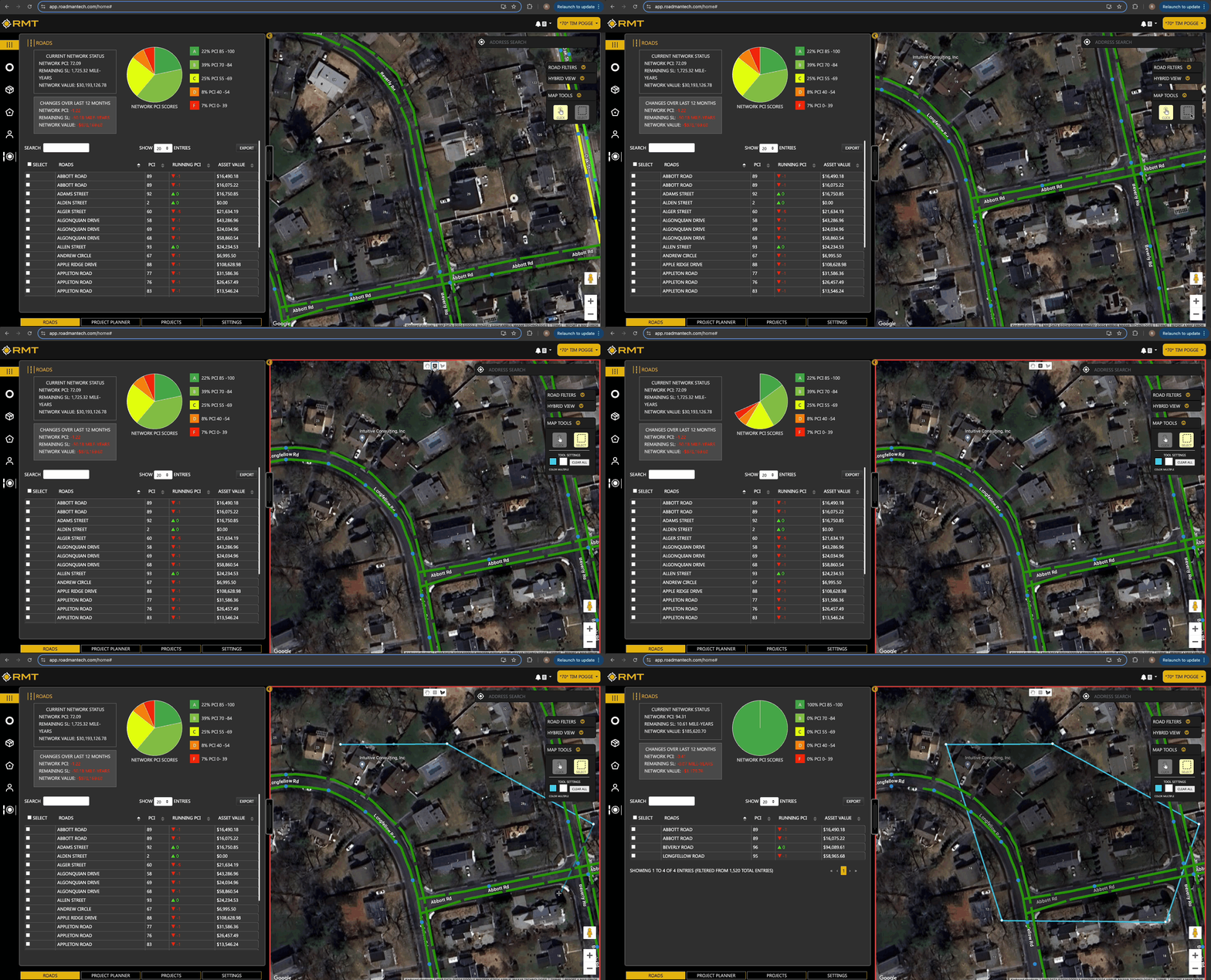
- Pan: Use the cursor to move around the map.
- Rectangle: Draw a rectangle on the map to filter roads within that area. This will update the Road Slider with relevant road details.
- Draw a Shape: Create custom multi-point shapes to include roads within the defined area.
Tool Settings
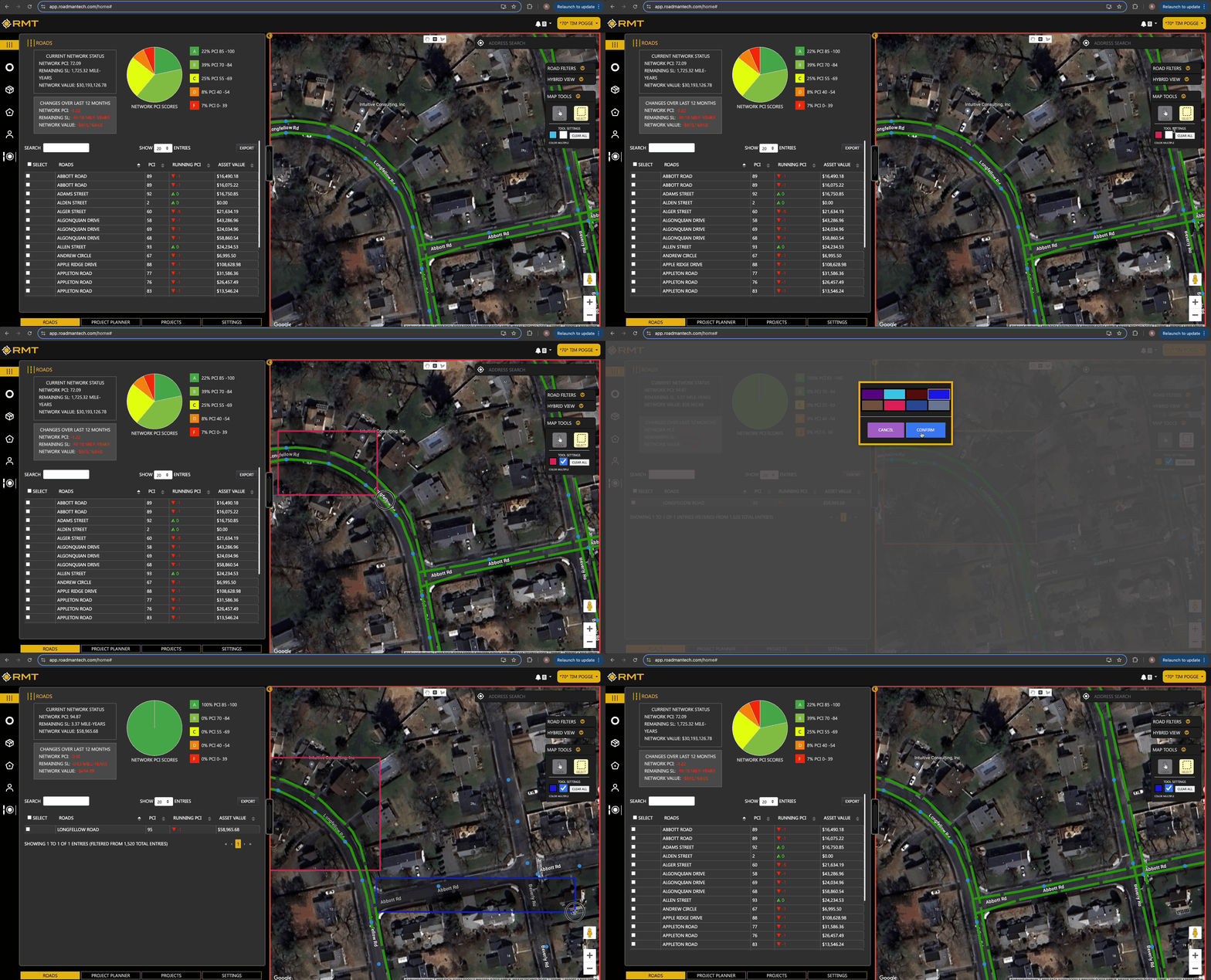
- Color: Choose the color for the Rectangle or Draw a Shape options.
- Multiple Selection: Enable simultaneous creation of multiple Rectangles or Shapes.
- Clear All: Remove all drawings from the map.
Additional Features
- Keyboard Shortcuts: Click the "Keyboard Shortcuts" button at the bottom of the map to view various keyboard shortcuts for quick navigation, such as Move Left, Move Right, etc.
- Zoom: Use the Plus button to zoom in or the Minus button to zoom out.
- Google Street View: Drag the person icon onto the street to view detailed street-level imagery.
With these tools and features, you can efficiently analyze and manage roadway data tailored to your specific needs. For any further assistance, please contact support at support@roadmantech.com. Happy mapping!