
Welcome to the "Roads Slider: Roads Overview" help document. This guide will provide you with a comprehensive understanding of the Roads tab within Roadway Management Technologies' (RMT) Road Slider. We will walk through key features including the search bar, display options, export functions, and how to navigate the Roads list and Network PCI Scores Graph. We will also explore the Single Road View and its associated tabs for detailed road management.
Overview of the Roads Tab
Search Bar
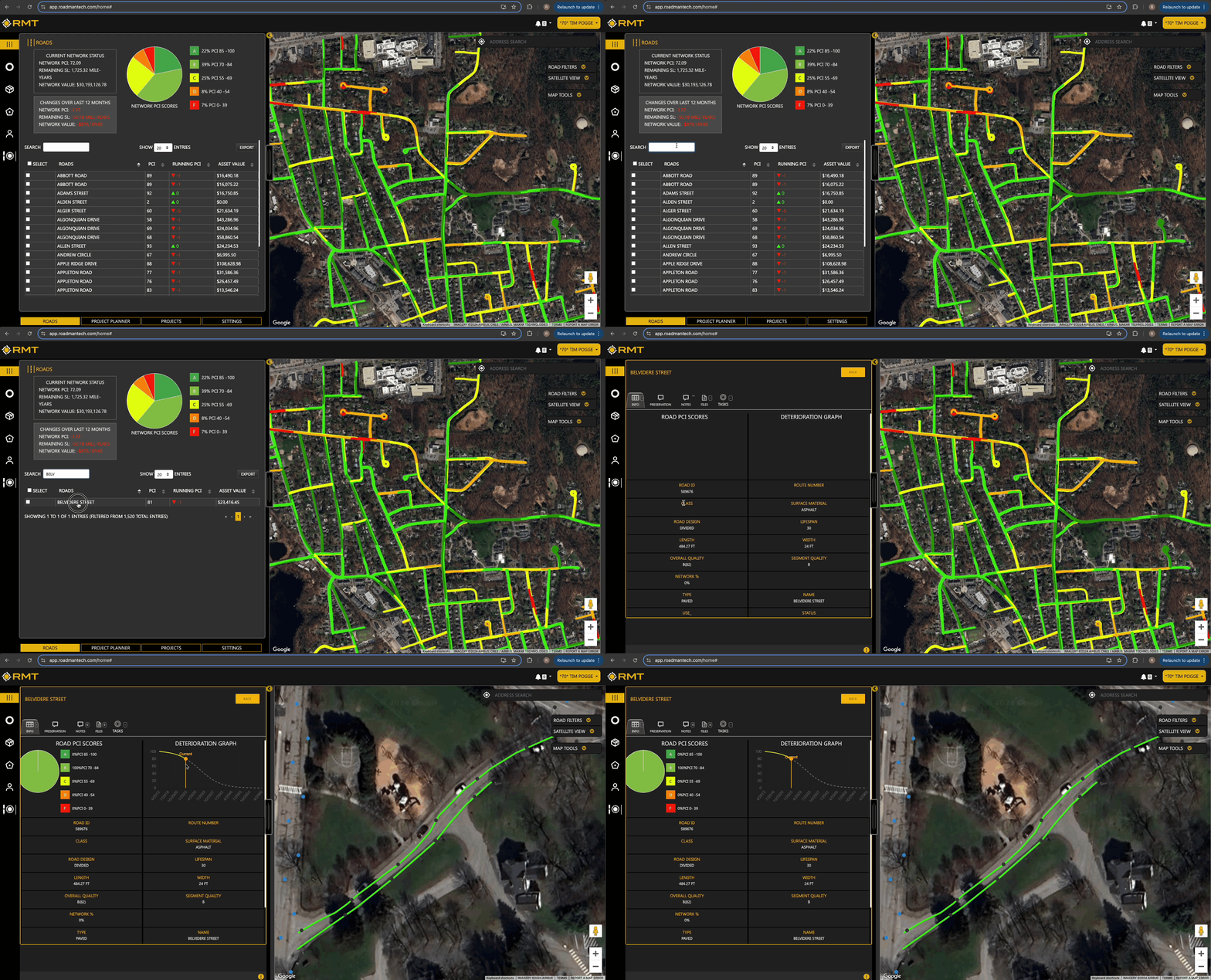
The search bar, in the top, right-hand corner of the Roads tab, lets you quickly locate specific roads in your database. You can enter the name of a road, or, if you know the road ID, use that to pull up the specific segment of road. As you type, roads will be filtered down based on your entry until you see the specific road you’re searching for.
Show Entries Option
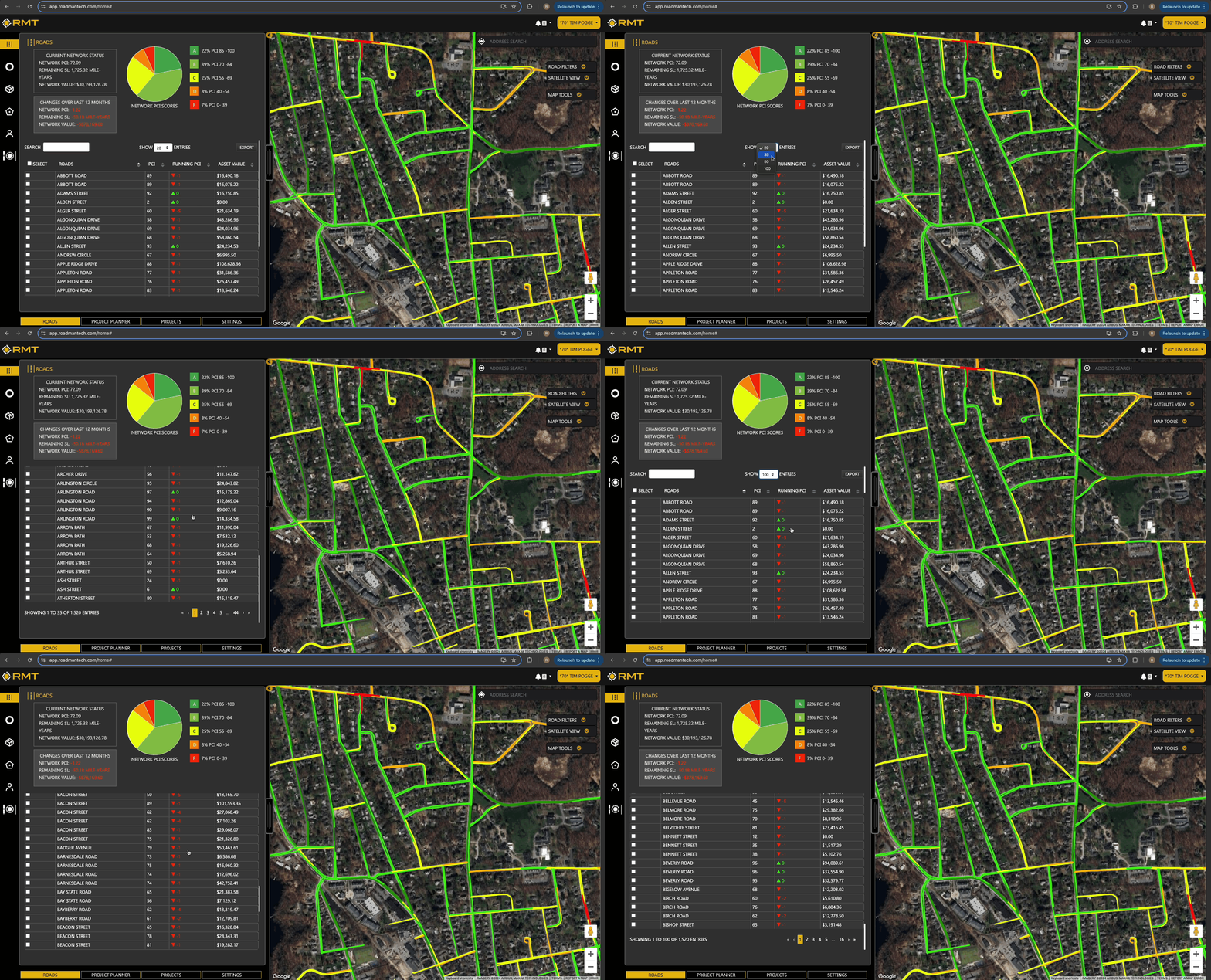
The "Show Entries" dropdown menu allows you to customize the number of roads displayed per page. You can choose to view 20, 35, 50, or 100 entries at a time, depending on your preference. Scrolling down to the bottom of the roads, you’ll note the pagination and how many roads are currently visible out of all the roads within your network.
Export Road Report
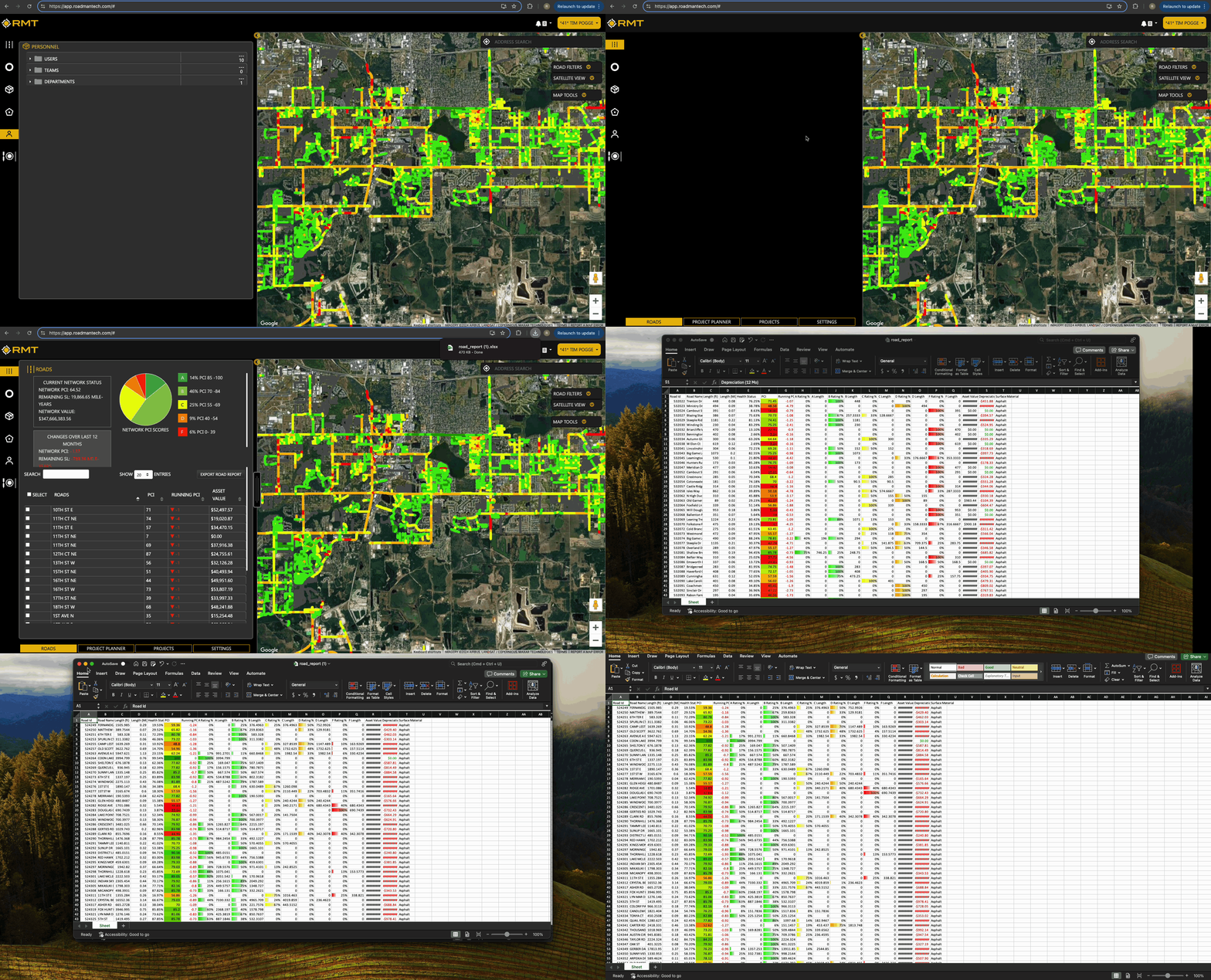
The Export Road Report function enables you to download a report of all the roads data stored within RMT. Currently, this information will only be exported in a .csv file. Filtering is available to narrow the results of your export. You can filter by PCI range (merely click the PCI range you want to review) as well as by using the Road Filters and Map Tools covered in the Understanding the Map article. To learn more on using the Road Filters and Map Tools, click here.
The “Export Road Report” button is available in the Roads tab on the right hand side of your screen. This will be directly above the “Asset Value” column. To learn more about the Road Report, please refer to our "Understanding the Road Report " help document.
Select
The "Select" option empowers you to choose multiple roads from the list, allowing for a more focused and detailed analysis of specific road segments. Once you've utilized this feature to highlight roads of interest, the map dynamically updates to concentrate solely on these selected roads. This functionality is particularly advantageous when you need to analyze particular areas of your road network without the distraction of other roads, enabling you to conduct thorough assessments or plan targeted maintenance activities on those chosen sections. By narrowing down the focus to specific roads, you can better allocate resources, prioritize projects, and make informed decisions that align with your road management goals.
Roads List
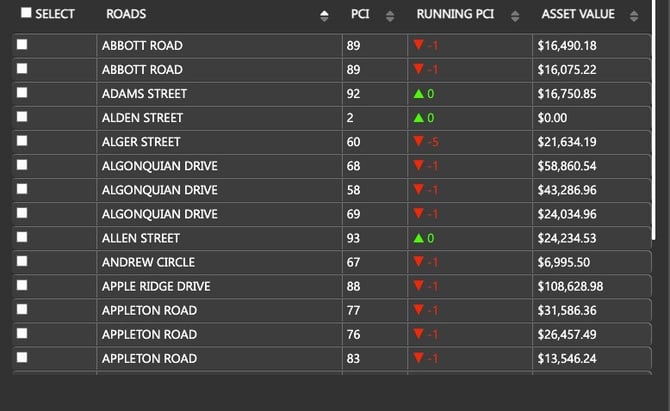
The Roads List provides detailed information about each road, including:
- Road Name: The name or identifier of the road.
- PCI (Pavement Condition Index): A numerical score representing the condition of the road, typically ranging from 0 (poor) to 100 (excellent).
- Running PCI: This value reflects the PCI score change for the given segment compared to the segments previous rating.
- Asset Value: The financial valuation of the road asset, which can be important for budget planning and management.
Network PCI Scores Graph 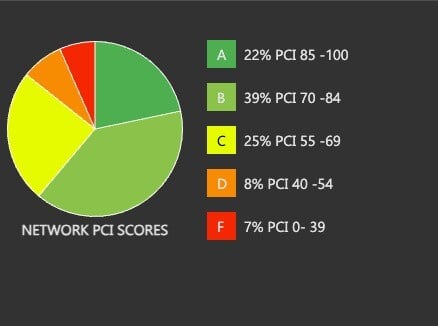
The Network PCI Scores Graph visualizes the overall condition of your road network. It displays PCI scores across different road sections, helping you to identify trends, areas needing attention, and the overall health of the network.
Current Network Status 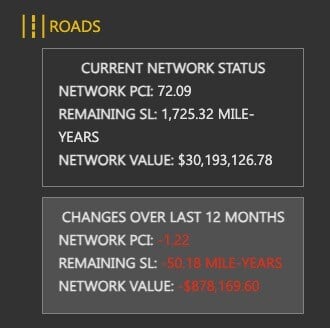
The Current Network Status section provides a snapshot of the overall state of your road network. It includes metrics such as the average PCI score, Remaining Service Life, and the current Network Value of your roads.
When you apply filters to the map, you’ll see the Current Network Status update to reflect the Network PCI, Remaining SL, and Network Value update to reflect the roads that are currently meeting your filter criteria.
Single Road View
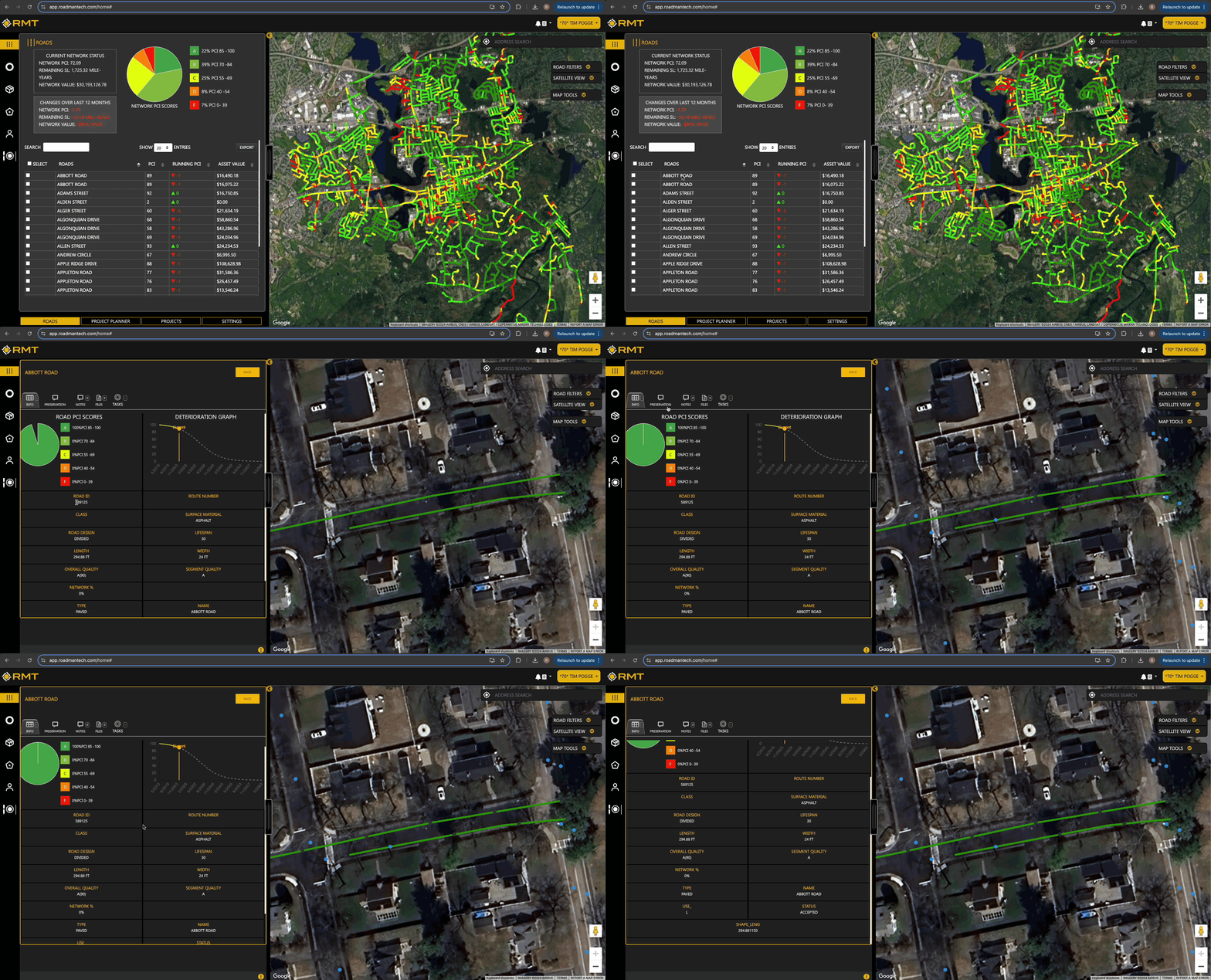
While the map view will give you an overview of all the roads in your network, there will also be times you want to look at a single road or segment. The Single Road View offers an in-depth look at an individual road’s details. Load the Single Road View by clicking any road from the road table. This will now load the Single Road View. Here’s how to navigate its various tabs:
Info Tab 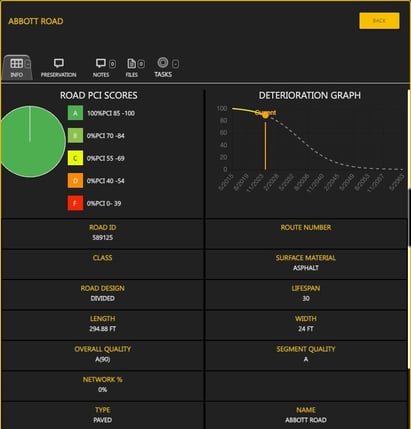
The Info Tab provides basic information about the selected road segment, including its name, Road PCI Score, and Deterioration Graph. This section is useful for understanding the road segment’s current network status is as well as what the deterioration curve will look like if no preservation treatments are added to this segment of road.
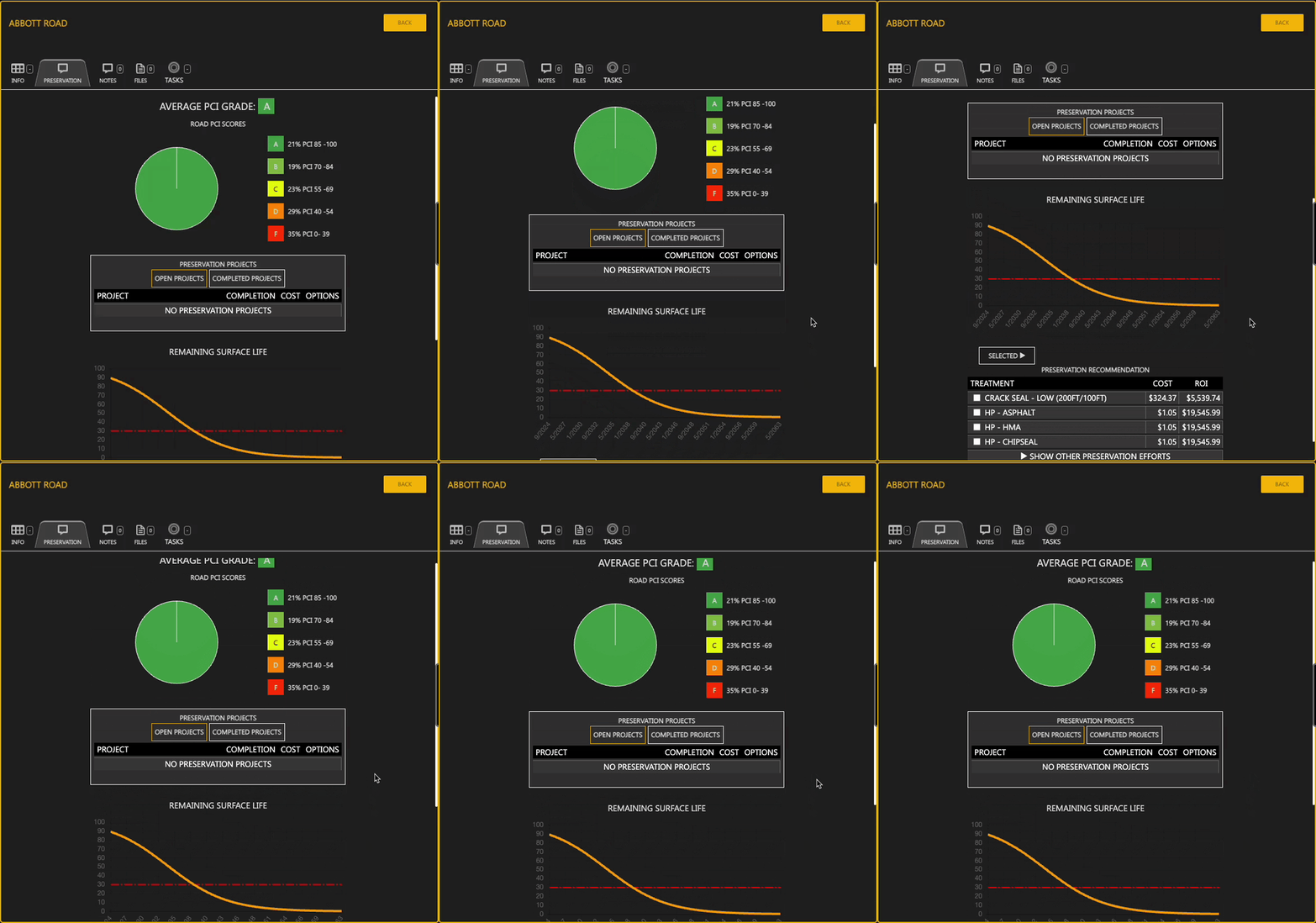
Preservation Tab
The Preservation Tab focuses on the road’s maintenance and preservation efforts. Within this tab, you can review the following:
- Preservation Status: Similar to the Info tab, on the Preservation tab you will first be presented with the Average PCI Grade for this road segment. This will be presented both with the letter grade as well as a pie chart indicating it’s current status.
- Open Projects: View ongoing projects related to this road segment. This section lists all active preservation and repair initiatives, including their status, cost, and an option to click in to see more details.
- Completed Projects: View completed projects related to this road segment. This section lists all completed preservation and repair initiatives, including their status, cost, and an option to click in to see more details.
- Project Details: Opens up the Projects tab and gives specific information about each project, such as status, efforts, % complete, ETA, Cost, and Budget.
- Remaining Surface Life Graph: Displays a graphical representation of the remaining surface life of the road based on current conditions and treatment history. This helps in forecasting future maintenance needs.
- Preservation Recommendations: Provides suggestions for future preservation treatments to maintain or improve the road's condition.
- Adding Preservation Treatments: You can add recommended preservation treatments to an existing project by selecting the treatments and updating the project details accordingly.
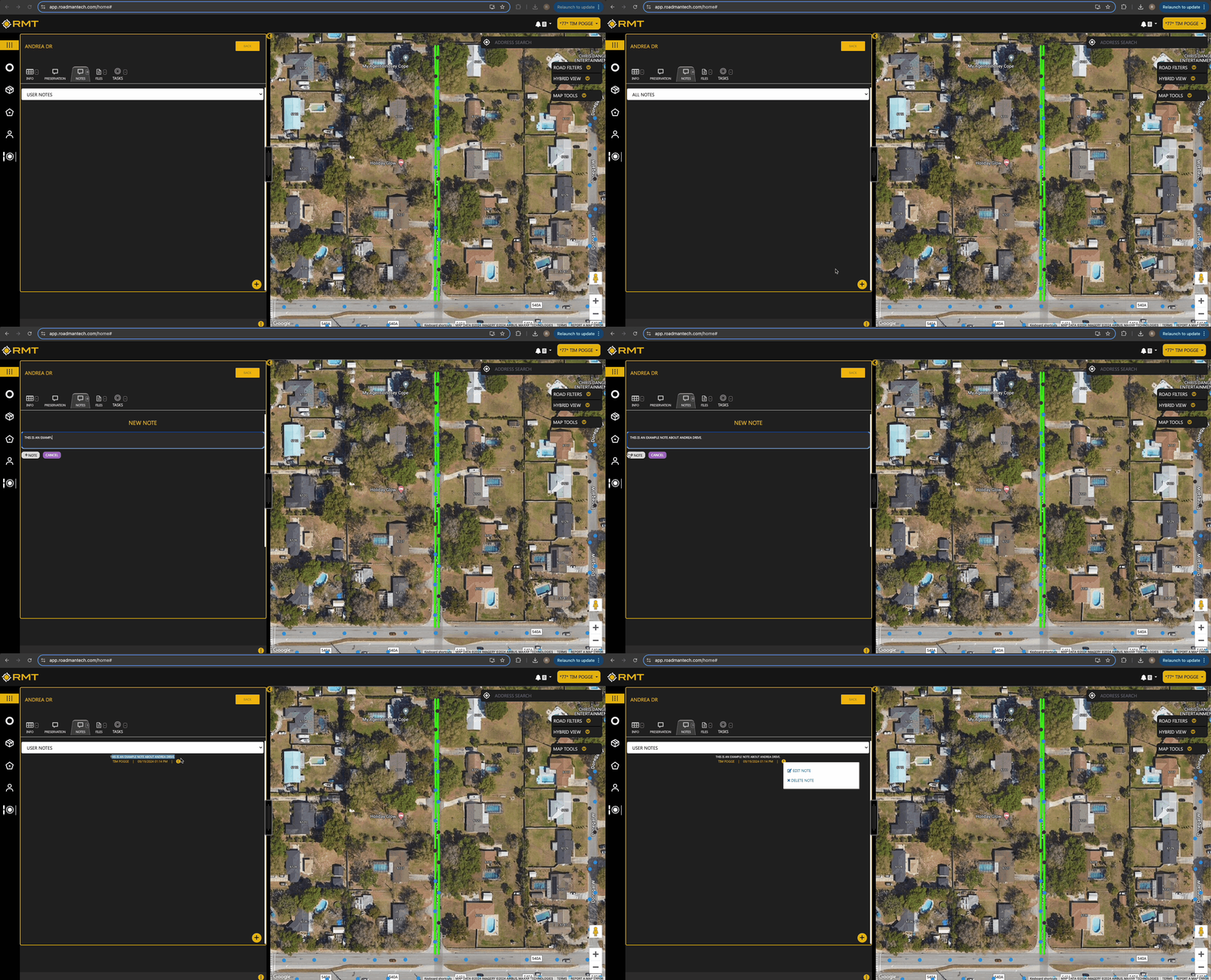
Notes
The Notes section allows you to add and view any comments or observations related to the road. This is useful for documenting issues, recommendations, or other pertinent information that may affect road management decisions.
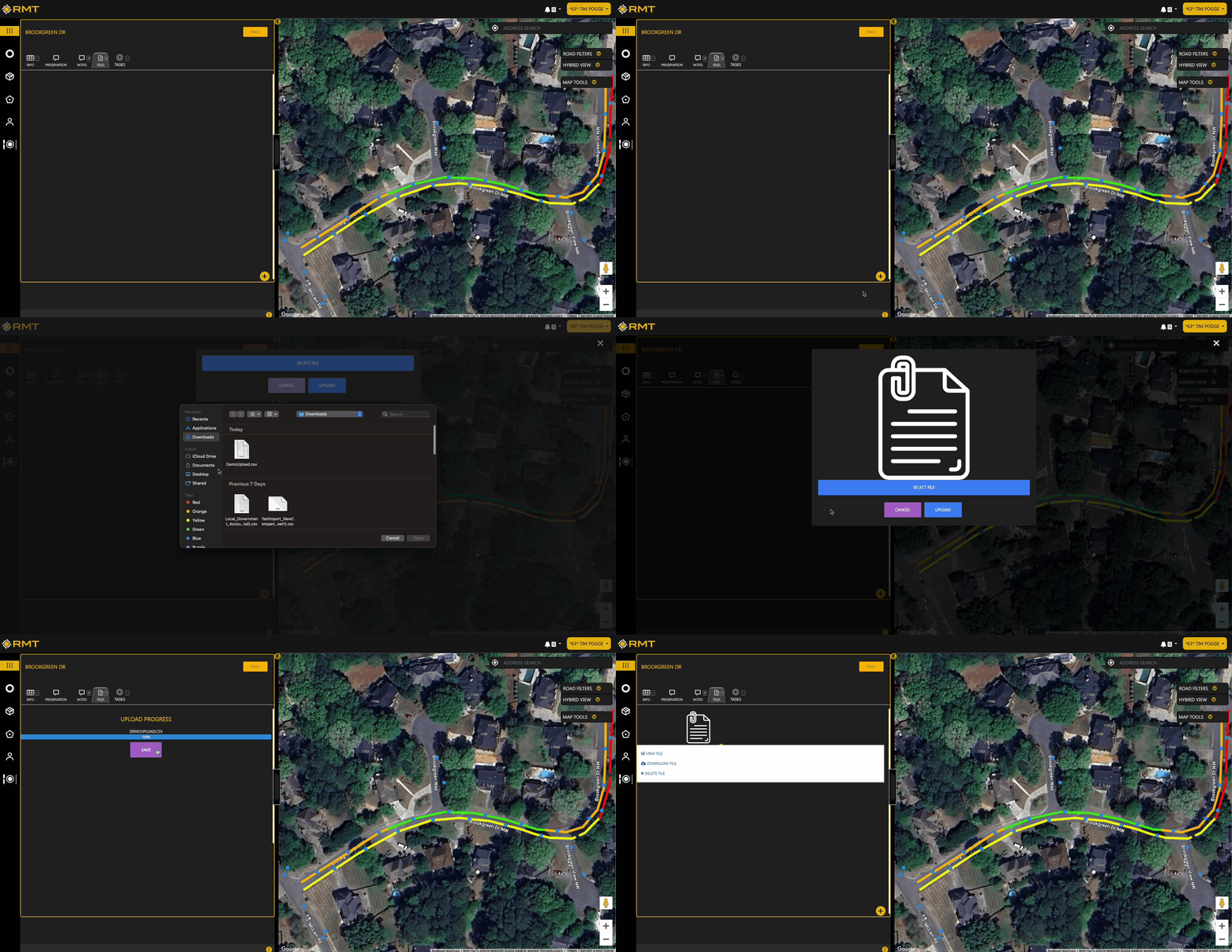
Files
The Files section provides access to any documents or attachments related to the road. This can include inspection reports, project documentation, or any other relevant files.
Tasks
Tasks are currently a feature available to Work Order Management customers. If you’d like to add Work Order Management, please contact your Account Manager.
Conclusion
Understanding the Roads tab and Single Road View in Roadway Management Technologies is essential for effective road management. By using the search bar, display options, export features, and the detailed information available in the Single Road View, you can efficiently manage your road network and make informed decisions.
For further assistance, please contact support at support@roadmantech.com.