Your RMT profile is more than just a name and password—it’s your personal hub for keeping information up to date and tailoring the platform to fit the way you work. From updating your details to setting notification preferences, we’ve made it quick, simple, and hassle-free.
Where to Find Your Profile
 You’ll find your User Profile Settings in the bottom-left corner of your screen. Hover over the
navigation bar, and at the very bottom, you’ll see your profile avatar (just below the Knowledge Base option). Click the avatar, and a new popup window will open with all your profile options.
What You Can Update
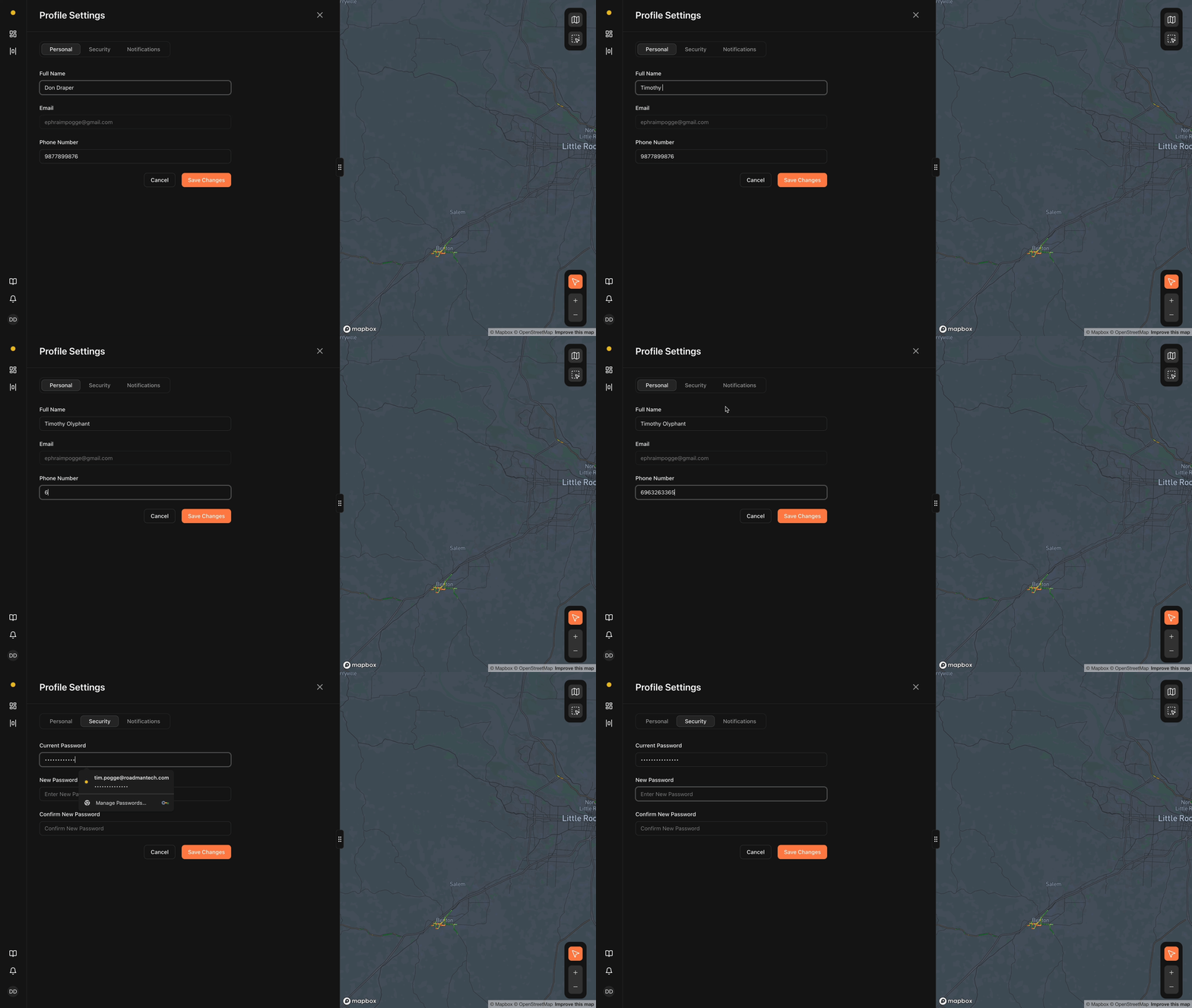 In your profile, you’ll see the following settings:
- Full Name – Update your name if needed.
- Email – This is tied to your account and can’t be edited.
- Current Password / New Password – Update your login credentials anytime.
- Phone Number – Keep this current to ensure your notifications reach you.
Once you make your changes, just click Save and you’re done.
Additional Options for Work Order Management Users
If you’re a Work Order Management user, you’ll see two tabs in your profile:
- Profile – Contains the same options listed above.
- Notifications – This is where you can control how you’re alerted about tasks.
Under Notifications, you can set your preferences for both Task Assignment and Task Completion across:
- Email
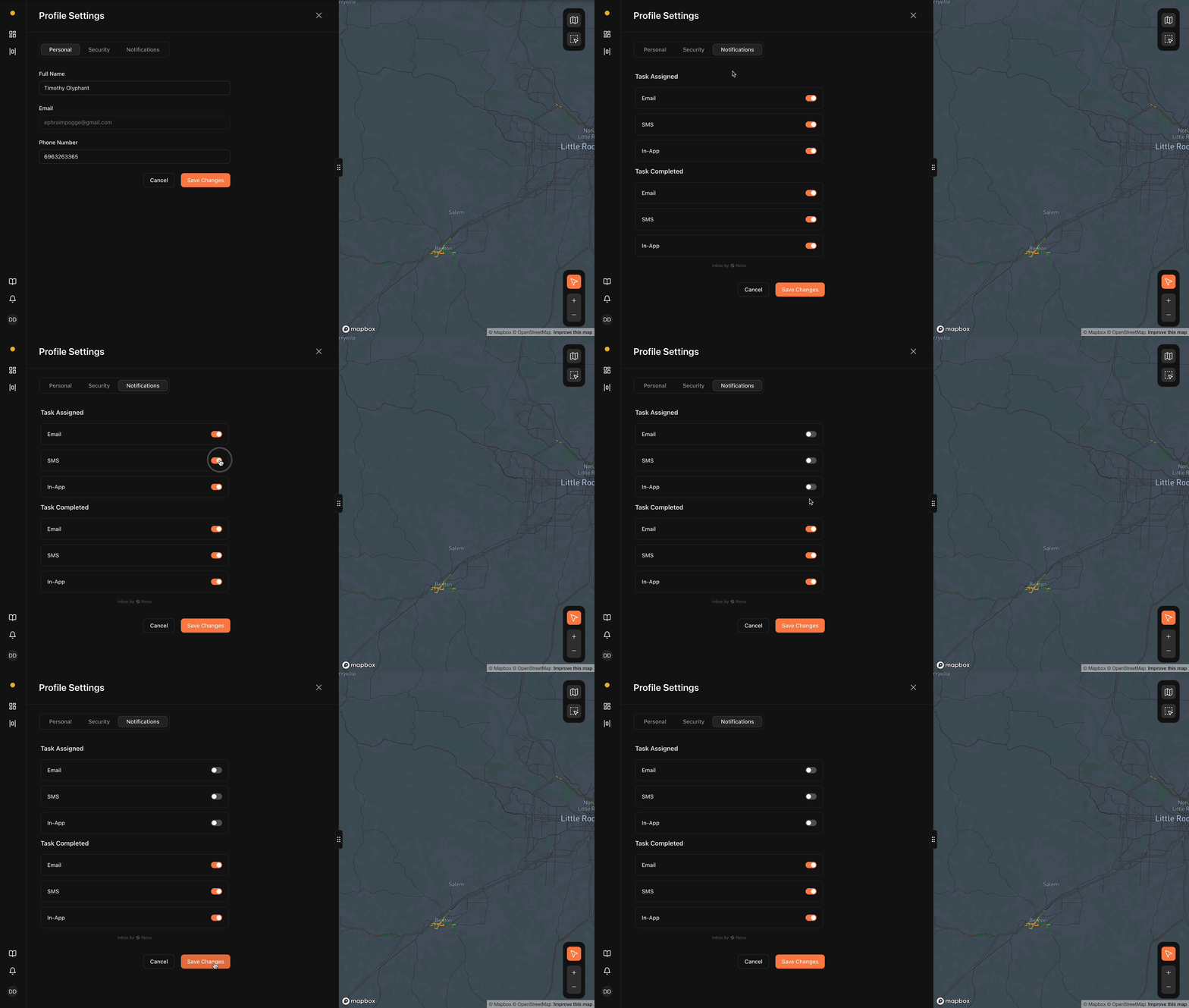
- SMS
- In-App
Pick what works for your workflow, click Save Changes, and you’re set.
If you have further questions or run into any issues, please contact our support team by clicking here