Creating and managing users in RMT is one of the first tasks for an administrator when setting up their agency’s account, or as new team members join. This guide walks you through:
- Understanding user roles (what users can and cannot do)
- Adding new users
- Updating user information
- Archiving users
Understanding User Roles
Before you add users, it’s important to know what each role allows. This ensures everyone has the right level of access.
|
Roads |
All users |
Everyone can view the list of roads, use filters, and export information. |
|
Road Info |
All users |
Comprehensive road details are available to everyone. |
|
Preservation (Roads) |
Admins only |
Only administrators can add a road to a preservation project. |
|
File Uploads (Roads) |
All users |
Anyone can upload files. |
|
Activity (Roads) |
All users |
Anyone can leave notes. |
|
Projects – General Access |
All users |
Everyone can view project lists and filter information. |
|
Create New Project |
Admins only |
Only administrators can create projects. |
|
Project Info |
All users |
Project details are available to everyone. |
|
Preservation Efforts (Projects) |
Admins only |
Only administrators can add preservation efforts. |
|
Editing Project Expenses |
Admins only |
Only administrators can add, edit, or delete materials and expenses. |
|
File Uploads (Projects) |
All users |
Anyone can upload files. |
|
Activity (Projects) |
All users |
Anyone can leave notes. |
|
Editing Projects |
Admins only |
Only administrators can edit existing projects. |
|
Deleting Projects |
Admins only |
Only administrators can delete projects. |
|
Tasks |
All users |
Everyone can view and filter tasks. Only administrators can delete tasks. |
Creating New Users
To add a new user in RMT:
- On the left-hand menu, hover over Settings.
- Click Users Manager.
- In the top right corner, click Add New User.
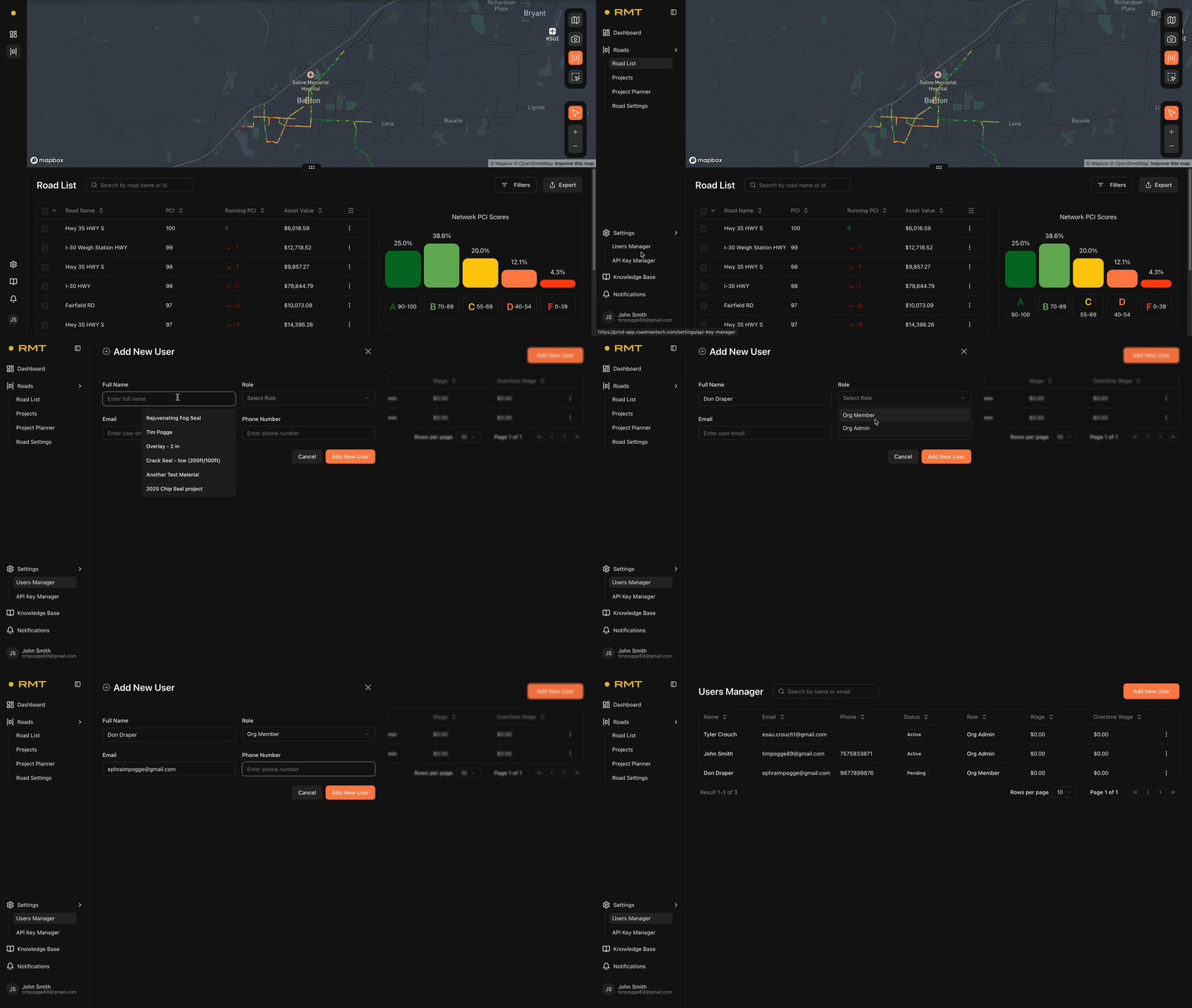
- Fill out the form with the required details (marked with an asterisk *):
- Full Name*
- Email*
- Role*
- Phone Number*
- Click Add New User.
The new user will automatically receive an email from RMT with:
- A temporary password
- A link to log in and complete their account setup
When they log in for the first time, they’ll receive a verification email (expires in 24 hours). They must click Verify Email to activate their account.
Note: Accounts with SSO will not be able to Create, Update, or Deactivate users within their RMT account. User management will be managed by your local IT team. Please contact your IT team for assistance with User Management.
Updating Existing Users
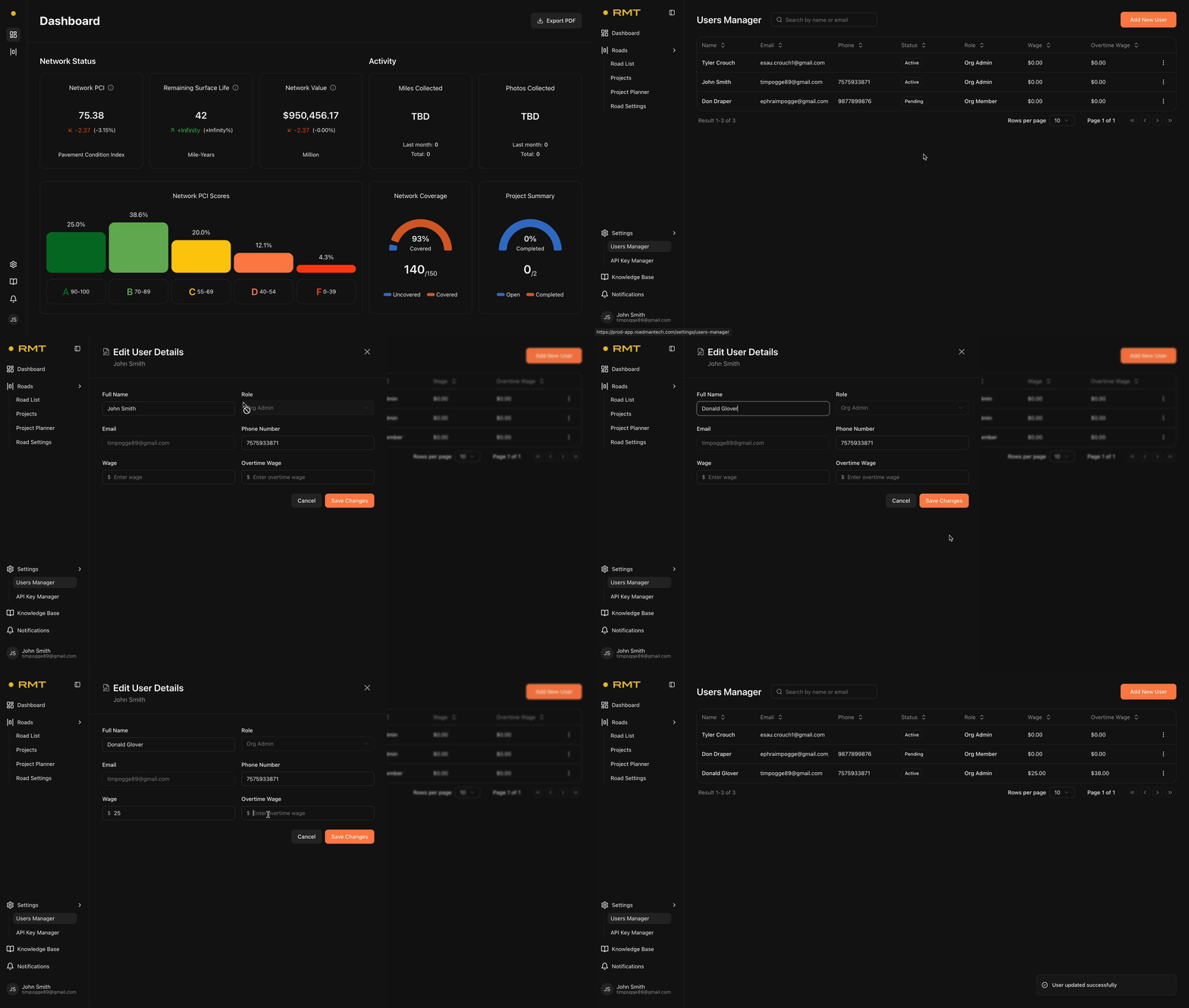
To update a user’s information: On the left-hand menu, hover over Settings.
- Click User Manager.
- Find the user you want to update. On the right-hand side, click the three vertical dots next to their name.
- Select Edit.
- A panel will appear where you can edit:
- Full Name
- Role
- Wage
- Overtime Wage
- Phone Number
- Click Save Changes when finished.
Deactivating Users
If a team member no longer needs access, you can deactivate their account.
- On the left-hand menu, hover over Settings.
- Click User Manager.
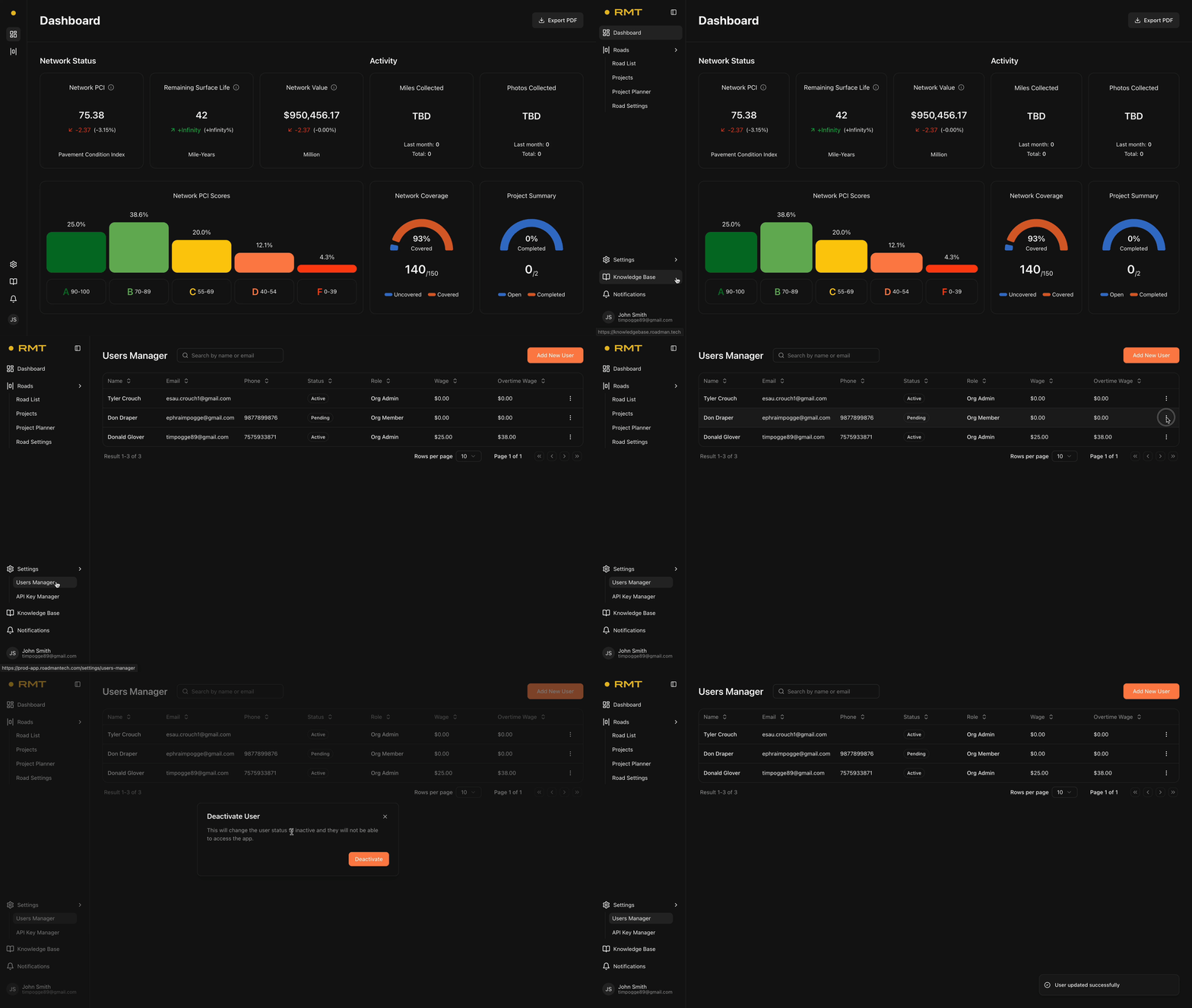
- Find the user you want to archive. On the right-hand side, click the three vertical dots next to their name.
- Select Deactivate.
- A confirmation message will appear. Click Delete to finalize.
Need Help?
If you need further assistance with user management, please contact the RMT Support Team. We’re here to help!