
Welcome to the help document for the "Settings" tab in the Road Slider tool. This guide will walk you through the different sections available in the Settings tab and provide instructions on customization.
Accessing the Settings Tab
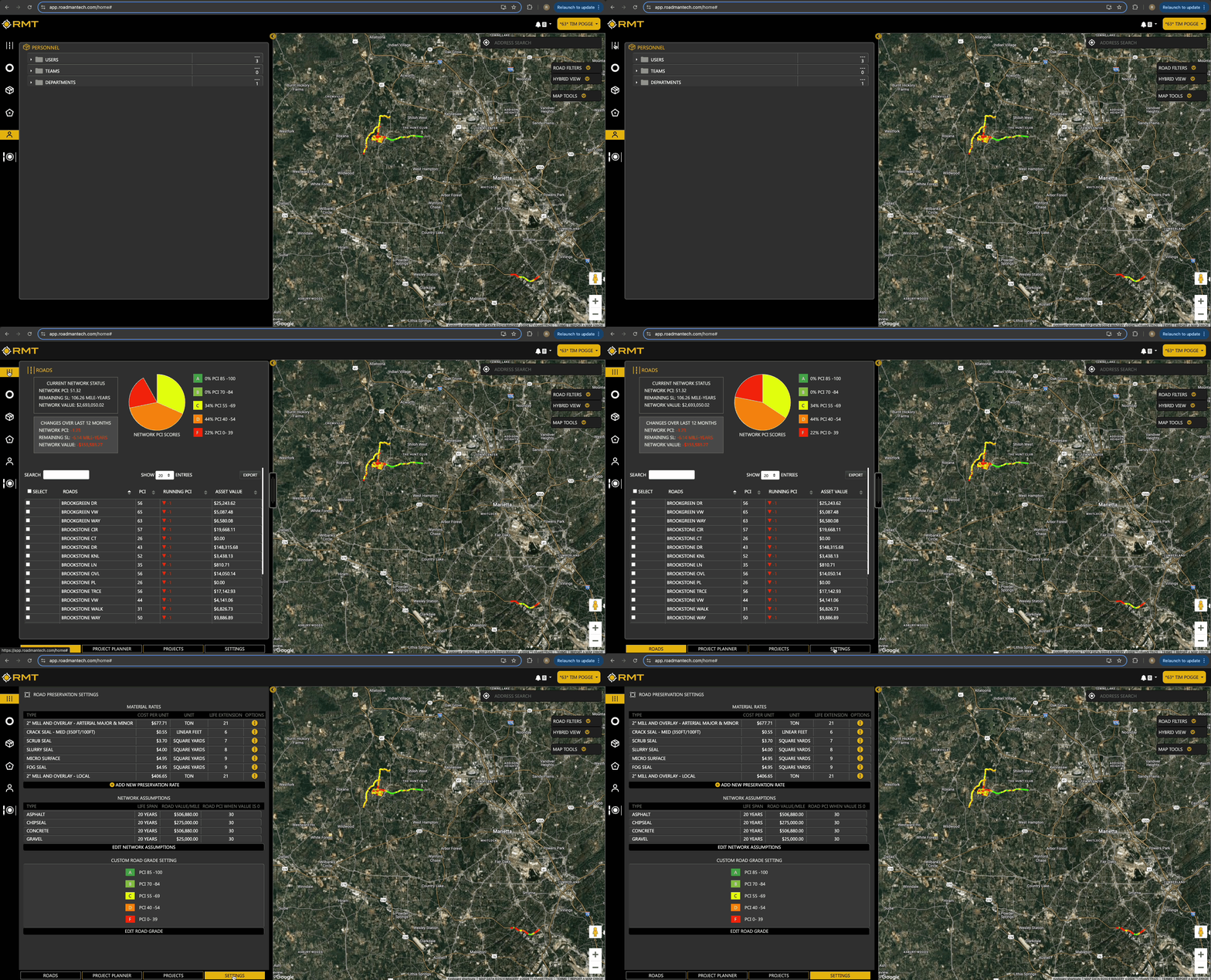
- Navigate to the Road Slider:
-
- Click the road icon located in the left-hand navigation bar.
- Open the Settings Tab:
-
- After the page loads, you will see a map view on the right-hand side and the Road Slider on the left-hand side.
-
- At the bottom of the Road Slider, you will find four options: Roads, Project Planner, Projects, and Settings. Click on "Settings".
Settings Overview
The Settings tab is divided into three main sections:
-
- Material Rates
-
- Network Assumptions
-
- Custom Road Grade Settings
Material Rates
This section allows you to set the unique costs associated with different road preservation types for your agency.
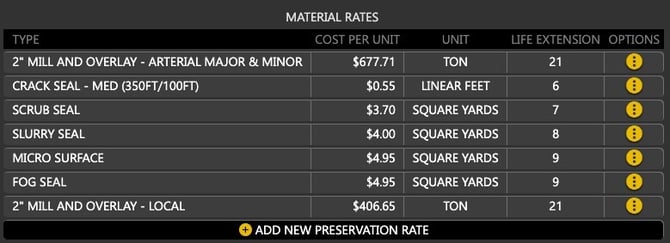
Table Columns:
- Type: The type of preservation method.
- Cost Per Unit: The cost associated with one unit of the preservation method.
- Unit: The measurement unit used (e.g., square yards).
- Life Extension: The number of years the preservation method extends the road's life.
Adding a New Preservation Rate:
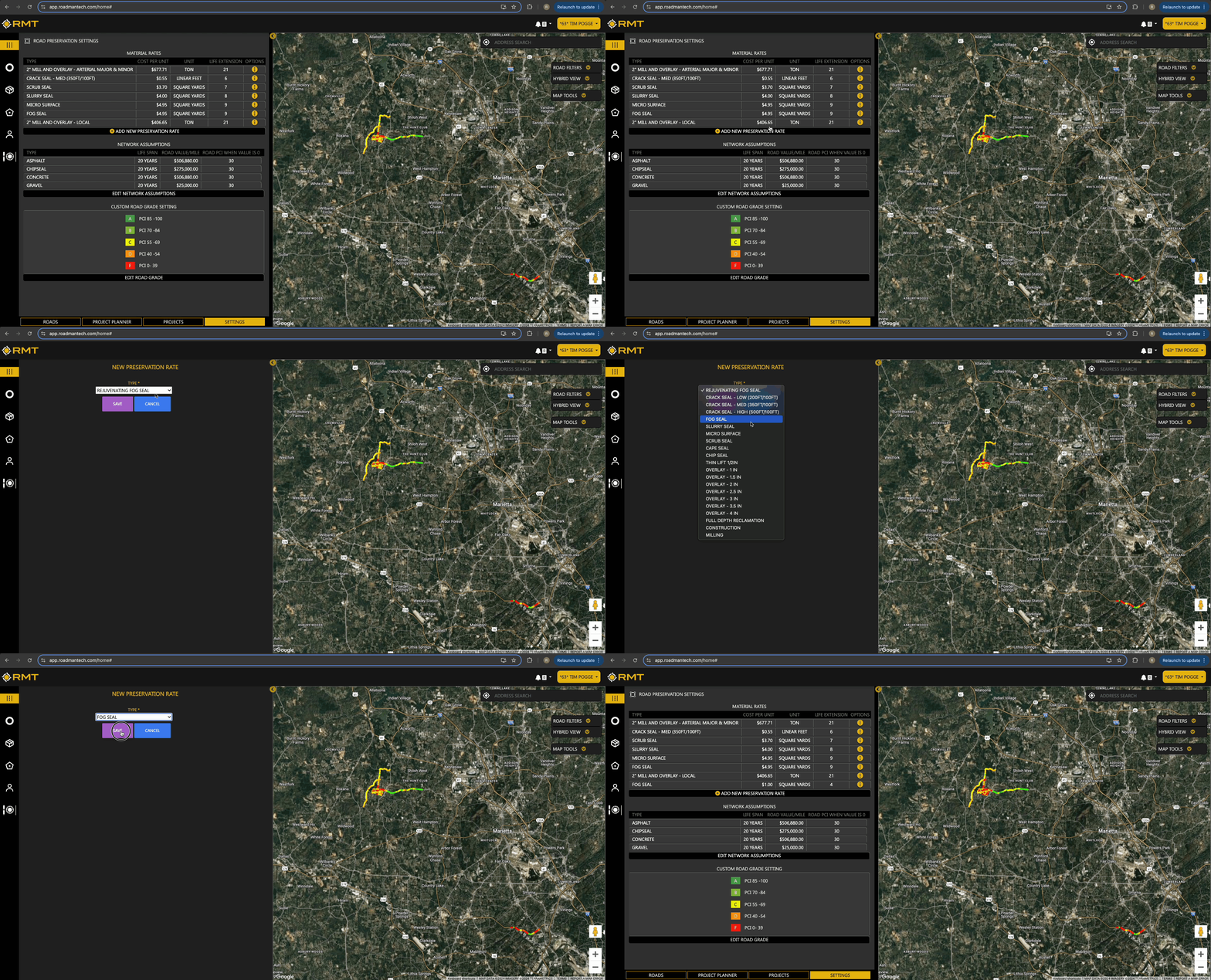
- Click "Add New Preservation Rate" at the bottom of the table.
- A dropdown menu will appear with options such as Rejuvenating Fog Seal, Crack Seal, Milling, etc.
- Select the desired Type and click "Save".
- The new preservation rate will be added to the bottom of the list.
Editing an Existing Preservation Rate:
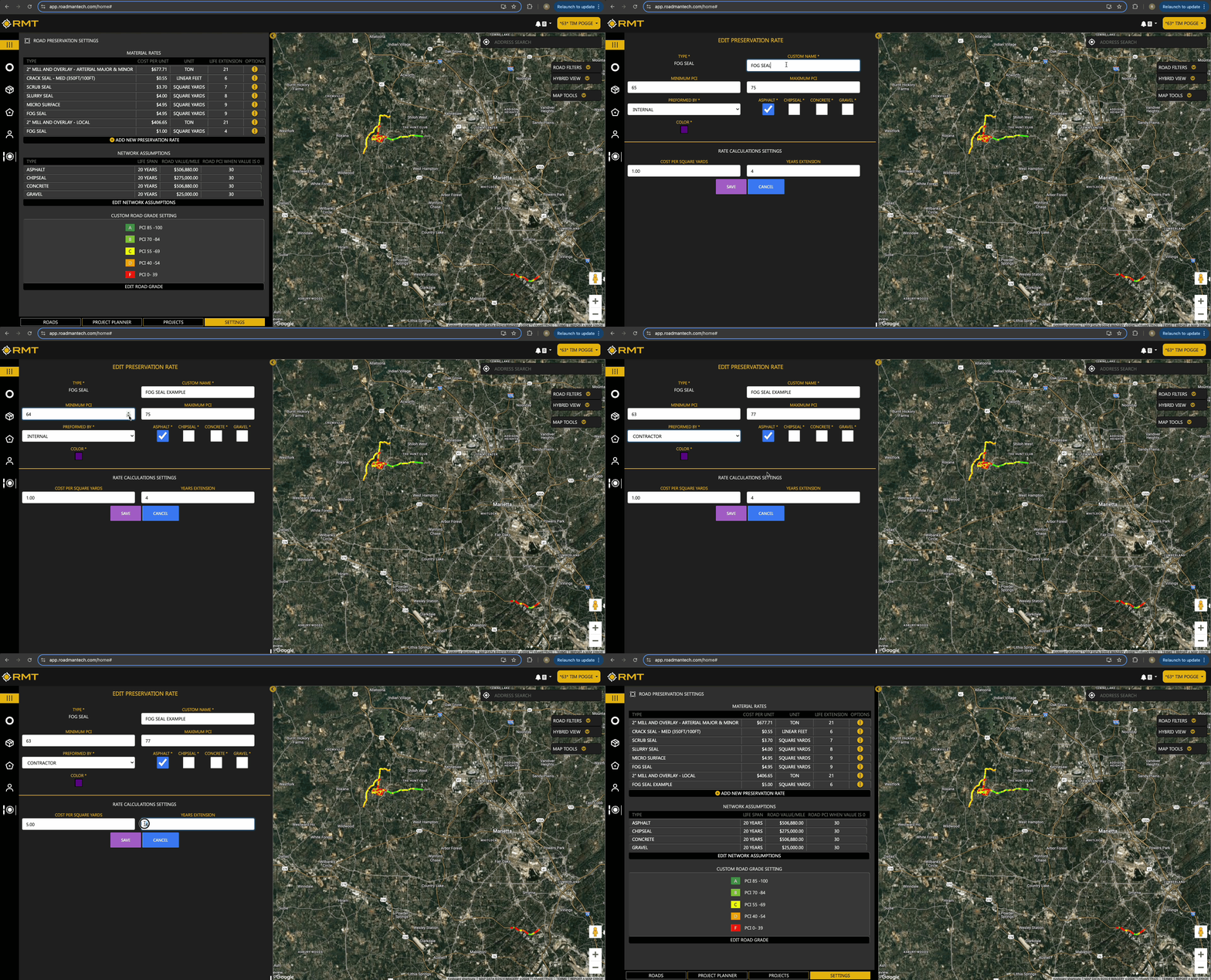
- Click the three vertical dots on the right-hand side of the preservation rate you want to edit.
- Choose "Edit".
- You can now customize:
- Name: The name of the preservation type.
- Minimum PCI: The minimum Pavement Condition Index for which this preservation method is suitable.
- Maximum PCI: The maximum PCI for this preservation method.
- Performed By: The entity or method performing the preservation.
- Surface Material Type: The type of surface material used.
- Cost Per Square Yard: The cost per square yard for the preservation.
- Years Extension: The number of years the preservation extends the road's life.
- You can now customize:
- Once you have finished editing, click "Save".
Network Assumptions
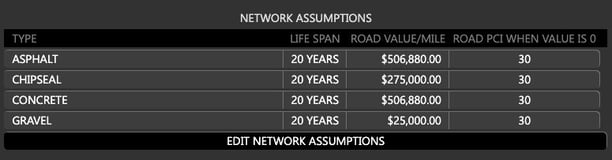
This section allows you to configure general network assumptions for your road management.
Table Columns:
- Type: The type of assumption (e.g., road type or category).
- Life Span: The expected lifespan of the road or road type.
- Road Value/Mile: The value assigned per mile of road.
- Road PCI When Value is 0: The PCI value considered when the road value is zero.
Editing Network Assumptions:
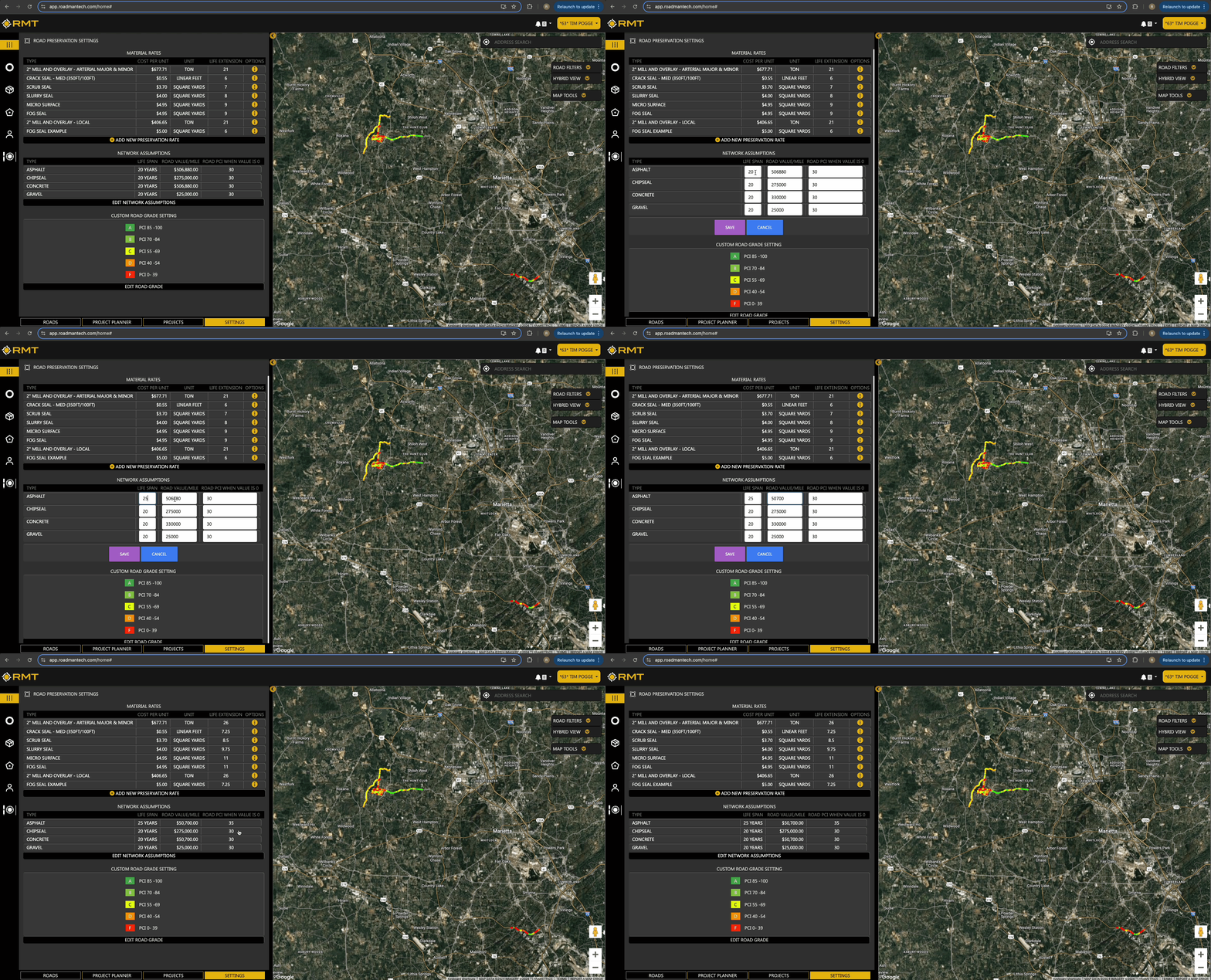
- Click "Edit Network Assumptions" at the bottom of the table.
- You can modify the following:
- Life Span: The expected life span for the road type.
- Road Value/Mile: Adjust the monetary value assigned per mile.
- Road PCI When Value is 0: Set the PCI value applicable when the road value is zero.
- You can modify the following:
- Once you have made your changes, click "Save".
Custom Road Grade Settings
This section allows you to customize the ranges for the road grading system based on the Pavement Condition Index (PCI).
Default Grades:
- 85 - 100 PCI: Grade A
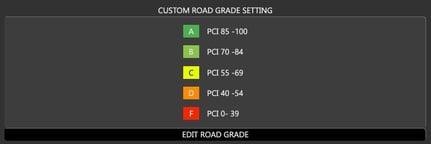
- 70 - 84 PCI: Grade B
- 55 - 69 PCI: Grade C
- 40 - 54 PCI: Grade D
- 0 - 39 PCI: Grade F
Editing Road Grades:
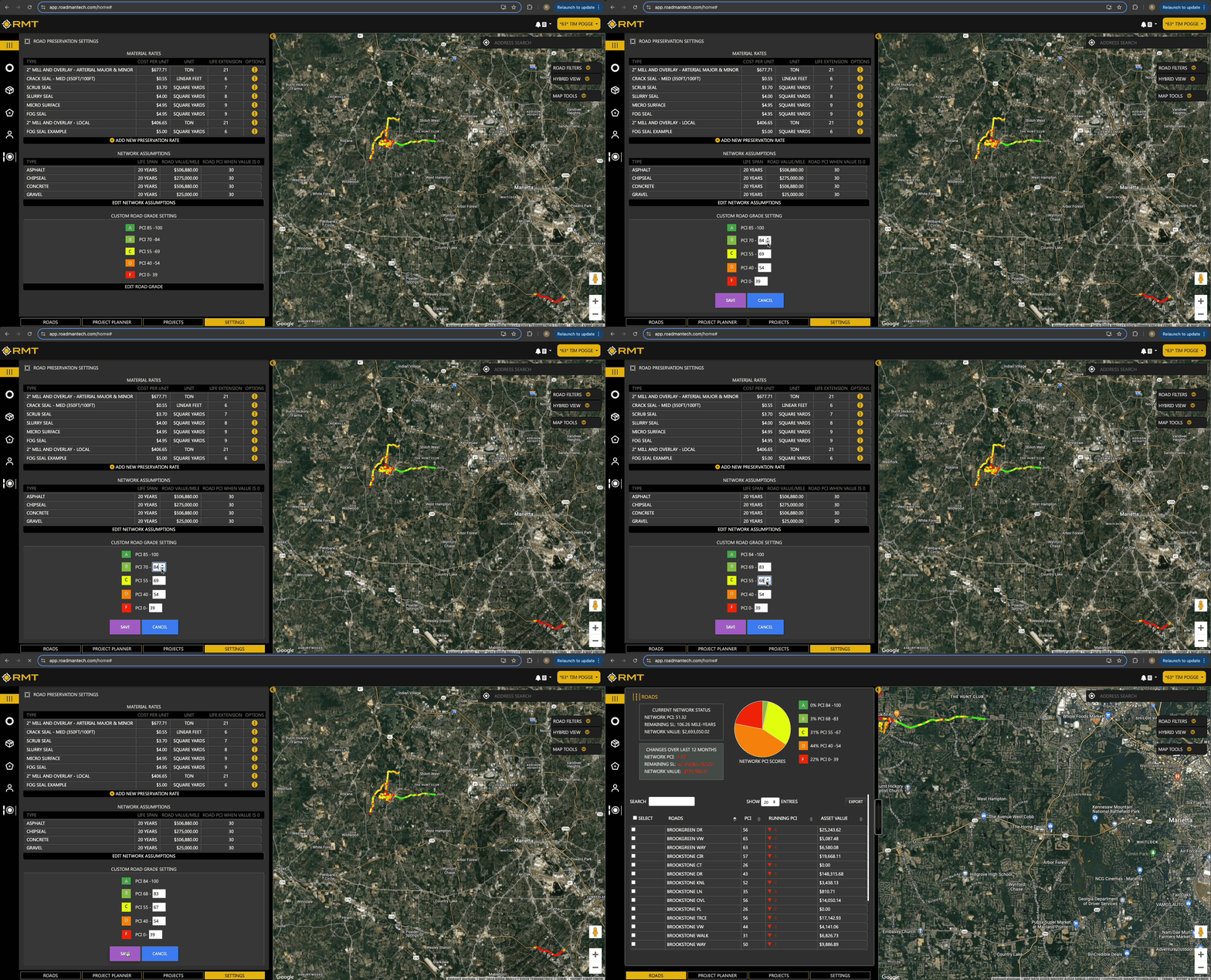
- Click "Edit Road Grade" at the bottom of the table.
- Customize the grading thresholds as per your requirements.
- Once you have set your desired grades, click "Save."
Summary
The Settings tab is a great tool for configuring your Road Slider tool to accurately reflect the cost and grading parameters specific to your pavement network and management needs. Follow the instructions in each section to ensure your settings are tailored to your operational requirements.
If you have further questions or need additional assistance, please contact support by emailing support@roadmantech.com