
Getting Started with the Road List Tab in RMT
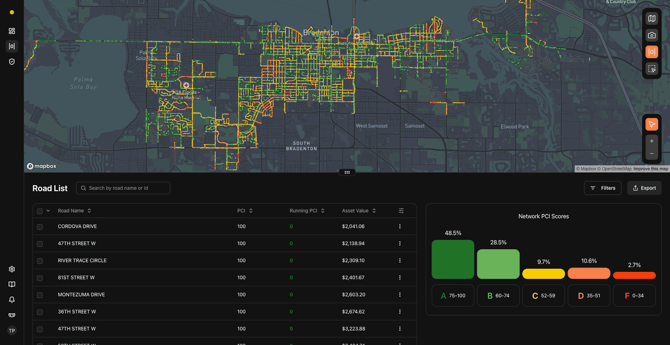
When you first log into the RMT application, you’ll land on the Roads List Tab—the hub where you can see your entire road network, review condition data, and dive into the details that drive smarter decision-making.
On this page, you’ll notice three key elements right away:
- A map of your agency’s road network.
- Your Roads List, a detailed table of road segment data.
- A Network PCI Score graphic, giving you a quick snapshot of overall condition.
This guide will help you not just click through the features, but really understand how to use them to get the most value from RMT.
Why the Roads List Tab Matters
Think of the Roads List Tab as your command center. The map gives you the big picture, the Roads List gives you the details, and the tools let you filter, zoom, and highlight what’s most important. Once you’re comfortable here, you’ll be set up to leverage RMT for planning, budgeting, and communicating with stakeholders.
Exploring the Map & Tools
The top half of the Roads List Tab is your road network map. It isn’t just a picture—it’s an interactive tool. Here are the key features you’ll want to know:
Color Coding
Every road segment is shaded by its PCI (Pavement Condition Index) score, so you can instantly see what’s in good shape and what needs attention.
Here’s how the colors break down:
- Good (Green): 85–100
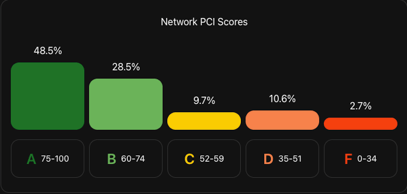
- Satisfactory (Light Green): 70–84
- Fair (Yellow): 55–69
- Poor (Orange): 40–54
- Failed (Red): 0–39
This simple visual coding means you don’t need to be a data scientist to understand your network’s health at a glance.
Note: We group “Very Poor,” “Serious,” and “Failed” into one category (red). That’s because once a PCI drops below 40, it’s effectively in the failure zone.
Note: You can customize the Road Grade Settings in the Roads Manager. Click here to learn more.
Map Layers
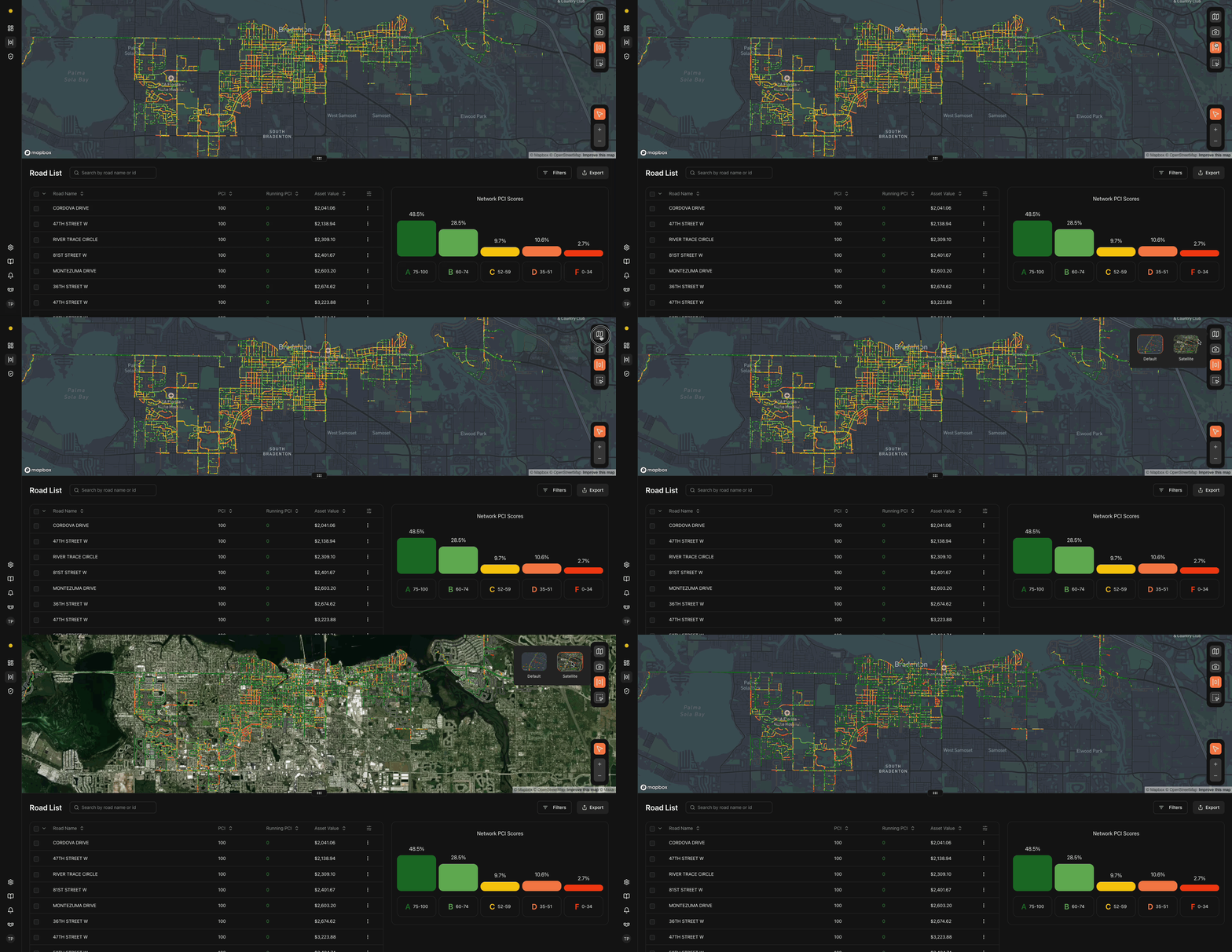
You can toggle between two map views:
- Default Map (like Google/Apple Maps)
- Satellite View (for aerial imagery)
To switch views:
- Hover over the Map icon.
- Choose Satellite or Default.
Road Photos
Did you know? Half of your fleet is equipped with cameras that automatically capture road photos every 75 feet. These photos are tied directly to your PCI scores and also help with manual inspections.
To access them:
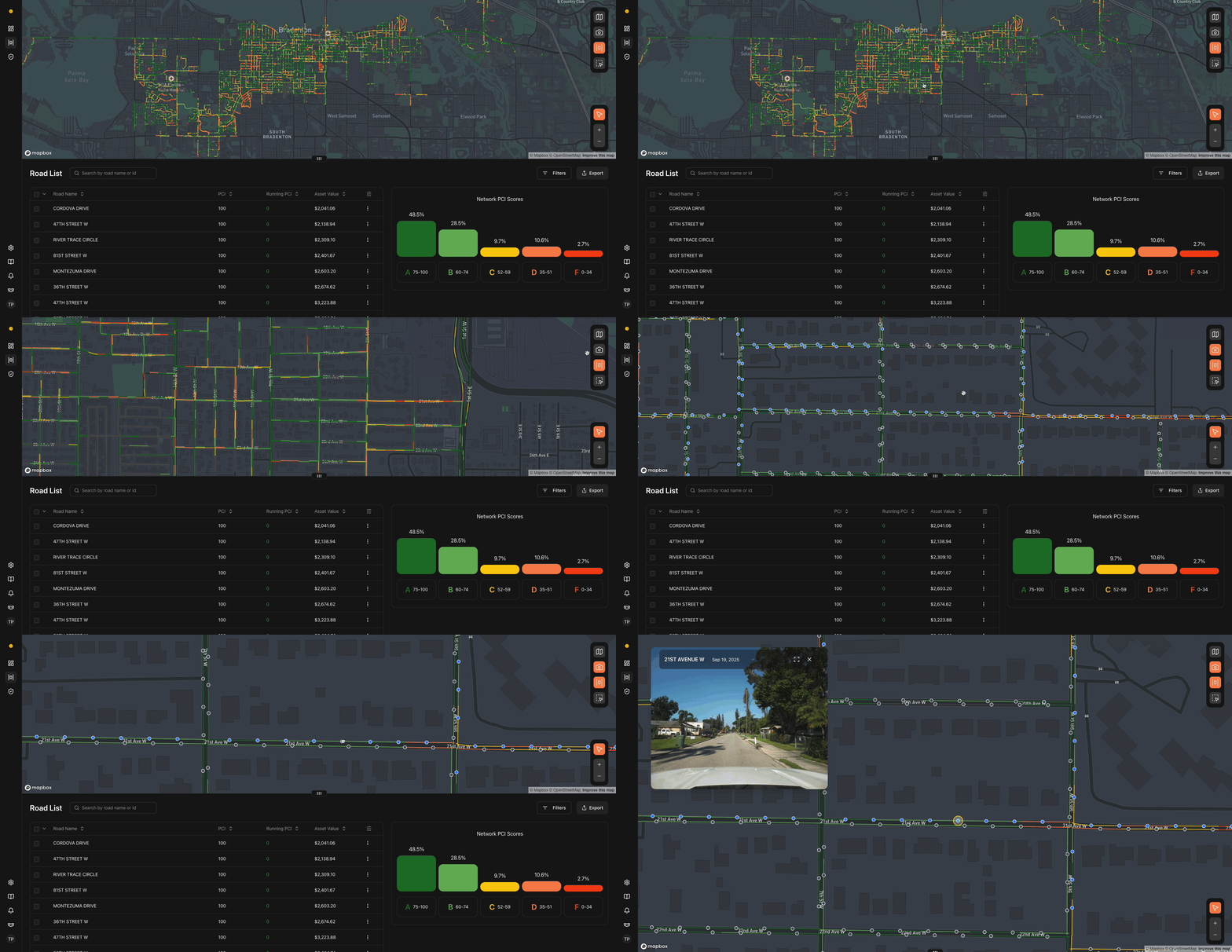
- Select the Camera icon (it turns orange when active).
- Zoom into your map—you’ll see dots along the roadways.
- Blue dots = photos available.
- Gray dots = not yet processed.
Click a blue dot to open a photo viewer with time-stamped images. You can even expand them fullscreen for closer inspection.
Drawing Tool
The Drawing Tool (pencil icon) lets you outline an area of interest on the map—helpful if you want to focus on a specific neighborhood or plan a project.
How it works:
- Under the Road Lane icon on the right hand side of the screen, click the square box icon with a cursor icon.
- Click points on the map to draw your shape.
- Double-click or click on the starting/origination point to finish.
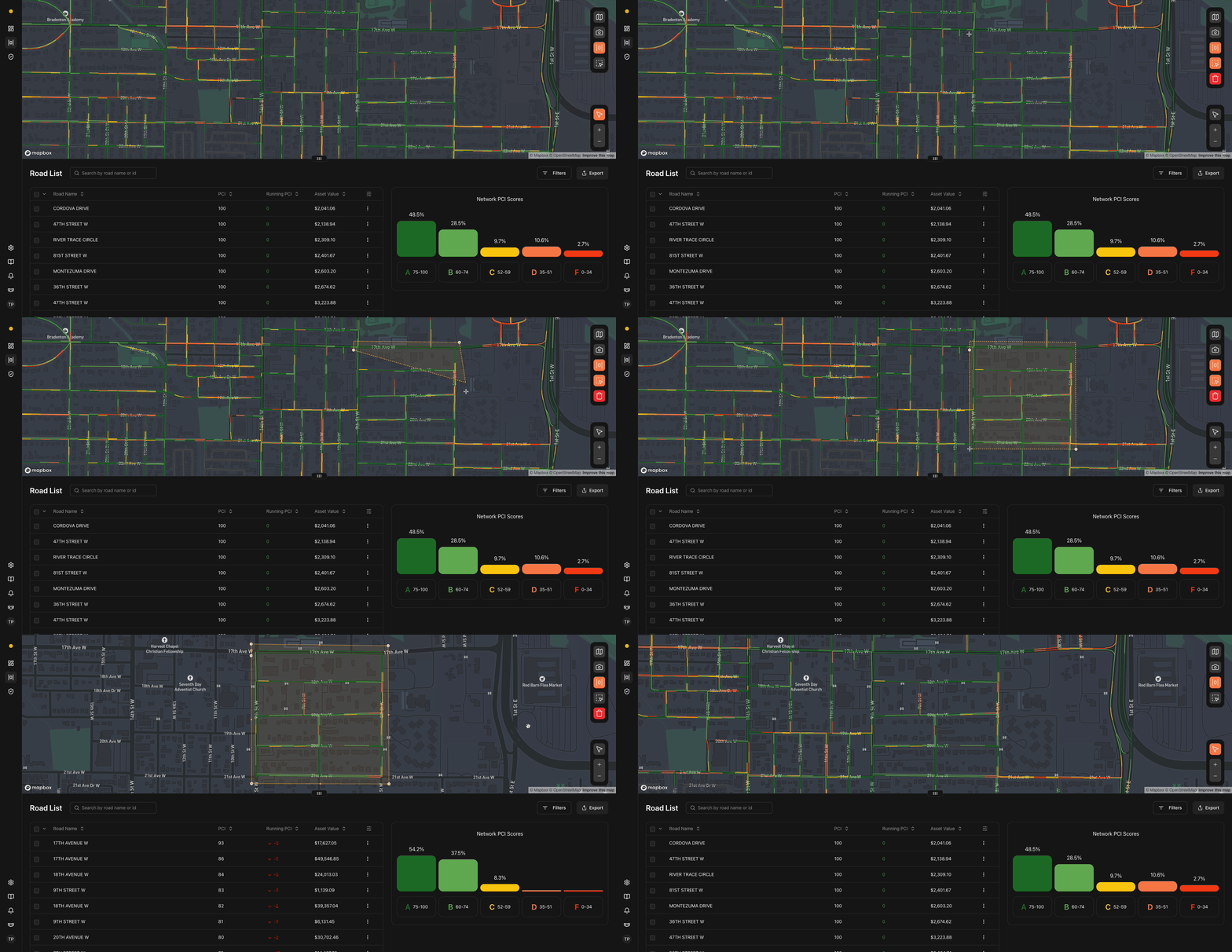
The map and Roads List will now show only the roads within your drawn boundary.
- Add more shapes by repeating the process.
- To delete a shape, click the trash can and confirm.
Zoom Tool
Zoom works just like any online map: 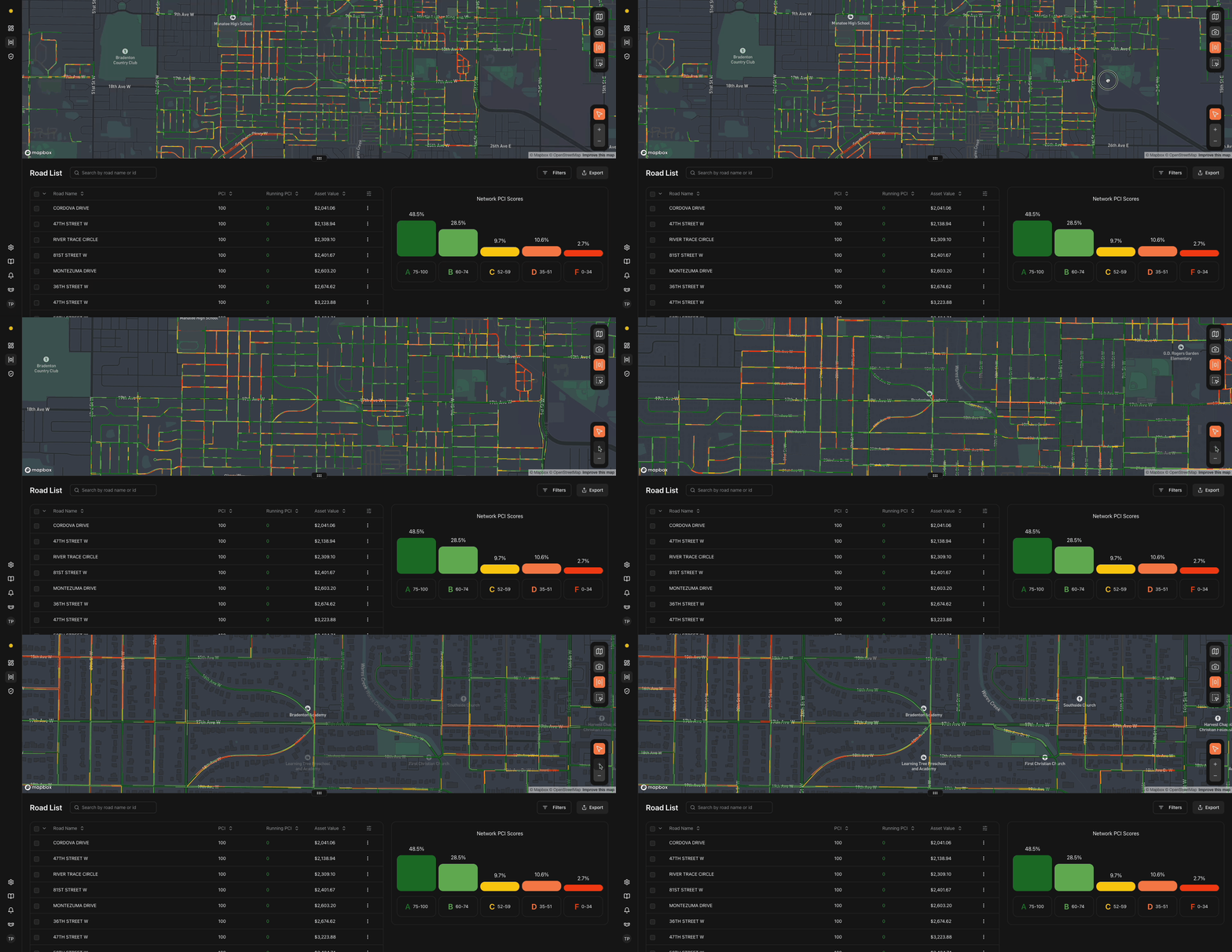
- Use the +/- buttons on the right side of the map.
- Or simply scroll with your mouse.
Zooming in helps when you want to see road photos, inspect PCI details, or make precise drawings.
The Roads List
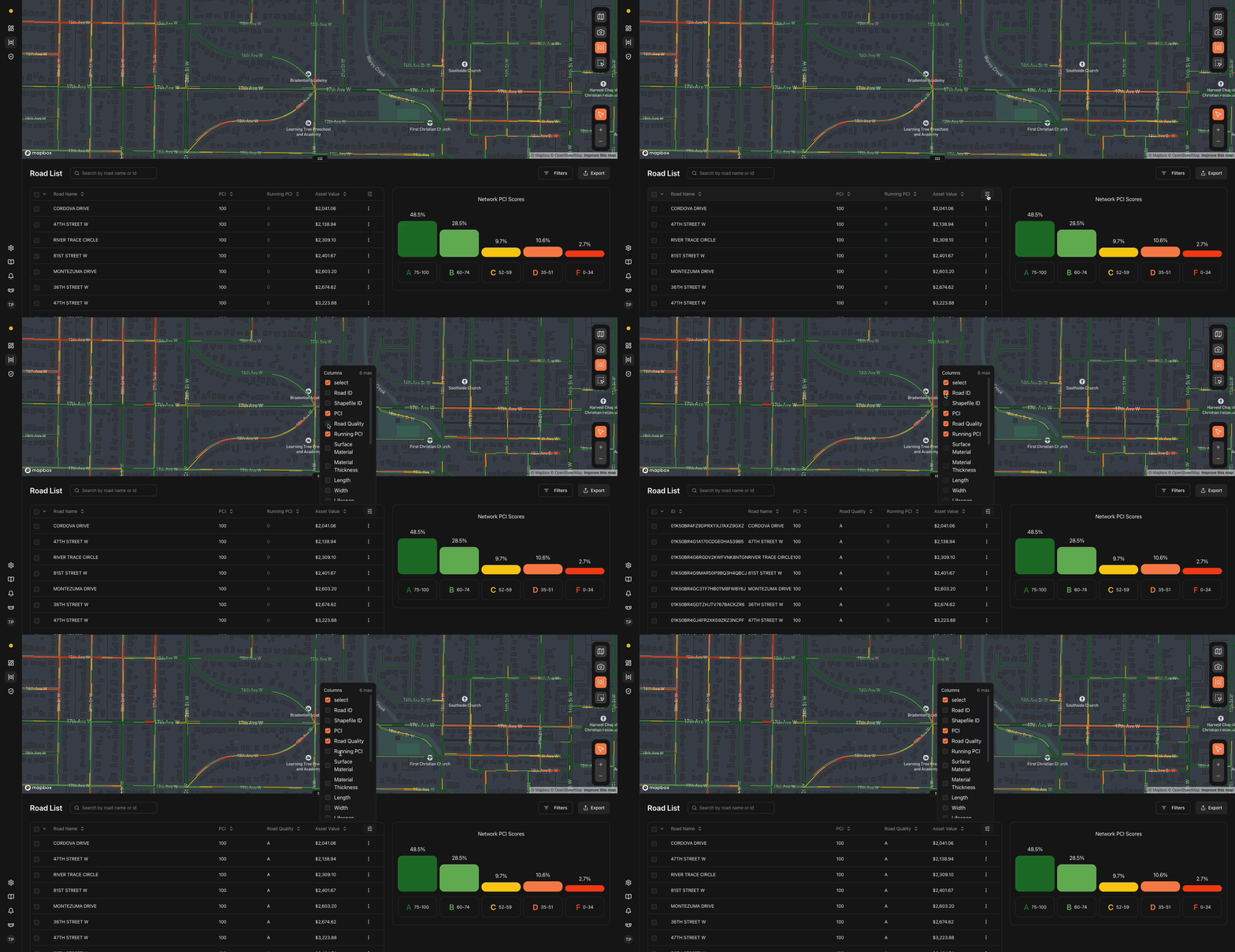
Below the map, you’ll find the Roads List—a table of all the road segments from your shapefile. This is where details come alive. By default, you’ll see:
- Road Name
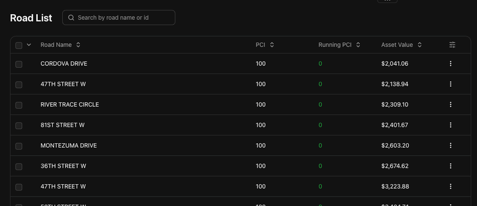
- PCI
- Running PCI
- Asset Value
But you can easily add more columns like Road ID, Quality, Remaining Life, Length, Width, Surface Material, and more.
To customize:
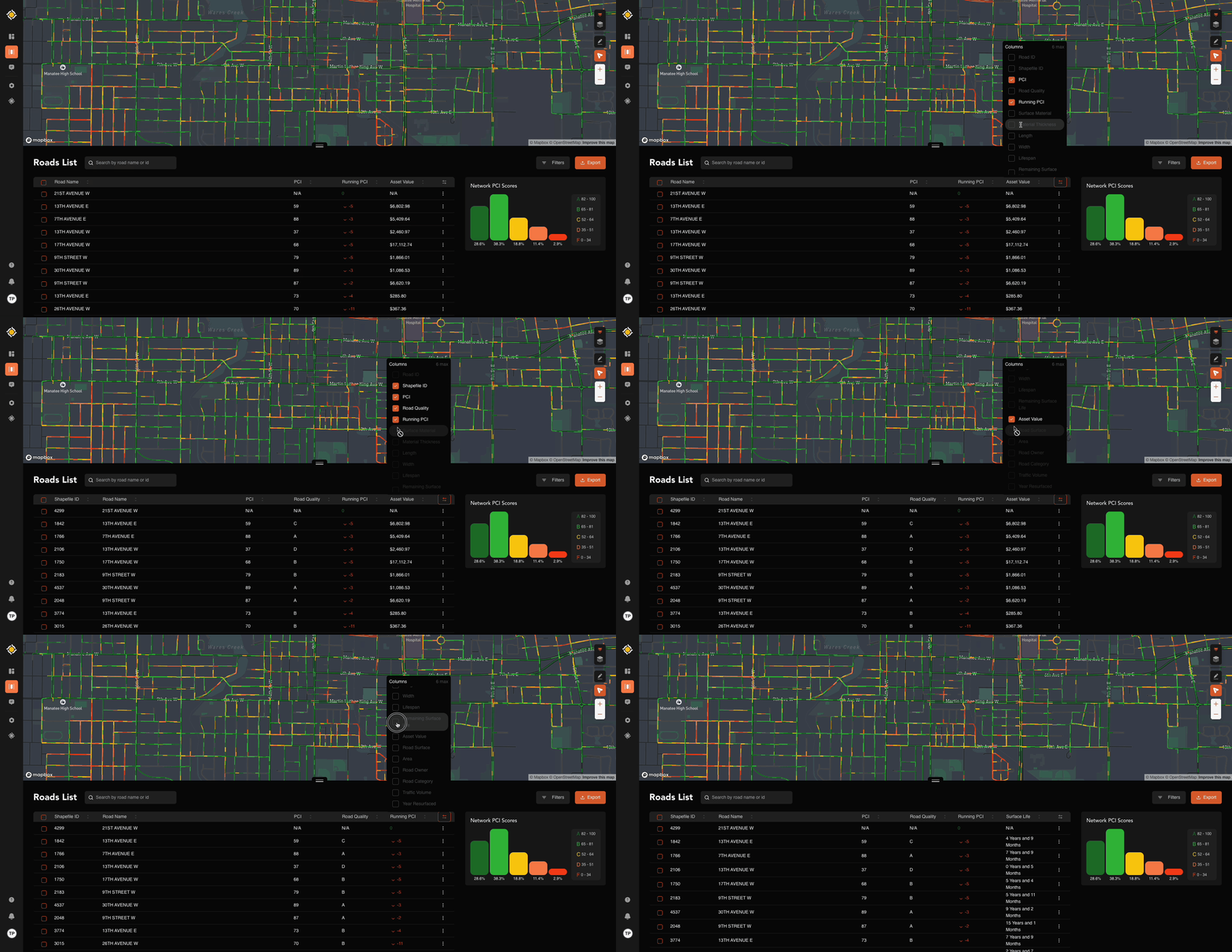
- Go to the far right of the table.
- Click the column visibility toggle.
- Check the boxes for the data you want.
Pro tip: Customizing the table helps you align RMT with your agency’s workflows. Want to focus on lifespan? Turn that column on. Need to track by ownership? Add Road Owner.
Filters
Filters help you cut through the noise and zero in on what matters. You’ll find them under the Filters option on the right side of the screen.
Available filters include:
- PCI Score: Show only roads in specific condition ranges.
- Surface: Paved vs. unpaved.
- Material: Asphalt, Chipseal, Concrete, or Gravel (with adjustable thickness).
Using filters lets you quickly generate views that answer practical questions like:
- Which roads are below a PCI of 55?
- Where are our unpaved roads?
- How much of our asphalt network is nearing end of life?
Wrapping Up
The Roads List Tab isn’t just a map—it’s a decision-making tool. By learning how to navigate the map, toggle layers, view photos, draw focus areas, and customize your Roads List, you’ll be able to:
- Clearly understand the state of your network.
- Identify priority projects.
- Communicate needs with data and visuals.
Master this tab, and you’ll be ready to unlock the full power of RMT.
Need Help?
If you have questions, need clarification, or want a walkthrough — don’t hesitate to reach out! Our Support Team is here to help you get the most out of Roadway Management Technologies.
Contact RMT Support for assistance at any time.