
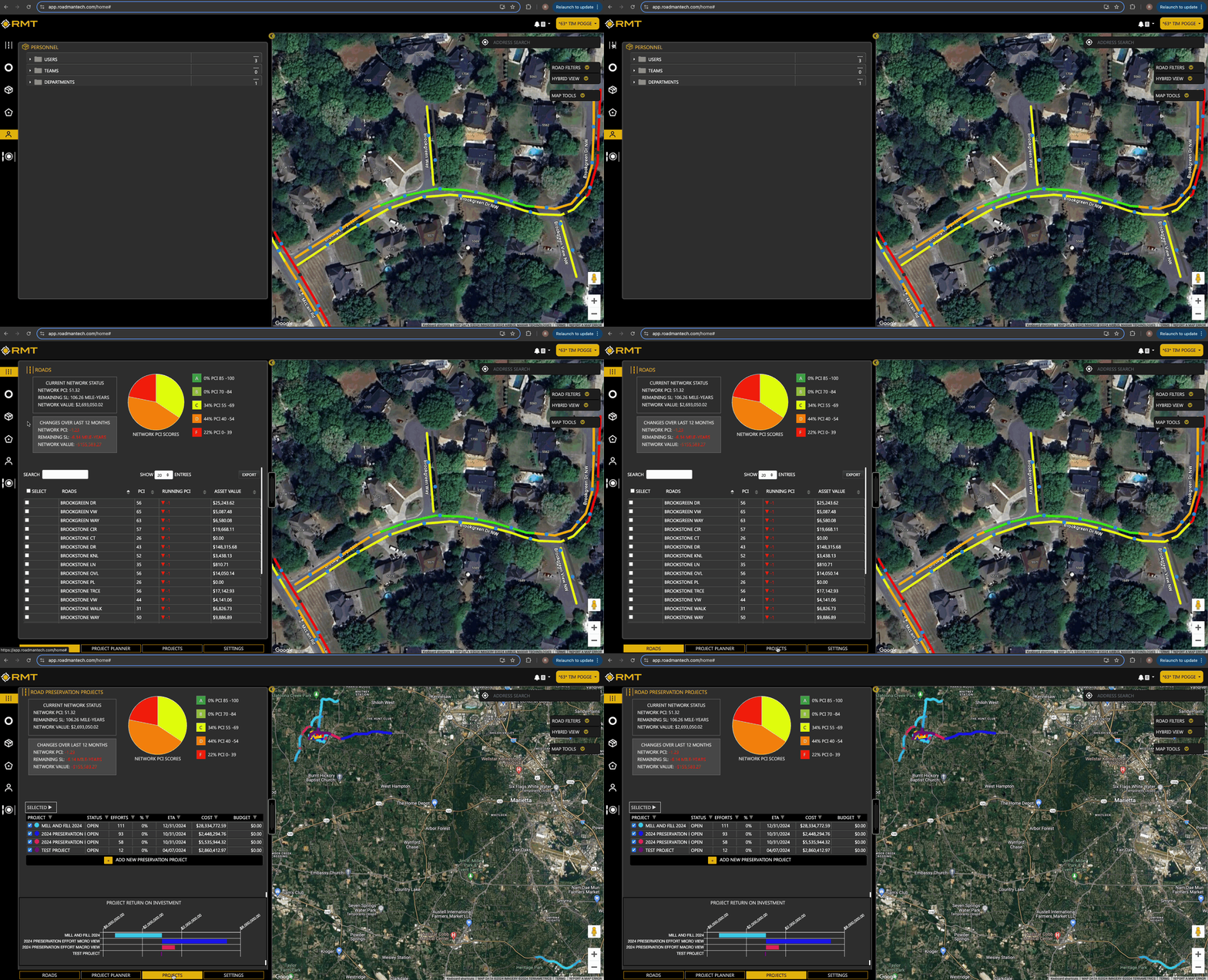
Welcome to the Road Tab help document. This section will guide you through use of the Projects tab within the Road Slider module.
Navigating to the Road Slider
- Locate the Road Icon:
- On the left-hand side of your screen, you will see an icon that resembles a road.
- Open the Slider:
- Click on this road icon to launch the slider on the left side of your screen. A map view will also appear on the right-hand side of your screen.
- Access the Projects Tab:
- Within the slider at the bottom of the screen, you will find four tabs. Click on the third tab, labeled Projects, to access the project management section.
Understanding the Projects Tab
Once you have navigated to the Projects tab, you will find several icons, options, and pieces of information designed to help you manage your paving and preservation projects efficiently.
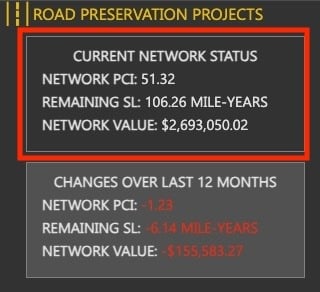
Current Network Status Table
- Location: Top left-hand side of the screen.
- Includes:
-
- Network PCI: The current Pavement Condition Index (PCI) for the entire network.
-
- Remaining SL: The Remaining Service Life of the network (e.g. remaining mile years left across the roads in your network in their current condition).
-
- Network Value: The total asset value of your network .
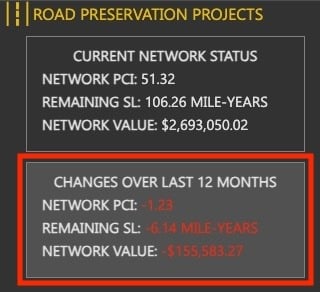
Changes Over the Last Twelve Months
- Location: Directly below the Current Network Status table.
- Includes:
-
- Network PCI: Changes in PCI over the past year.
-
- Remaining SL: Changes in remaining Service Life over the past year.
-
- Network Value: Changes in network value over the past year.
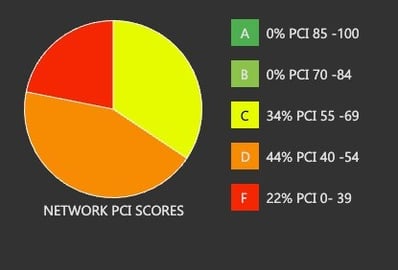
Network PCI Scores Pie Chart
- Location: To the right of the Current Network Status and Changes tables.
- Purpose: This pie chart displays the distribution of road conditions in your network based on PCI score:
-
- A Grade (85 - 100 PCI)
-
- B Grade (70 - 84 PCI)
-
- C Grade (55 - 69 PCI)
-
- D Grade (40 - 54 PCI)
-
- F Grade (0 - 39 PCI)
Note: These ranges can be customized for your network.
Current Projects Table
- Location: Below the Network PCI Scores pie chart.
- Columns Include:
-
- Project: The name of the project.
-
- Status: Current status of the project.
-
- Efforts: Number of roads assigned to the project.
-
- % Completed: Percentage of project completion.
-
- ETA: Estimated date the project will be completed
-
- Cost: Total cost of the project.
-
- Budget: Allocated budget for the project.
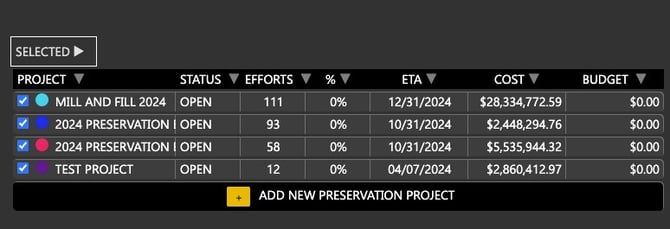
Note: Clicking on the project name will open a detailed window with more information.
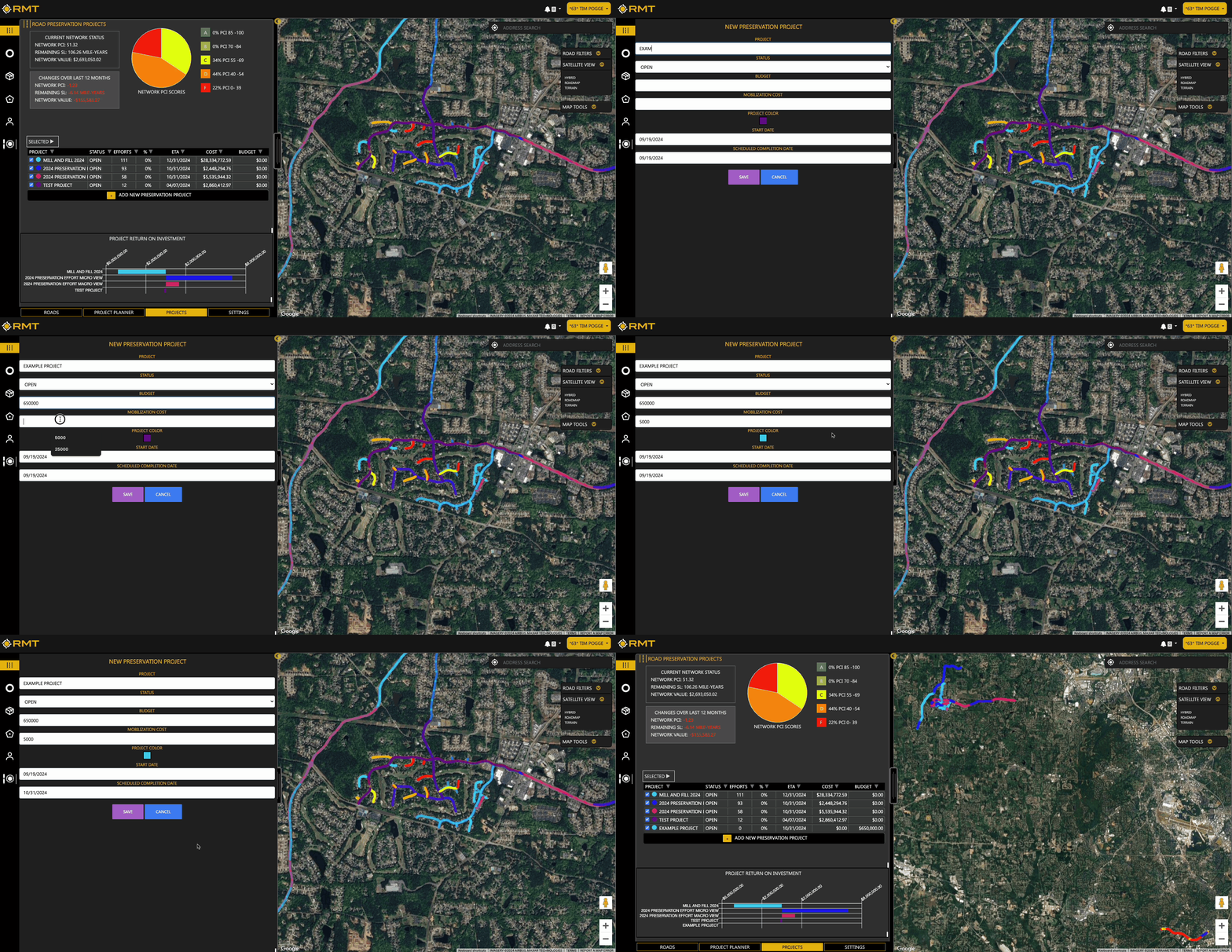
Adding a New Project
- Click the “+” Button:
- Find and click the + Add New Preservation Project button in the middle of the left hand side of your screen.
- Fill Out the Form
- Fields:
- Project Name
- Status
- Budget
- Mobilization Cost (not required and $0 is acceptable)
- Project Color
- Start Date
- Scheduled Completion Date
- Fields:
- Submit the Form:
- After filling out the required fields, submit the form to add the new project to your list.
Detailed Project Information
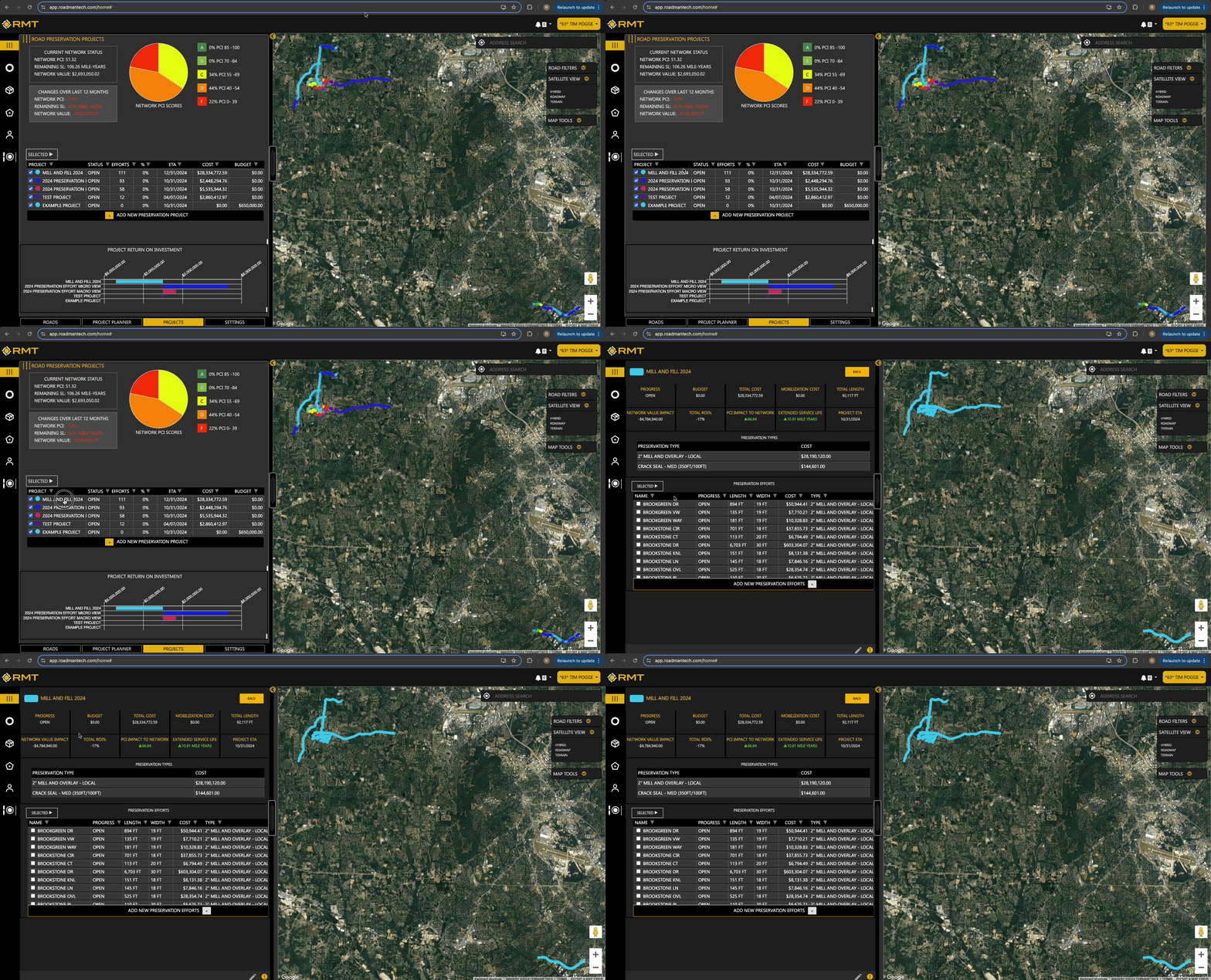
To view Detailed Project Information, click on the desired Project. This will then load a window that includes the following:
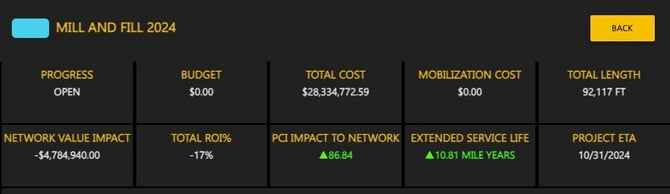
- Detailed Project Information Table Overview:
-
- Progress: The current stage of the project relative to the planned schedule and milestones.
-
- Budget: The allocated financial plan or amount set aside for the project at the outset.
-
- Total Cost: The cumulative expenses incurred throughout the project, including construction, materials, labor, and overhead.
-
- Mobilization Costs: Expenses related to preparing and setting up for the project, such as equipment, labor, and site preparation.
-
- Total Length: The full length of the road being constructed, measured in feet.
-
- Network Value Impact: The effect the new or improved road will have on the overall value and efficiency of the road network.
-
- Total ROI% (Return on Investment): A metric indicating the value added to the road compared to the amount invested in it.
-
- PCI Impact to Network (Pavement Condition Index): The effect of the project on the Pavement Condition Index, which assesses the condition and quality of the pavement in the road network.
-
- Extended Service Life: The additional number of years or extended duration that the road is expected to remain functional and in good condition due to the construction efforts.
-
- Project ETA (Estimated Time of Arrival): The estimated date for completion of the project.
Preservation Types Table
- Location: Located below the detailed project information.
- Columns Include:
-
- Preservation Type: Type of preservation or reconstruction performed.
-
- Cost: Associated cost for each preservation type.

Preservation Efforts Table
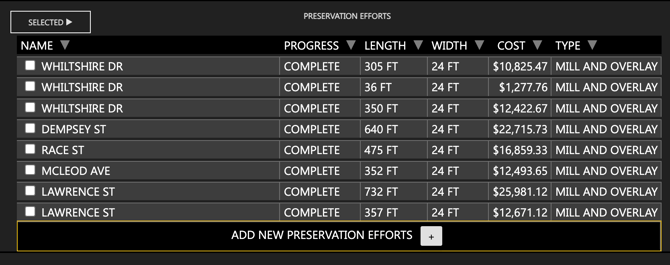
The Preservation Efforts table is a comprehensive list of all road segments that are included in that specific project. It provides detailed information on every segment of the road network that is being worked on, allowing users to track and manage each segment's progress and status. This table is essential for understanding the scope and scale of the project, as it breaks down the preservation efforts into manageable parts, ensuring that every road segment receives the attention and resources needed for effective maintenance and reconstruction. Additionally, it helps in planning and allocating budgets accurately, monitoring costs, and assessing the overall impact of preservation activities on the road network.
- Location: Bottom of the project window.
- Columns Include:
-
- Name: Name of the road or effort.
-
- Progress: Current progress of the preservation effort.
-
- Length: Length of the road being preserved.
-
- Width: Width of the road.
-
- Cost: Cost of the preservation effort.
-
- Preservation Type: Type of preservation or reconstruction being applied.
Directly above the Preservation Efforts table there's a "Selected" button. Clicking this button will present a number of options. Options include:
-
- Check All
- Uncheck All
- Set Status: Open
- Set Status: In-Progress
- Set Status: Complete
- Remove Preservation Efforts
- Export to Excel
Adding New Preservation Efforts:
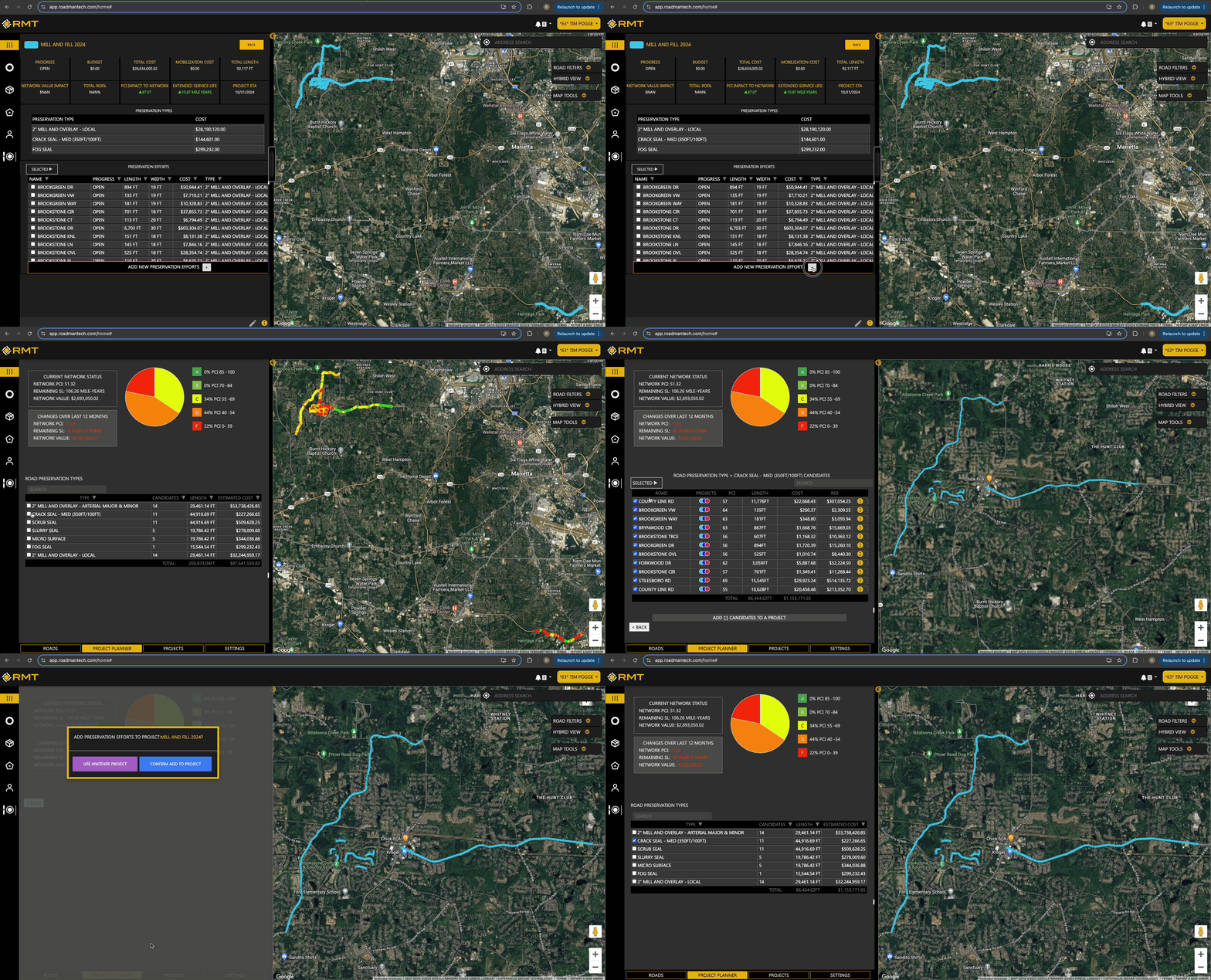
- Click the + Button:
- At the bottom of the Preservation Efforts table, click the + button.
- Select Preservation Type:
- Choose from the list of Road Preservation Types you have created within your account.
- Add Candidates:
- A new page will load with available candidates for the selected Preservation Type. Select the roads you want to add and then click Add Candidates to a Project.
For additional help or questions, please contact us at support@roadmantech.com!