
Overview
The Tags Manager page allows you to organize and categorize different items in your system using tags. Tags are simple yet powerful tools that make it easier to group, search, and filter data, improving workflow visibility and consistency across projects or tasks.
Why Tags Are Useful
Tags provide a flexible way to manage and track information across multiple records.
They help:
- Categorize tasks or materials for quicker retrieval.
- Standardize naming across teams (e.g., “Drainage/Water,” “Pothole Repair”).
- Improve reporting and filtering - you can filter tasks by tag type, creator, or date.
- Enhance collaboration by allowing multiple team members to work under common themes or categories.
Example Use Case:
If your team handles public works maintenance, you might use tags like “Trees,” “Mailboxes,” “Drainage/Water,” or “Pothole Repair” to categorize each work request. Later, you can easily filter or report on all tasks tagged under “Drainage/Water” to capture all related tasks for that type of request.
Page Features
Search Bar: Located at the top, this allows you to quickly find existing tags by name.
Filters Button: Use this to narrow your view based on specific criteria, such as tag type or creator.
Add New Tag: Click the Add New Tag button to create a new tag entry. A new row will be added to the top of the table. You’ll be prompted to update the name of the tag as well as “Type.” Once completed, click the checkbox on the right hand side of the screen to save.
Note: There are two types of tags within RMT’s Work Order Management application. The Task tag ties tasks together and should be thought of as a tool to better organize your tasks. An example of a Task tag would be “culvert” versus a “mowing” task. The Material Tag is the other option. This is a way to tie the various materials your agency has on hand together.
Tags Table Breakdown
The table lists all existing tags and includes the following key columns:
|
Column |
Description |
|
Name |
The label or title of the tag (e.g., “Drainage/Water”, “Trees”). |
|
Type |
The category or context of the tag, there are two options: Task and Material. |
|
Created By |
Displays who created the tag, providing accountability and clarity across team members. |
|
Date Created |
Shows when the tag was first added, helping track tag lifecycle or recent updates. |
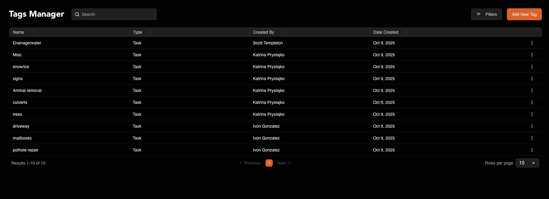
At the bottom, pagination controls allow you to browse through multiple pages of tags and adjust the number of rows displayed per page.
Summary
The Tags Manager centralizes how you create, view, and maintain your organization’s tagging system. By using consistent tags, teams can streamline task tracking, reduce duplication, and enhance reporting accuracy — keeping your data both clean and actionable.