
Welcome to the User Management Guide for Roadway Management Technologies. This document will walk you through the essential steps needed to efficiently add new team members to the system as well as editing existing members. By following these instructions, you can ensure a smooth setup process for each new user.
Creating New Users
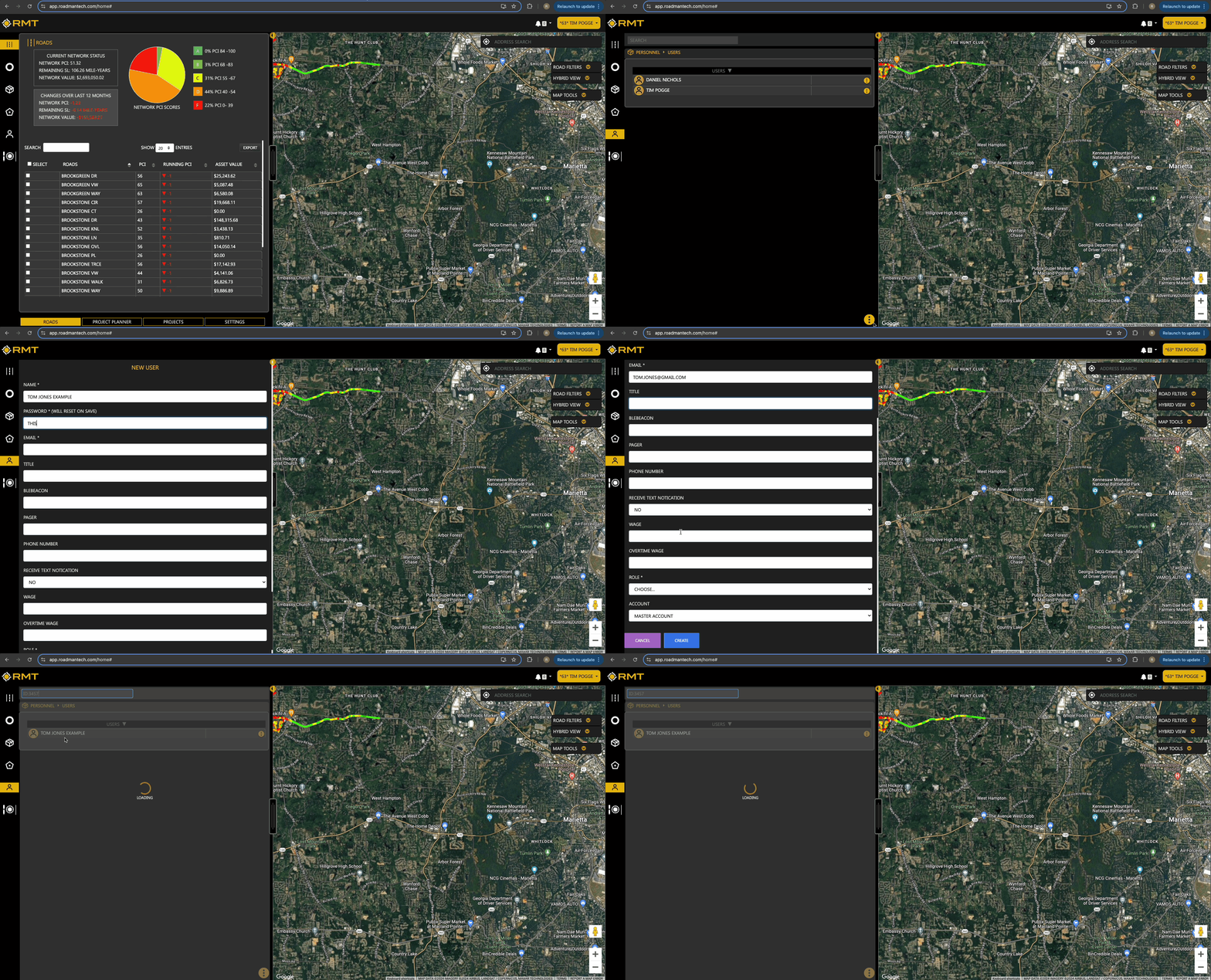
To create a new user in RMT, follow these steps:- Open User Management
- On the left-hand side of the screen, click the Person Icon.
- Select and Open the Users Folder
- Initiate New User Creation
- Click the three vertical dots in the middle and on the bottom of your screen. From the dropdown menu, select "New User".
- Fill in User Details
- You will be prompted to fill out the new user form. The following fields are required, indicated by an asterisk:
- Name
- Password
- Role
- Additionally, you can provide optional information in the following fields:
- Title
- Pager
- Phone Number
- SMS Opt-In
- Wage
- Overtime Wage
- You will be prompted to fill out the new user form. The following fields are required, indicated by an asterisk:
- Create the User:
- Once you have entered all the necessary information, click the "Create" button at the bottom of the page to finalize the creation of the new user.
Updating Existing Users
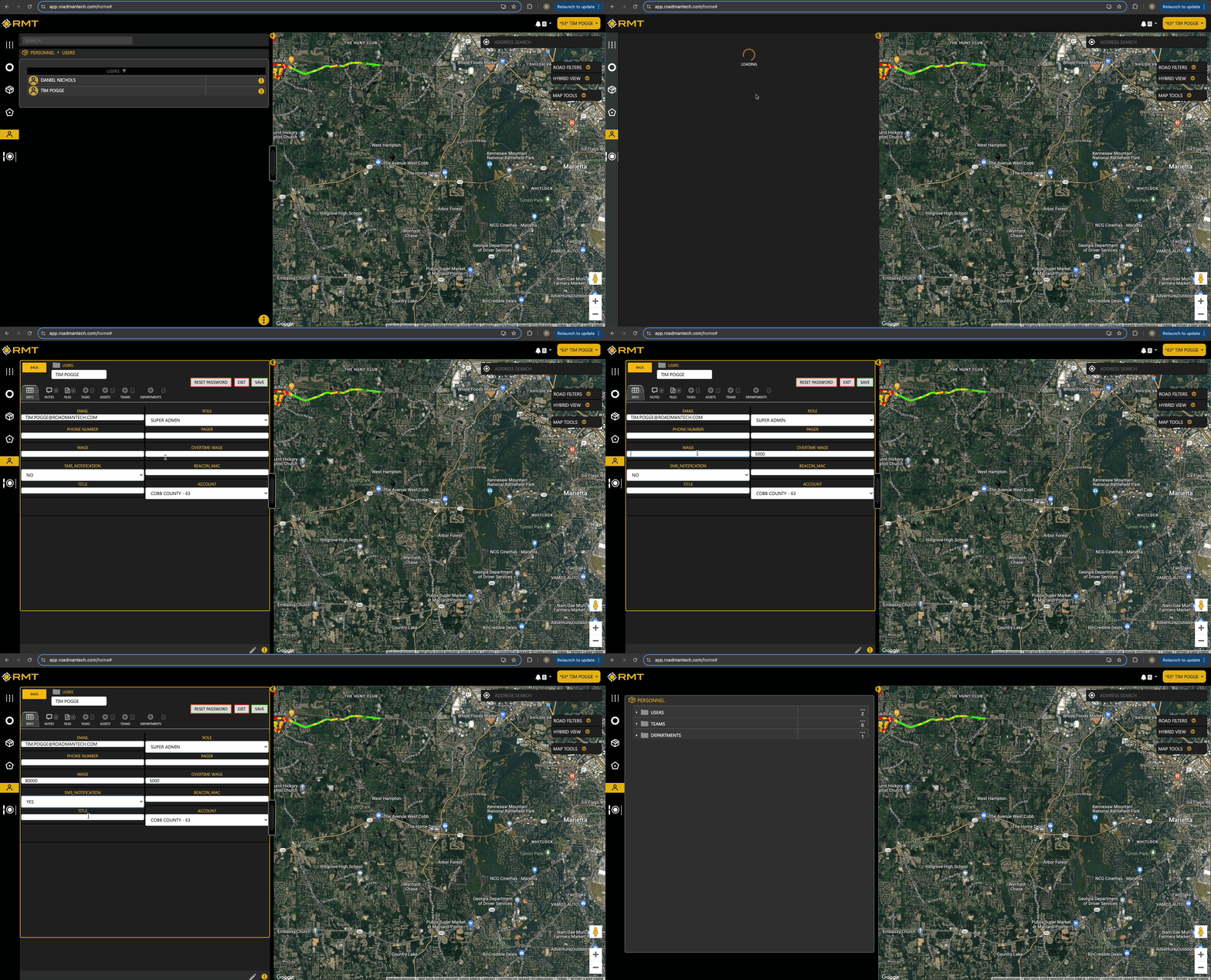
To update the information for an existing user, follow these steps:
- Open User Management
- On the right-hand side of the screen, find the user whose details you want to update.
- Access User Options
- Click the three vertical dots next to the user’s name. You will see two options: "Edit User" and "Archive User".
- Edit User Information
- Click "Edit User". You will be directed to a page with seven tabs across the top for editing various aspects of the user’s profile.
- Info Tab: Edit user details including email, phone number, wage, SMS Opt-In, Title, Role, Pager, Overtime Wage, and Beacon Mac.
- Notes Tab: Review and edit notes associated with the user.
- Files Tab: View and edit files uploaded by the user.
- Tasks Tab: Review and edit tasks assigned to the user.
- Assets Tab: Manage assets assigned to the user.
- Team Tab: Edit the team the user is part of.
- Department Tab: Update the department to which the user belongs.
- Click "Edit User". You will be directed to a page with seven tabs across the top for editing various aspects of the user’s profile.
- Save Changes
- After making the necessary updates, click the "Save" option at the top of the page to apply your changes.
Archiving Users
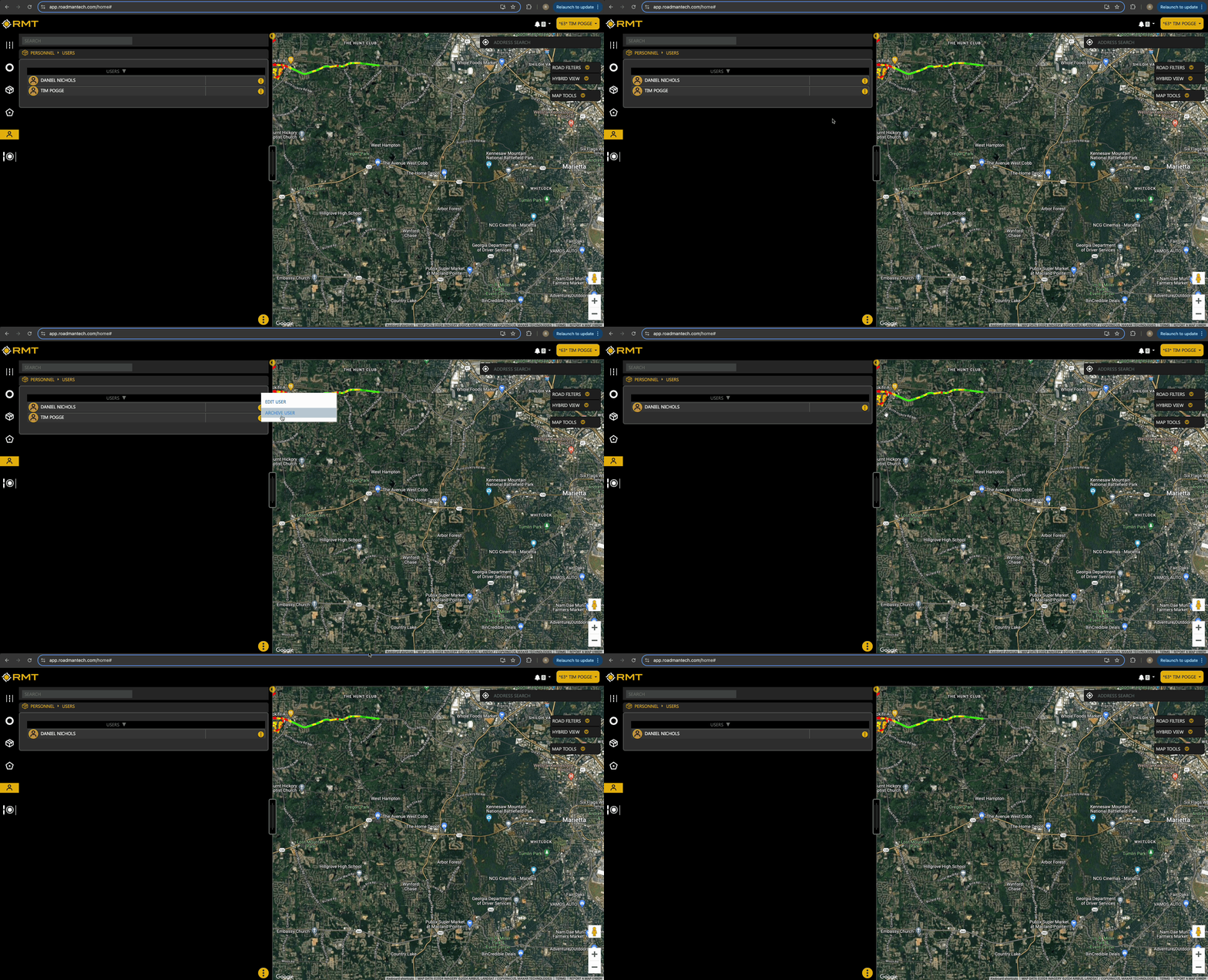
To archive a user, follow these steps:
- Open User Management
- On the right-hand side of the screen, locate the user you wish to archive.
- Access Archive Option
- Click the three vertical dots next to the user’s name. From the dropdown menu, select "Archive User".
- Confirm Archiving
- Confirm the action if prompted. The user will be archived and will no longer appear in the active user list.
If you need further assistance with user management, please contact our support team by emailing support@roadmantech.com.