
Why Customization Matters
When adopting the RMT application, one of the most important steps is customizing your settings. Every agency faces different challenges in managing their road network—whether it’s hurricanes, excessive heat, snow and ice, heavy trucking, or soft ground. Because no two networks are the same, customization ensures that your planning reflects your unique conditions.
By tailoring your road settings, you’ll get more accurate lifespan projections, more reliable budget forecasts, and better preservation strategies.
The Road Settings is where you can make these adjustments.
How to Access the Road Settings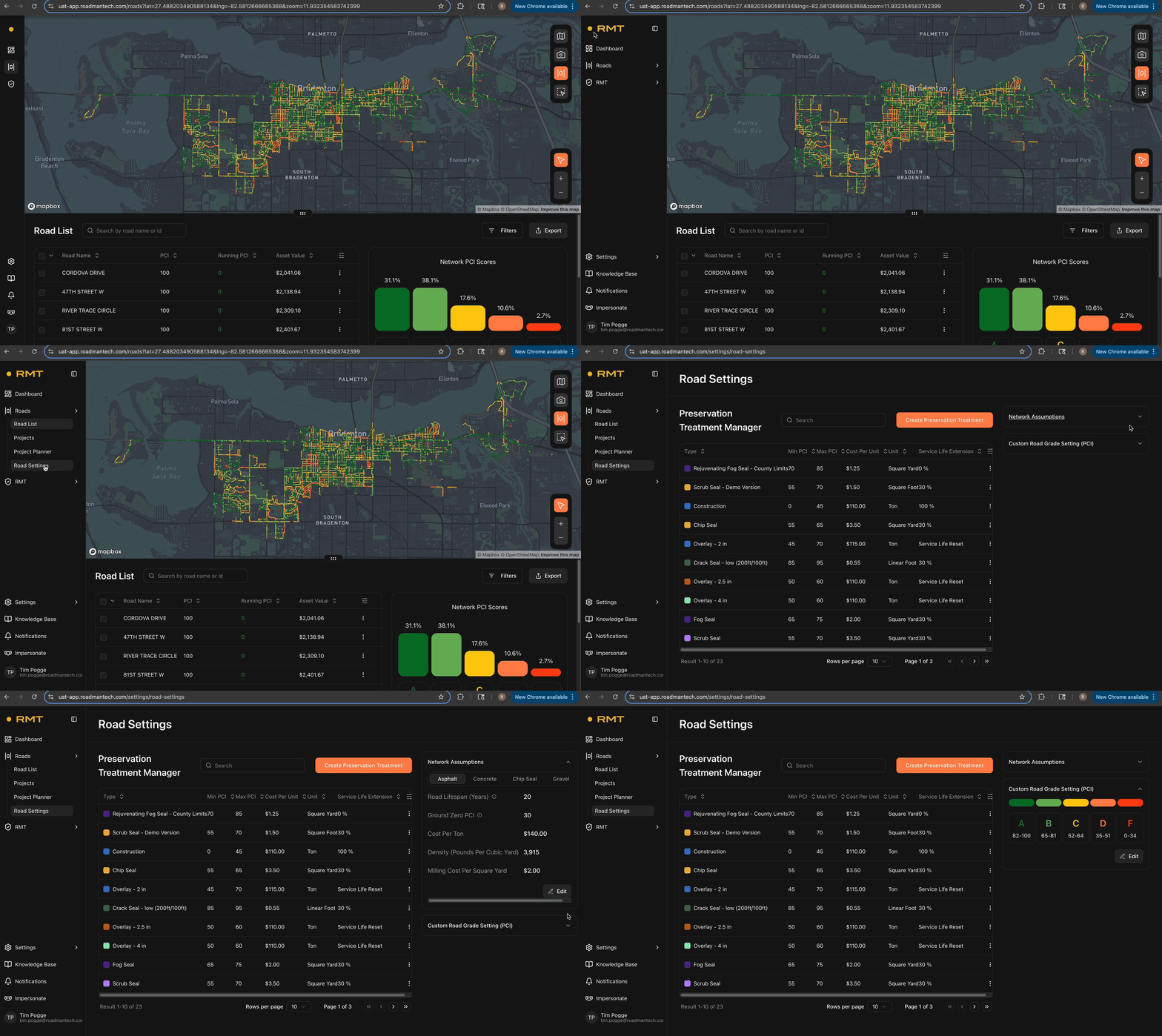
- Hover over the navigation bar on the left-hand side of your screen.
- Under the Roads dropdown, select the last option: Road Settings.
Page Overview
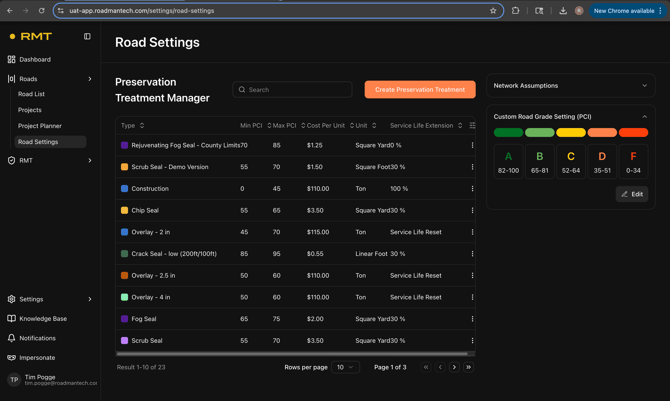
The Road Settings page is divided into three sections:
- Network Assumptions
- Custom Road Grade Settings
- Preservation Treatment Manager
Each plays a key role in adapting RMT to your agency’s needs.
Network Assumptions
This section defines the baseline assumptions that shape your analysis. This will be broken out by surface type, including: Asphalt, Concrete, Chip Seal, and Gravel. Each surface type will have a number of details included.
Asphalt:
- Road Lifespan (Years) - The estimated number of years a road surface is expected to last before major rehabilitation or reconstruction is required.
- Ground Zero PCI - PCI value indicating complete failure
- Cost Per Ton
- Density (Pounds Per Cubic Yard)
- Milling Cost Per Square Yard
Concrete:
- Road Lifespan (Years)
- Ground Zero PCI
- Cost Per Cubic Yard
- Removal Cost Per Square Yard
Chip Seal:
- Road Lifespan (Years)
- Ground Zero PCI
- Cost Per Square Yard
- Sweep/Patch/Level Cost Per Square Yard
Gravel:
- Road Lifespan (Years)
- Ground Zero PCI
- Cost Per Ton
- Density (Pounds Per Cubic Yard)
- Grading Cost Per Square Yard
How to Edit Network Assumptions
- Select the "Surface Type" you wish to edit.
- On the right hand side of the screen, click the three vertical dots.
- Each available field will now be available for editing. Edit the appropriate fields.
- On the right-hand side of the screen, click the green checkbox.

Setting realistic assumptions means your projections will better reflect actual conditions, leading to smarter long-term planning.
Custom Road Grade Settings
 RMT uses the standard PCI (Pavement Condition Index) scale from ASTM International, but
agencies often define their own thresholds for what qualifies as “Good,” “Fair,” or “Poor.” The Custom Road Grade Settings tool lets you align the PCI scale with your local standards.
How to Edit Custom Road Grades
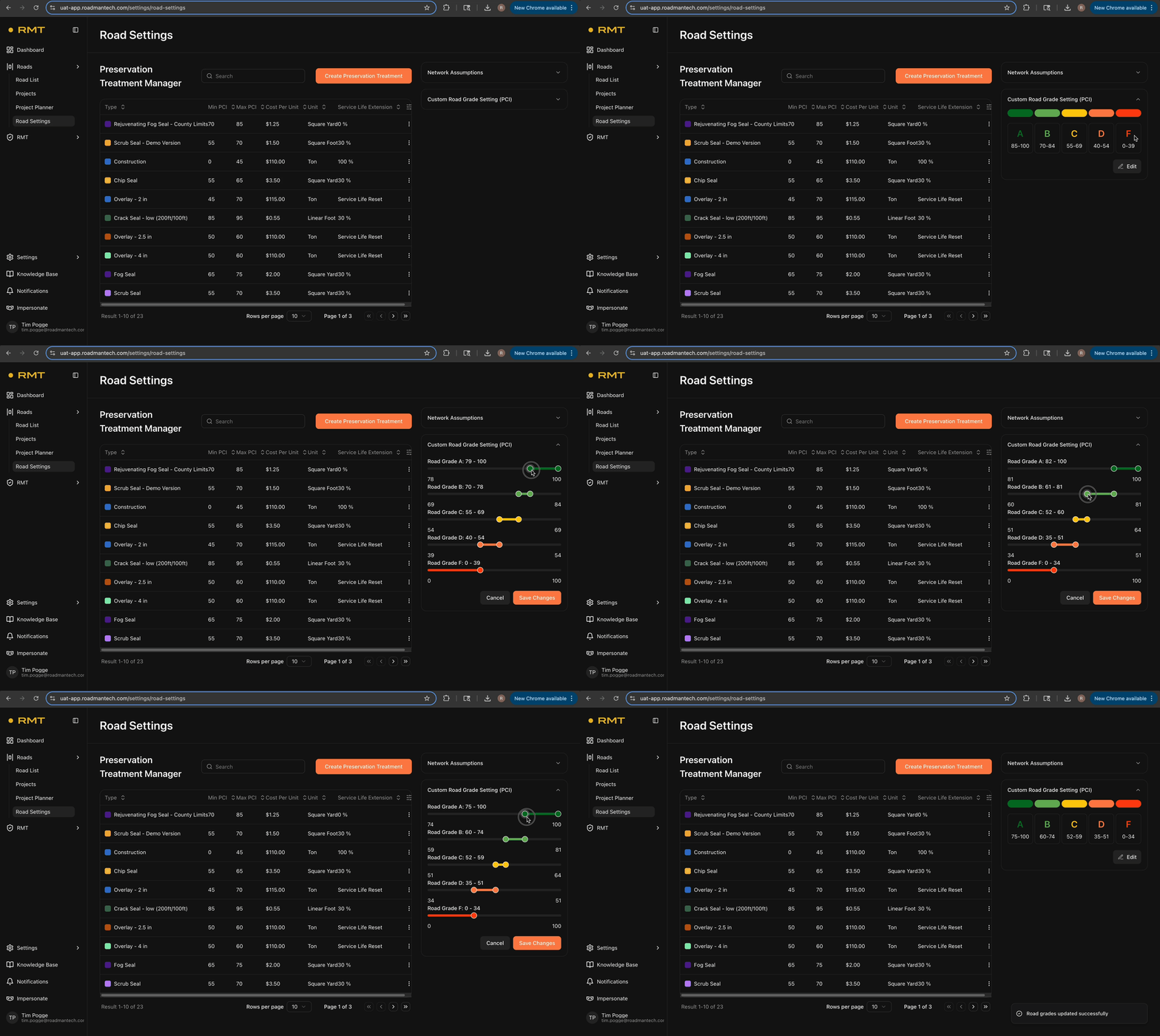 At the top right of the Custom Road Grade Settings table, click the pencil icon.
 - Drag the sliders to adjust the PCI ranges for each grade. (The system prevents overlaps automatically by shifting adjacent sliders.)
- Click Save Changes in the bottom-right corner.
Custom grades give you control over how road quality is assessed, ensuring that reports and planning match your agency’s priorities.
Preservation Treatment Manager
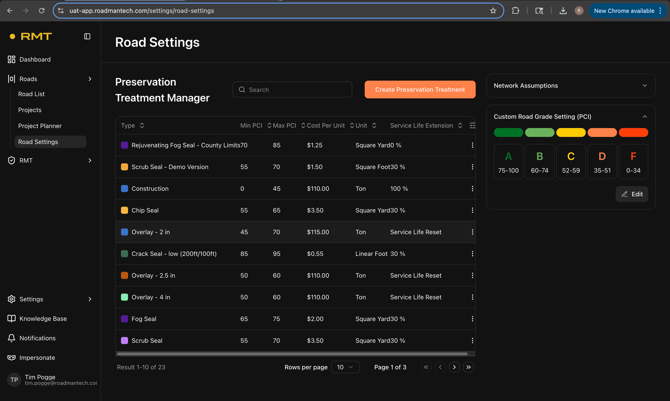
This tool lets you define the costs and parameters for different preservation treatments. By customizing it, you’ll ensure that RMT’s recommendations and cost projections are accurate for your agency’s budget and materials.
How to Create a New Preservation Treatment
- On the right-hand side of the Road Settings page, click Create Preservation Treatment.
- A setup panel will slide in from the left. Complete the following fields:
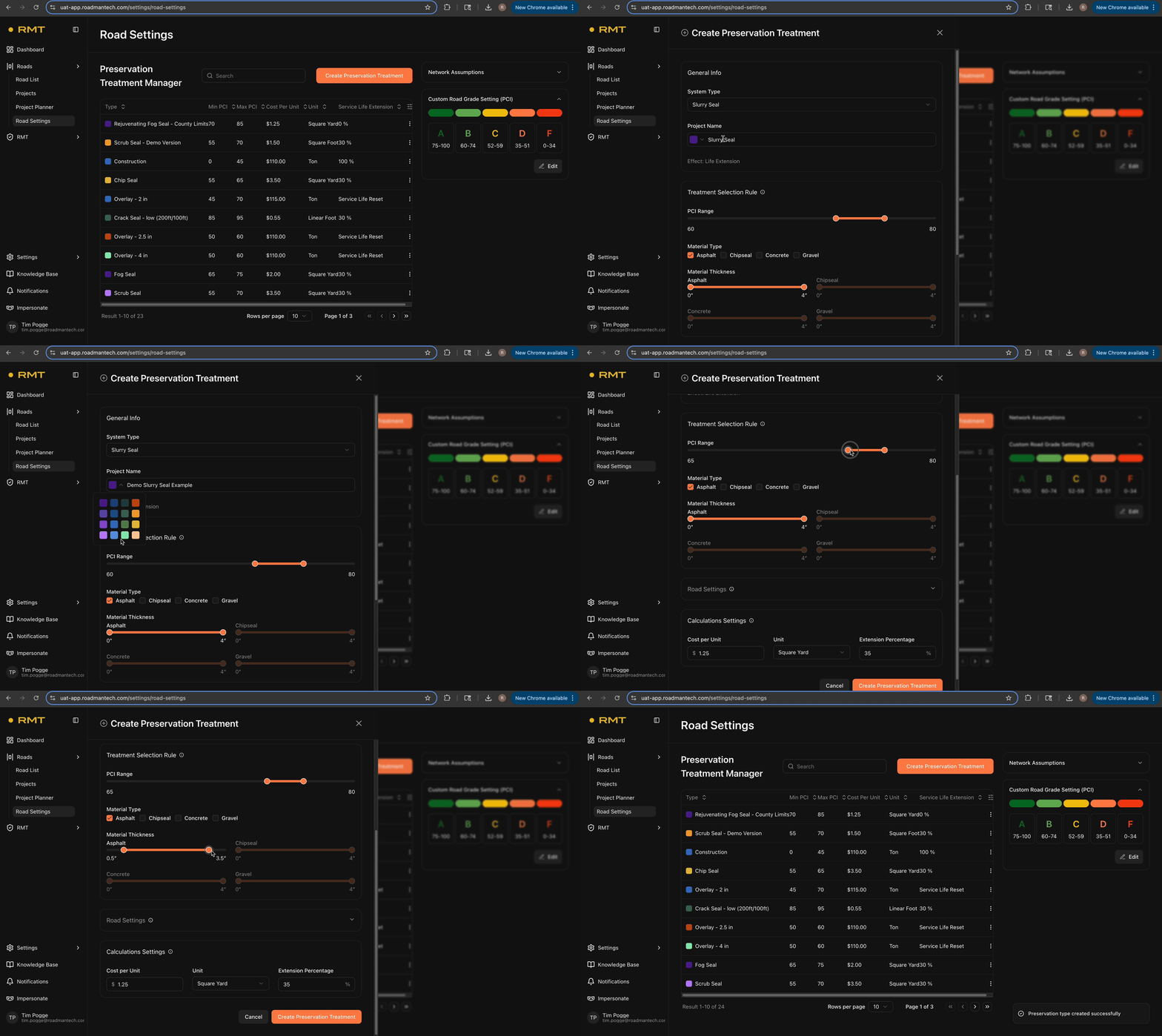
- System Type: Choose from 13 templated treatment types.
- Custom Name & Color: Helps identify treatments in the Project Planner.
- Treatment Selection Rule: Defines when this treatment is suggested based on PCI.
- Material Type(s) & Thickness
- Road Owner (if provided in shapefile)
- Road Category (if provided in shapefile)
- Traffic Volume (AADT) (if provided in shapefile)
- Born on Dates (min & max) (if provided in shapefile)
- Cost per Square Unit
- Extension Percentage
- Click Save.
How to Edit an Existing Preservation Treatment
- On the right-hand side of the Road Settings page, find the treatment you want to edit.
- Click the three vertical dots > Edit.
- In the panel that opens, update fields such as:
- Custom Name & Color

- Treatment Selection Rule
- Material Type & Thickness
- Cost per Square Unit
- Extension Percentage
- Custom Name & Color
By tailoring preservation treatments, you align RMT’s cost models and recommendations with your actual practices, making project planning more accurate and actionable.
In Summary: The Road Settings is your agency’s control center for adapting RMT to your unique conditions. By configuring network assumptions, road grade standards, and preservation treatments, you unlock more accurate forecasting, cost modeling, and decision-making.