We’re excited to have you on board! To sign in to your RMT account, just follow these steps:
Step 1: Go to the RMT Website
Open your web browser (such as Chrome, Edge, or Safari) and type roadman.tech into the address bar.
Step 2: Find the Login Button
On the top right corner of the homepage, click the Login button.
This will take you to the login page.
Logging In
On the login page, you’ll see two ways to sign in:
- Email and Password – most users will use this option.
- Single Sign-On (SSO) – this lets you sign in with your organization’s system (such as Microsoft or Google).
Tip: If you’re not sure which option your agency uses, check with your account administrator.
Option 1: Login with Email
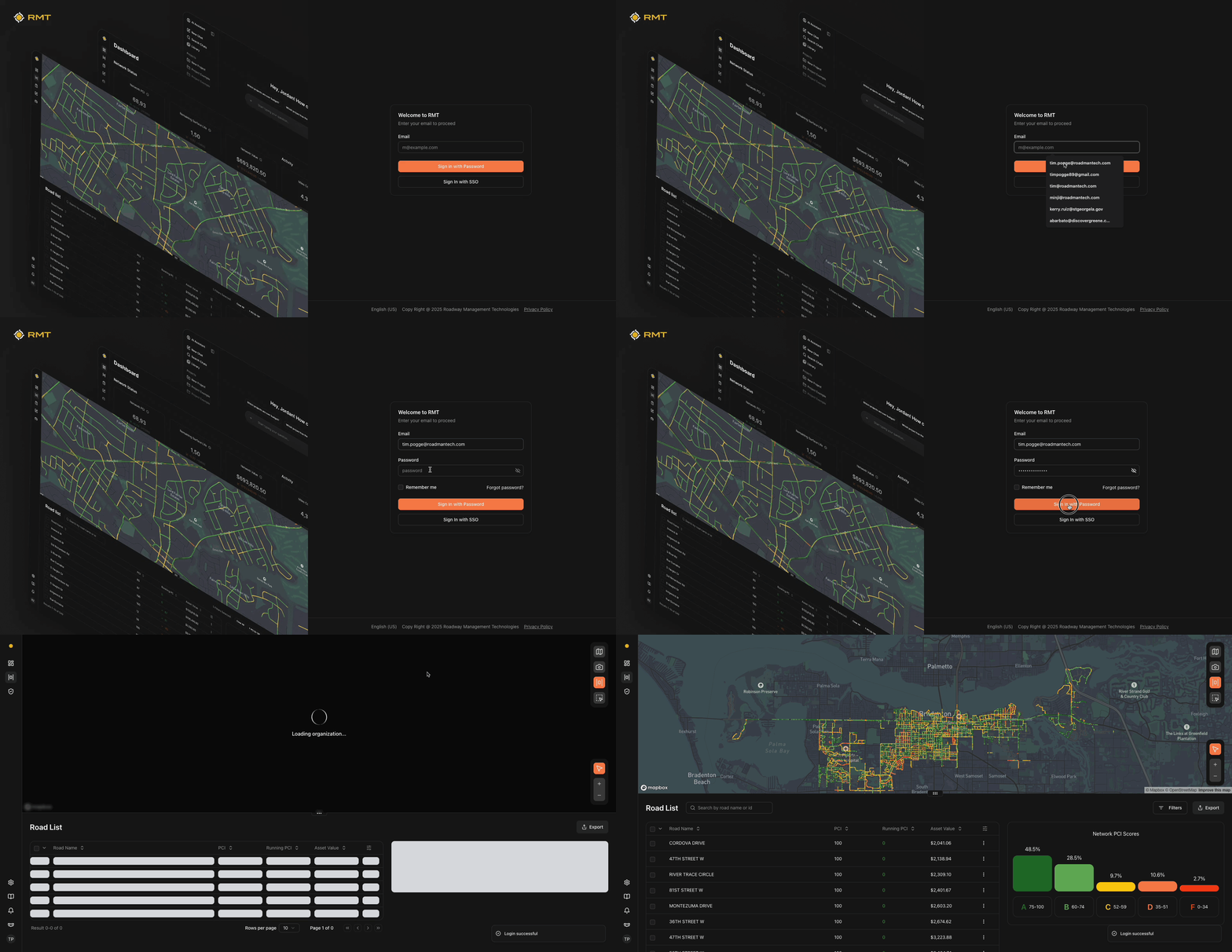 Enter the email address connected to your RMT account.
- Click Sign in with Email.
- Type in your password in the “Password” box.
- Click Sign In.
Remember Me: If you check this box, you’ll stay signed in for up to 7 days without entering your password again.
Option 2: Login with SSO (Single Sign-On)
- Enter the email address connected to your RMT account.
- Click the SSO button.
- You’ll be taken to your organization’s login page.
- Confirm your details and continue.
- Once approved, you’ll return automatically to the RMT homepage.
If your account doesn’t have SSO set up yet, please reach out to RMT Support and we’ll guide you through the setup.
Changing Your Password
If you’ve forgotten your password or just want to reset it, here’s how:
- On the login page, click Forgot password?
- Enter the email address linked to your RMT account.
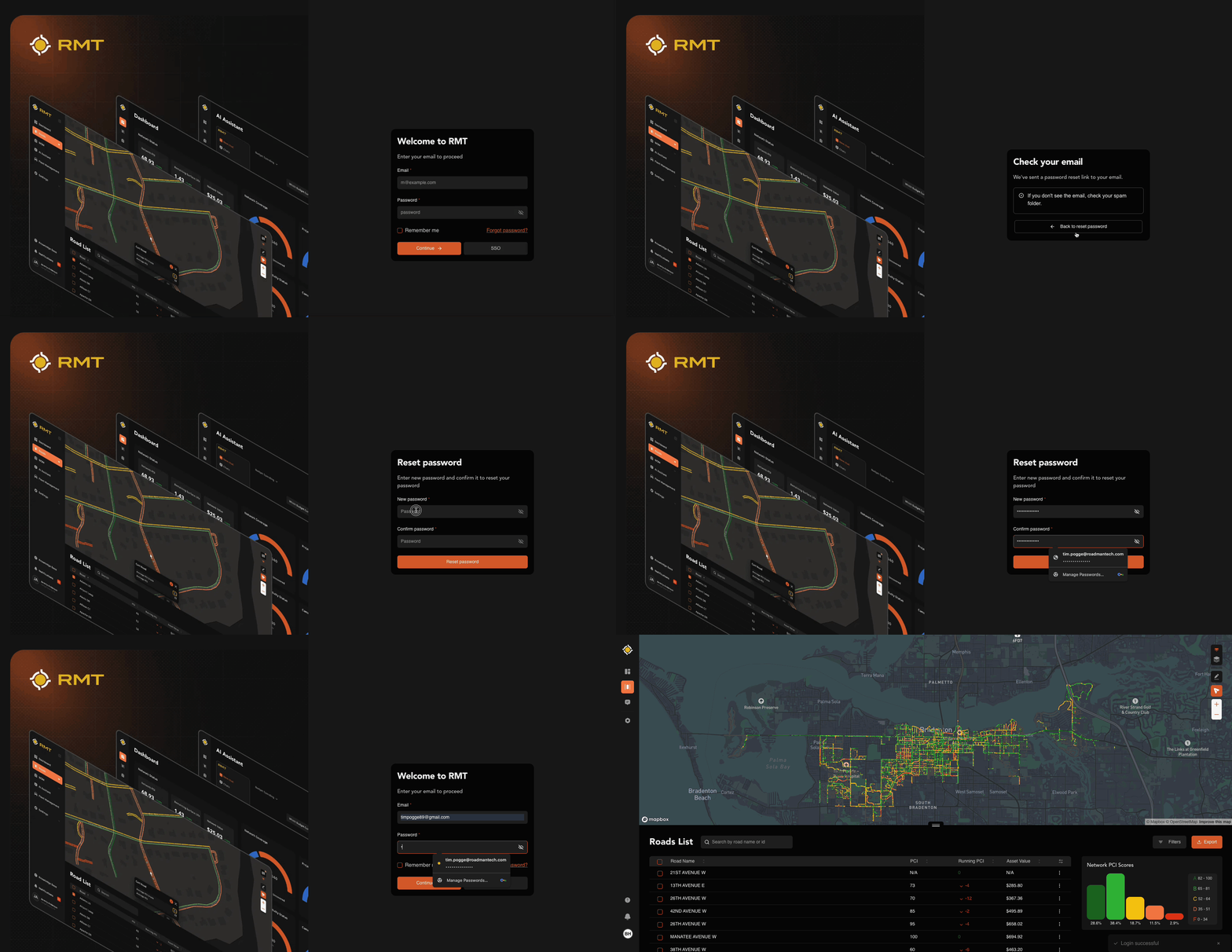
- Check your email inbox – you’ll receive a message from us with a reset link.
- Click the button in the email. This will take you to a page where you can create a new password.
- Enter your new password, then type it again to confirm.
- Once saved, you’ll be returned to the login page where you can sign in with your new password.
Password Best Practices
To keep your account safe, we recommend:
- Use at least 8–12 characters (the longer, the better).
- Mix in uppercase and lowercase letters, numbers, and symbols.
- Avoid using personal info (like birthdays or names).
- Use a unique password just for RMT (don’t reuse one you use elsewhere).
- Consider using a password manager to securely store and create strong passwords.
Supported SSO Providers
RMT works with the most common login providers, including:
- Microsoft Azure AD (Entra ID)
- Google Workspace
- Okta
- Auth0
- OAuth 2.0 providers
- Any OpenID Connect (OIDC) compatible provider