Roadway Management Technologies – Introduction to RMT
Accessing RMT
Welcome to Roadway Management Technologies! This guide will walk you through the steps to save our website, roadman.tech, to your desktop and bookmark it using Google Chrome.
While RMT will work on most browsers, we recommend you utilize Google Chrome. To download Google Chrome, please click here.
How to Save roadman.tech to Your Desktop
- Open Google Chrome: Launch the Google Chrome browser on your computer.
- Navigate to roadman.tech:
- In the address bar at the top of the browser, type in roadman.tech and press Enter. This will take you to our website.
- Open the Chrome Menu:
- In the upper right corner of Chrome, you’ll see three vertical dots (⋮). Click on these dots to open the Chrome menu.
- Select 'Cast, Save, & Share':
- From the dropdown menu, hover over "Cast, Save, & Share" to reveal a submenu.
- Choose 'Create Shortcut...'
- In the submenu, click on "Create shortcut..."
- Name Your Shortcut:
- A dialog box will appear. You can name your shortcut (e.g., "Roadway Management Technologies") or keep the default name.
- Add to Desktop:
- Ensure the checkbox labeled "Open as window" is checked if you want the shortcut to open in a separate window without the address bar and other browser UI elements.
- Click the "Create" button. A shortcut to roadman.tech will now appear on your desktop.
.gif?width=670&height=362&name=CreateShortcutExample%20(1).gif)
How to Bookmark roadman.tech
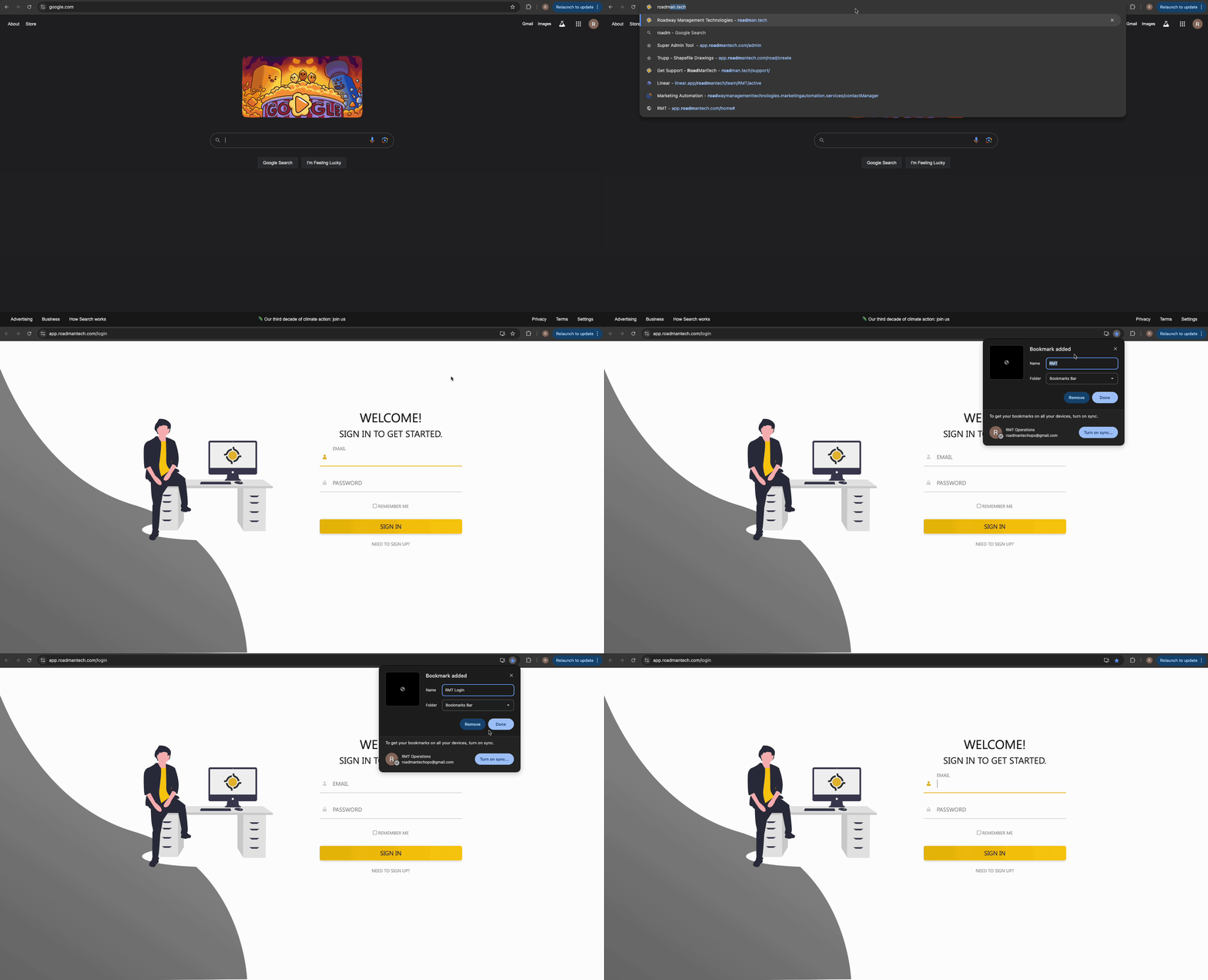
- Open Google Chrome: Make sure Chrome is running.
- Navigate to roadman.tech:
- Enter roadman.tech into the address bar and press Enter to visit our website.
- Bookmark the Page:
- Click on the star icon located in the address bar on the right side. This is the bookmark icon.
- Edit Bookmark Details:
- A dialog box will pop up where you can edit the bookmark details. You can rename the bookmark or choose a folder to save it in.
- Save the Bookmark:
- Click on the "Done" button to save the bookmark.
Your bookmark is now saved, and you can easily access roadman.tech from the bookmarks bar or the bookmarks menu in Chrome.
If you need any further assistance, feel free to reach out to our support team at support@roadmantech.com. We're here to help you with any questions or issues you might have.
Thank you for choosing Roadway Management Technologies!