
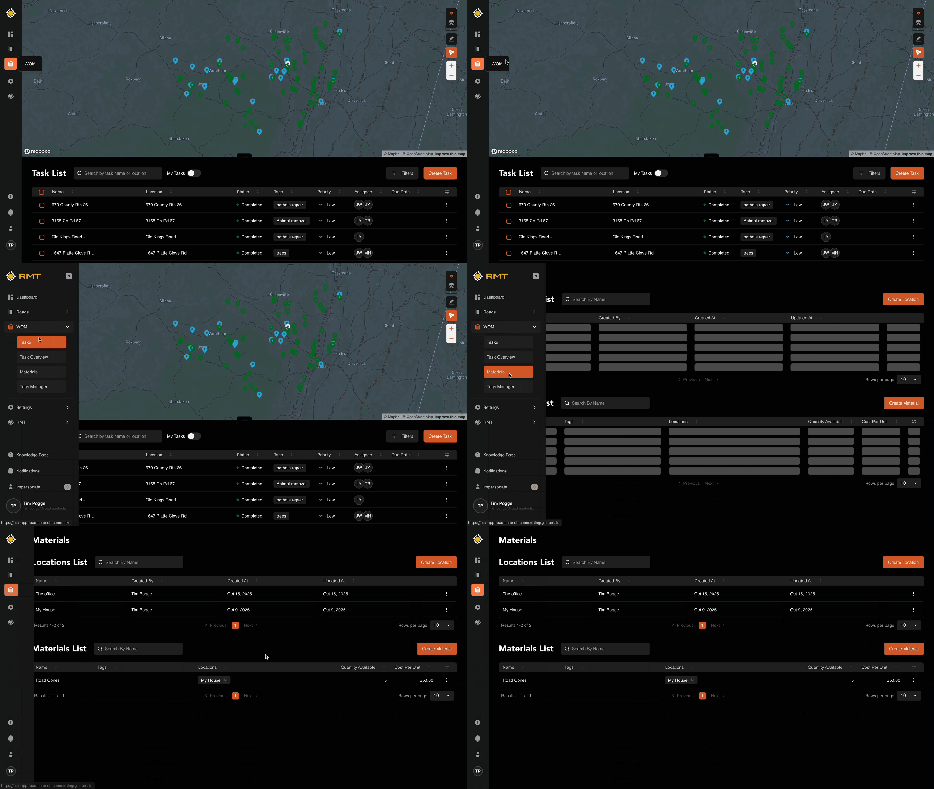
 A key component of Work Order Management is understanding the materials you have on hand, quantities, and where those materials are located. In RMT’s Work Order Management system, this is the third option under the WOM dropdown in the application. When you click on this option, you’ll see a page loaded with two sections; the Locations List and the Materials List.
Locations List
The Locations List is a list of all the offices, warehouses, and storehouses that your agency utilizes to store equipment, inventory, etc. First, let’s just address the what we see at the top.
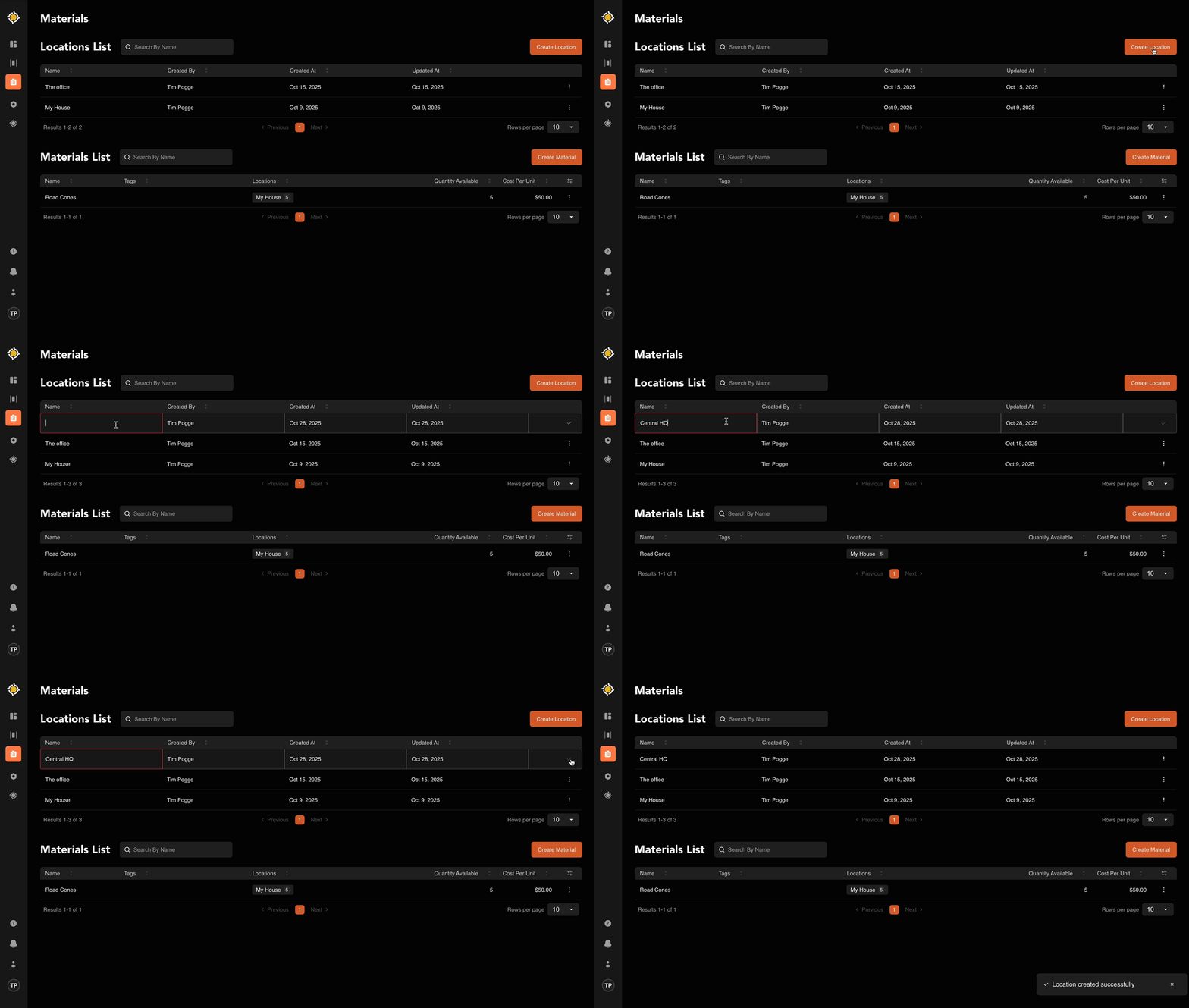
The Locations List table is relatively simple to understand. There will be a row for each new location you’ve added to your account. The List will include the name of the location, who created it, when it was created, and when it was last updated. On the far right hand side you’ll see three vertical dots. Clicking on those will pop up the “Edit” button so that you can edit the name.
Adding a new location is very simple:
- In the top right corner of the screen, click the orange “Create Location” button.
- A new row will now appear on the list with a blank field for “Name.”
- Once you’ve entered the name, click the green Check mark on the right hand side of the screen to save.
Materials List
After the Locations List, the second table on this page is the Materials List table. This table should be a comprehensive list of all the materials your agency has in store. The table includes:
- Name
- Tags
- Locations
- Quantity Available
- Cost Per Unit
You can customize what options are available by clicking the filter list icon on the right hand side of the table. This will open a dropdown menu where each option is selectable by clicking the checkbox next to the name.
To add a new Material:
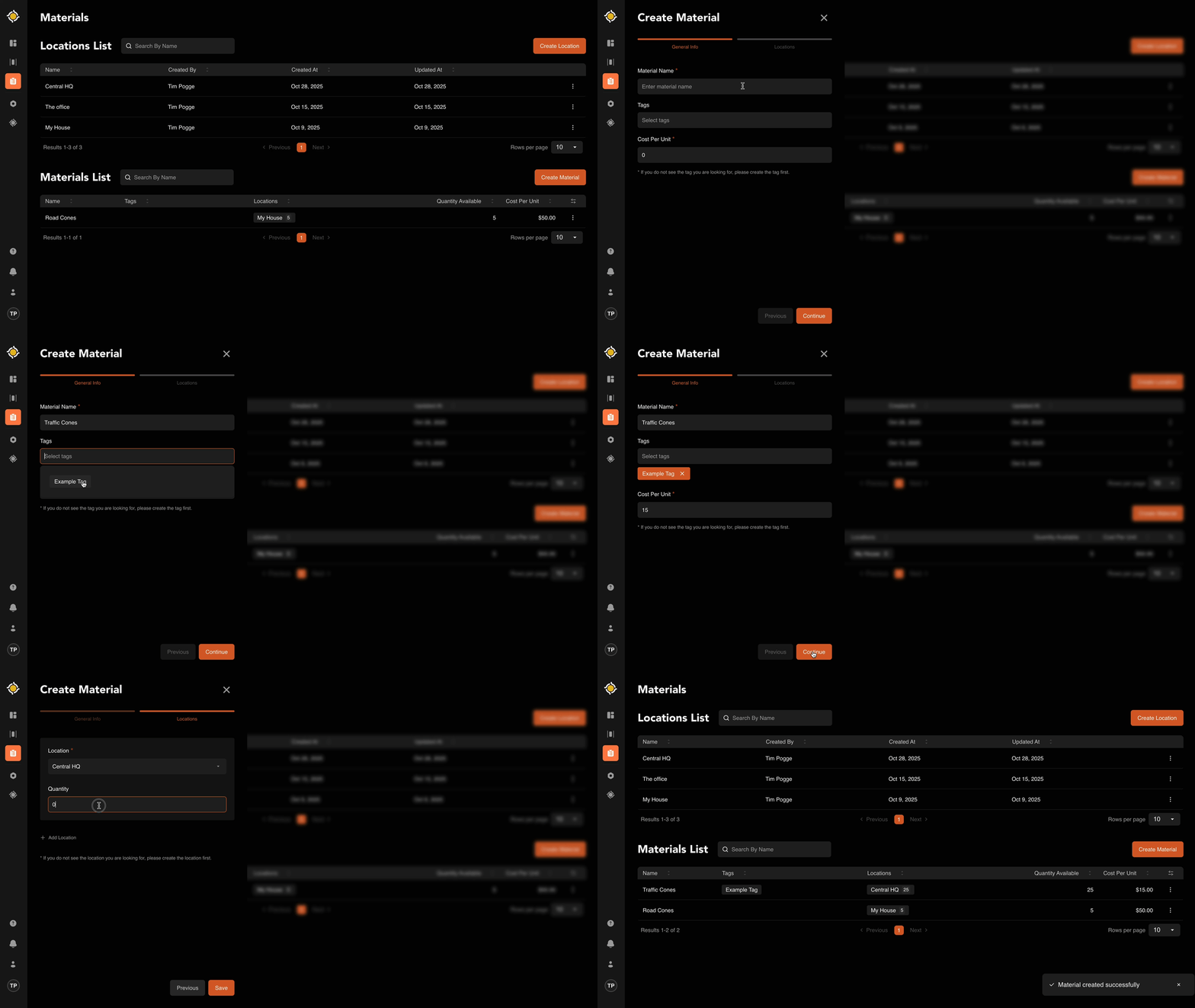
- Click the orange “Create Material” button above the Materials List table.
- In the modal that slides from the left hand side of the screen, enter the:
- Material Name
- Tags
- Cost per Unit
- Click “Continue”
- Fill in:
- Location
- Quantity
- Click “Save.”
To edit an existing Material:
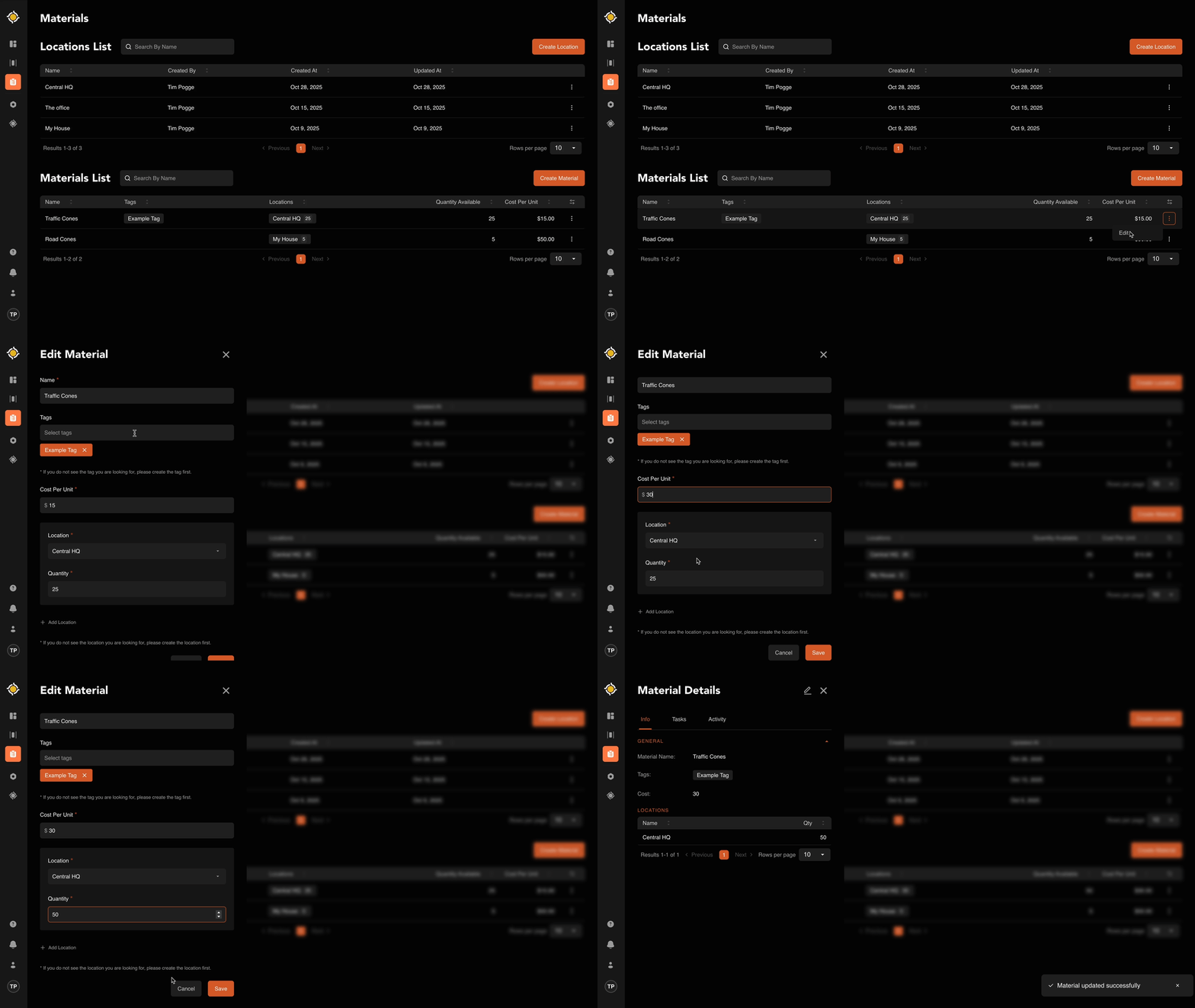
- Click the three horizontal dots on the right hand side of the Material in question
- Edit any applicable information.
- Click “Save.”
Locations and Material are key tools to utilize in the Work Order Management application for RMT. If you have further questions, please contact us via email at support@roadmantech.com.