
Projects are one of the most important components of the RMT application. They form the foundation for everything your agency can do within RMT. By creating and managing projects, you can budget more effectively, use the Project Planner to plan treatments, and communicate more clearly with internal leadership and elected officials about how your agency is using taxpayer resources.
Navigating to the Projects Tool
- On the left-hand side of your screen, hover over the navigation menu.
- Under the Roads icon, click the dropdown.
- Select Projects.
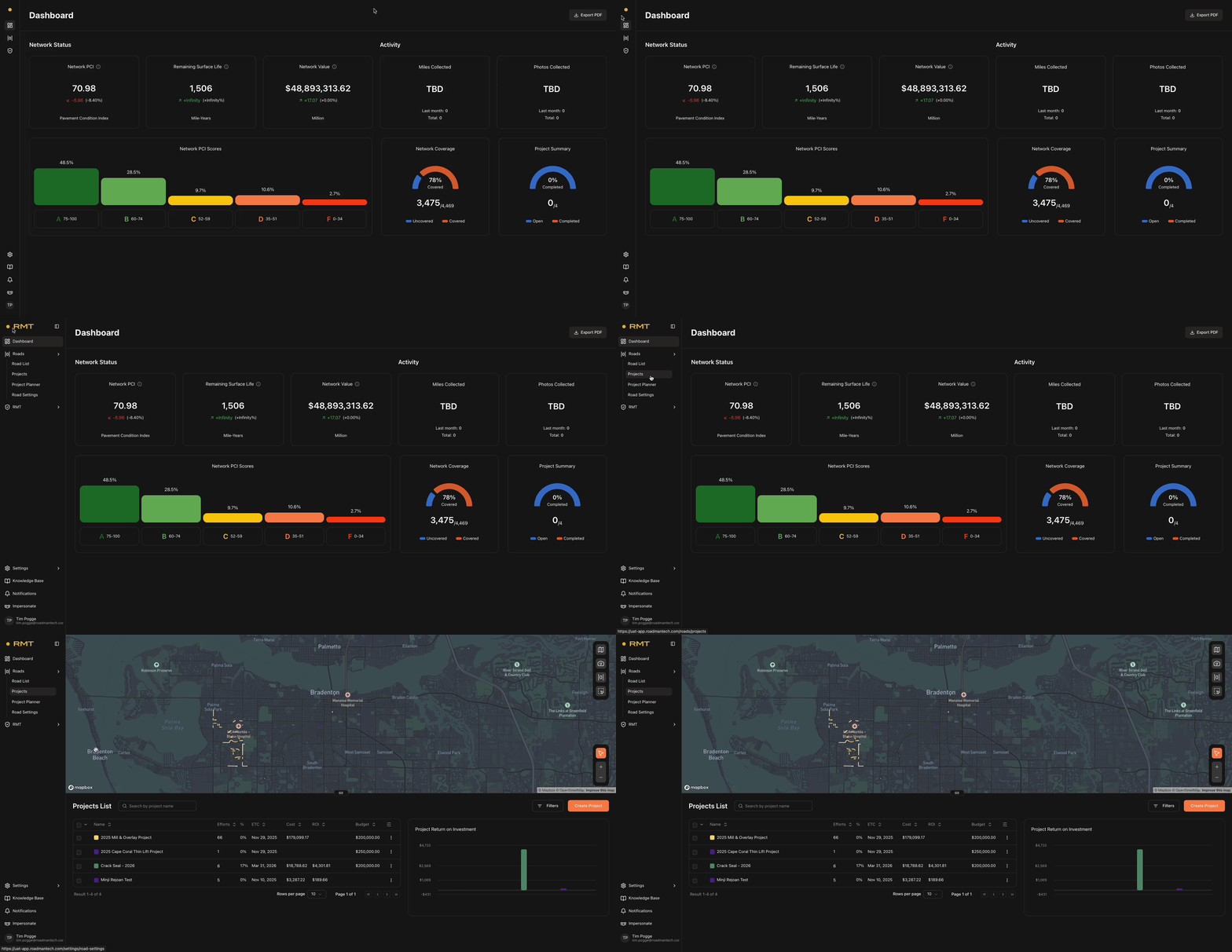
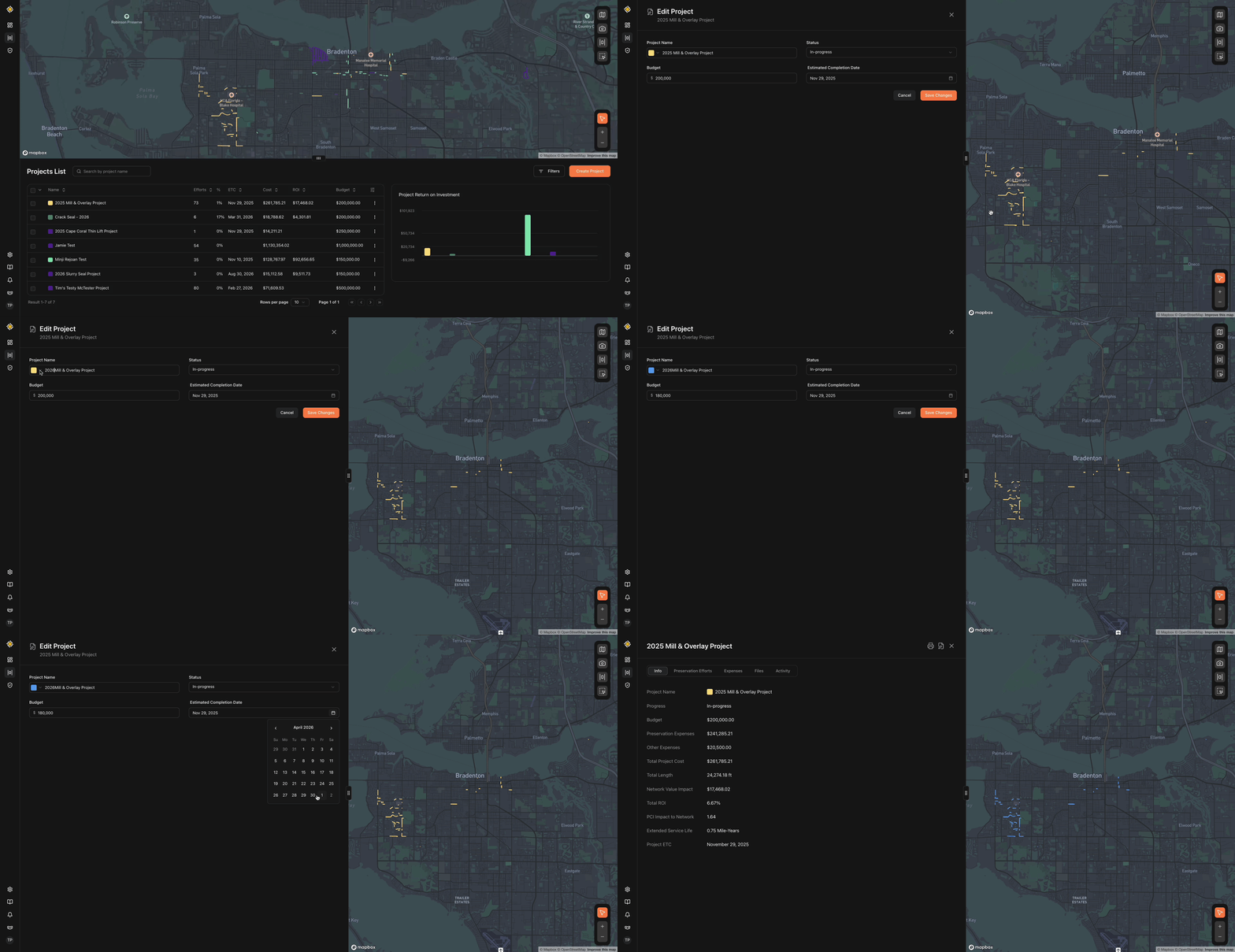
The Projects page will appear. At the top of the screen, you’ll see a map; at the bottom, a list of
your projects. Unlike the Roads List, this map does not show your entire roadway network—it only highlights the projects currently created in your environment. The map tools are the same as those in the Roads List view. (For more details, see our help document on the Roads Tab.)
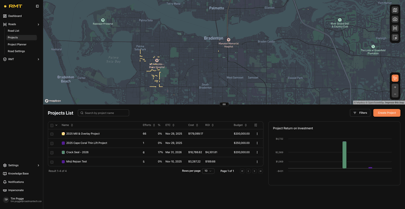 The Projects List at the bottom of the page shows all projects in your account. Each row contains key project information, including Road Name, Status, Efforts (preservation efforts tied to the project), % Complete, Estimated Time of Completion (ETC), Cost, ROI, and Budget.
Customizing the Projects List Dashboard
At the top of the Projects List table, you’ll see column titles. On the far right, next to Asset Value, is the column visibility toggle.
- Click the toggle to open a menu of available project data points.
- Check or uncheck the boxes to add or remove columns.
- When finished, click the toggle again to close the menu.
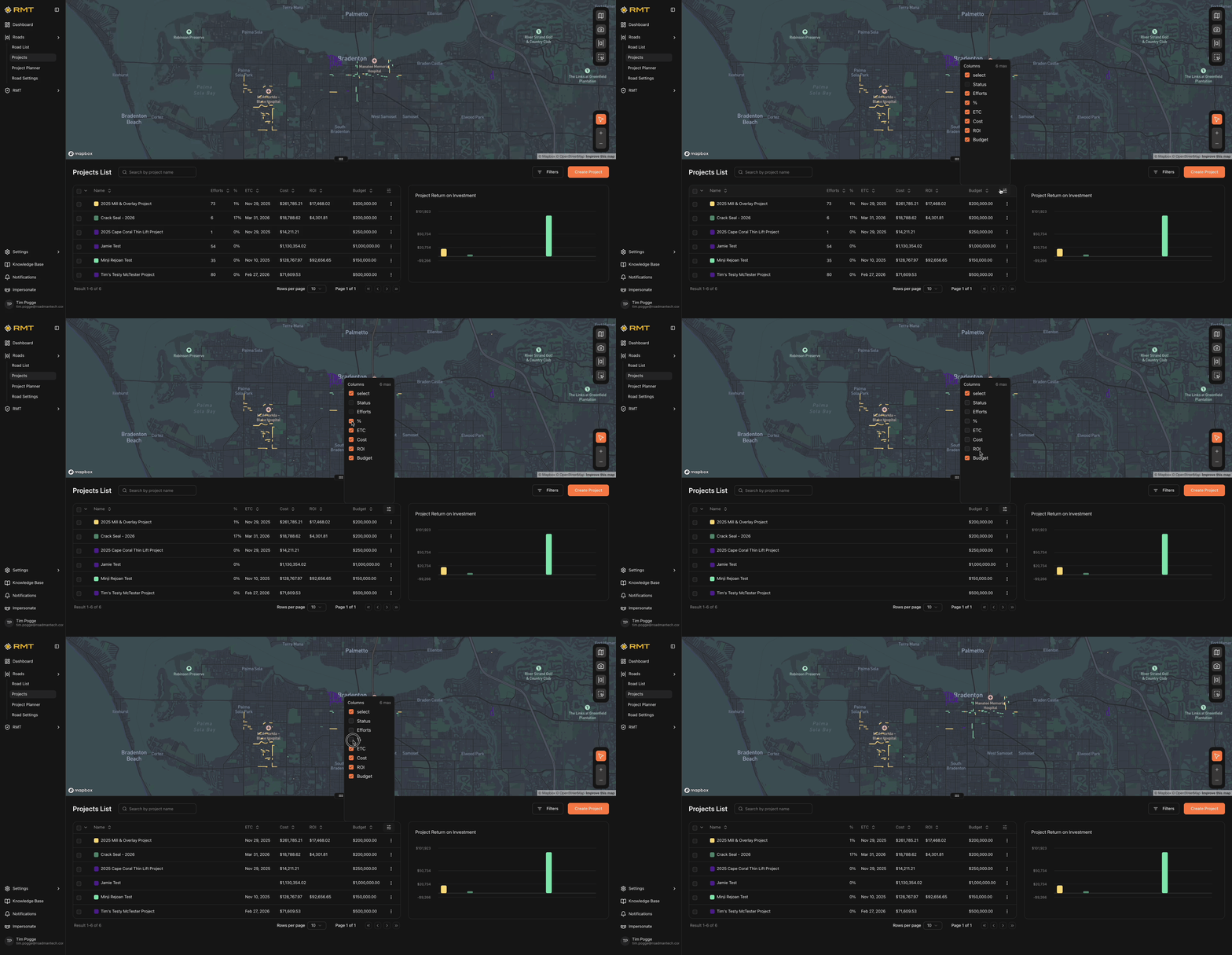 To the right of the Projects List is a small ROI graph, which shows the expected return from your
preservation efforts. This graph can be a powerful tool when presenting to leadership and elected officials.
By default, all roads with open projects are highlighted in color on the map. To focus on one or more projects, check the box next to the project name in the list.
Creating a New Project
- On the right-hand side of the Projects screen, click Create Project.
- A window will slide in from the left. Fill in the fields under General Info, then click
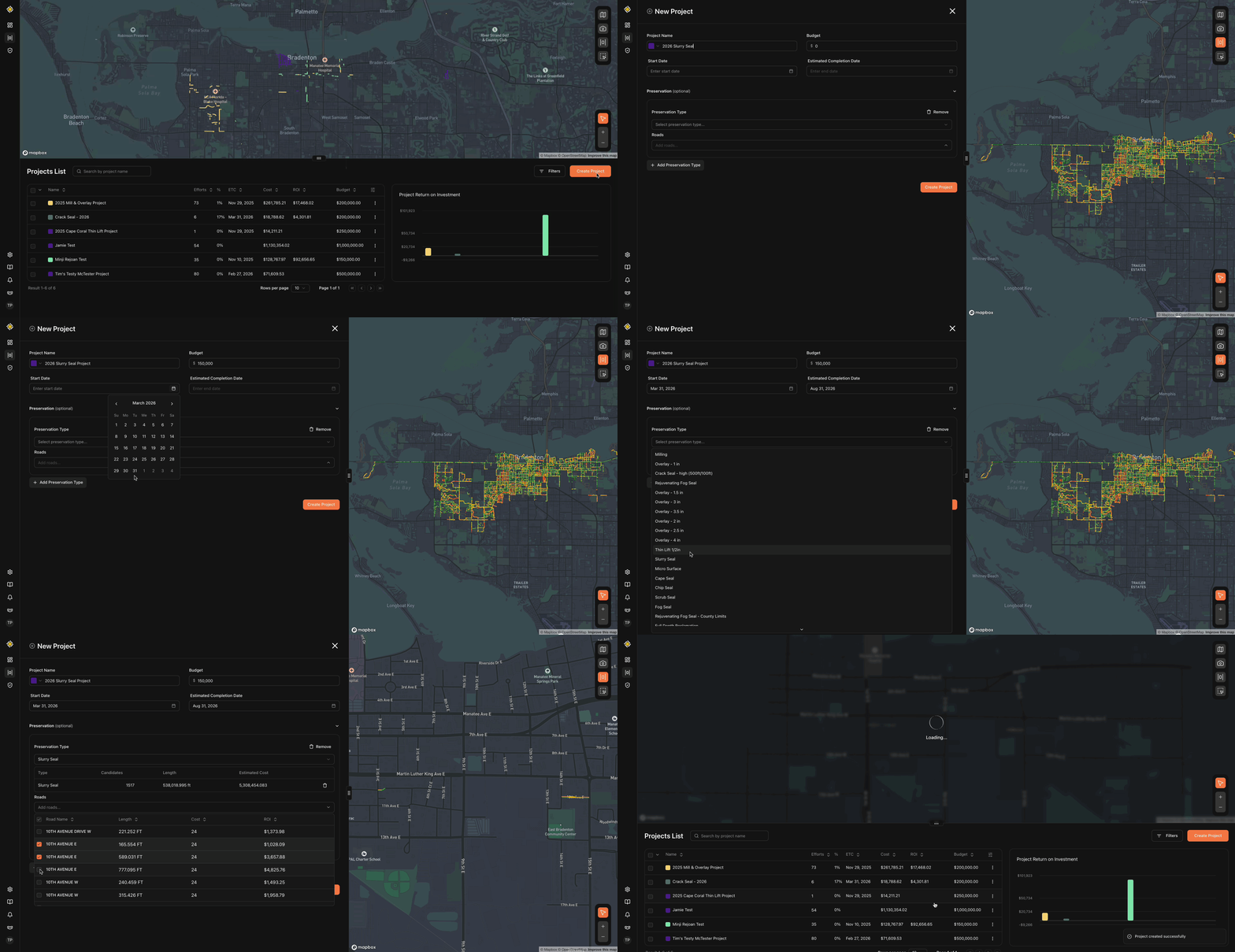 Continue.
 - From the dropdown, select the Preservation Type.
- Add roads by typing their name and selecting the checkbox next to them.
- To include additional preservation efforts, click Add Preservation Type.
- When finished, click Create Project.
Editing an Existing Project
- In the Projects List, click the three horizontal dots (⋯) next to the project you want to edit.
- Select Edit.
- A window will open on the left with editable fields. Make your changes, then click Save Changes.
You can also view more project details by clicking the project name directly. This opens the Project Details view, which is organized into five tabs: Info, Preservation Efforts, Expenses, Files, and Activity.
Project Details
Info Tab
The Info tab shows key details about the project, including Project Name, Progress, Budget, Total
Cost, Mobilization Cost, Total Length, Network Value Impact, Total ROI, PCI Impact to Network, Extended Service Life, and Project ETC (Estimated Time to Completion).
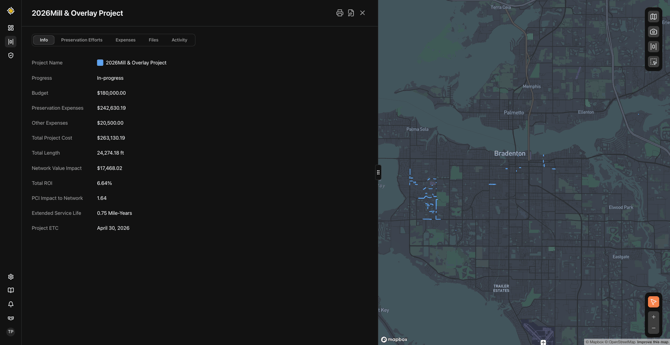
You can edit project information directly within this interface: click the pencil icon in the top-right corner, make changes, and then click Save Changes.
Preservation Efforts Tab
This tab provides a full view of all roads included in the project. The Preservation Efforts table includes the following standard columns:
- Name – Street name for the segment.
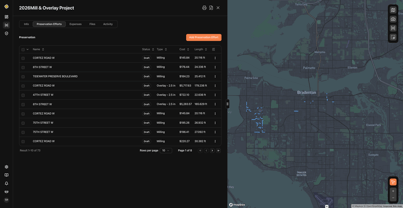
- Status – Draft, In-progress, or Completed.
- Type – The preservation treatment type.
- Cost – Cost of the treatment for the segment.
- Length – Length of the pavement segment.
You can customize the table by clicking the columns setting button (sliders icon). Additional columns include Shapefile ID, ROI, and Width.
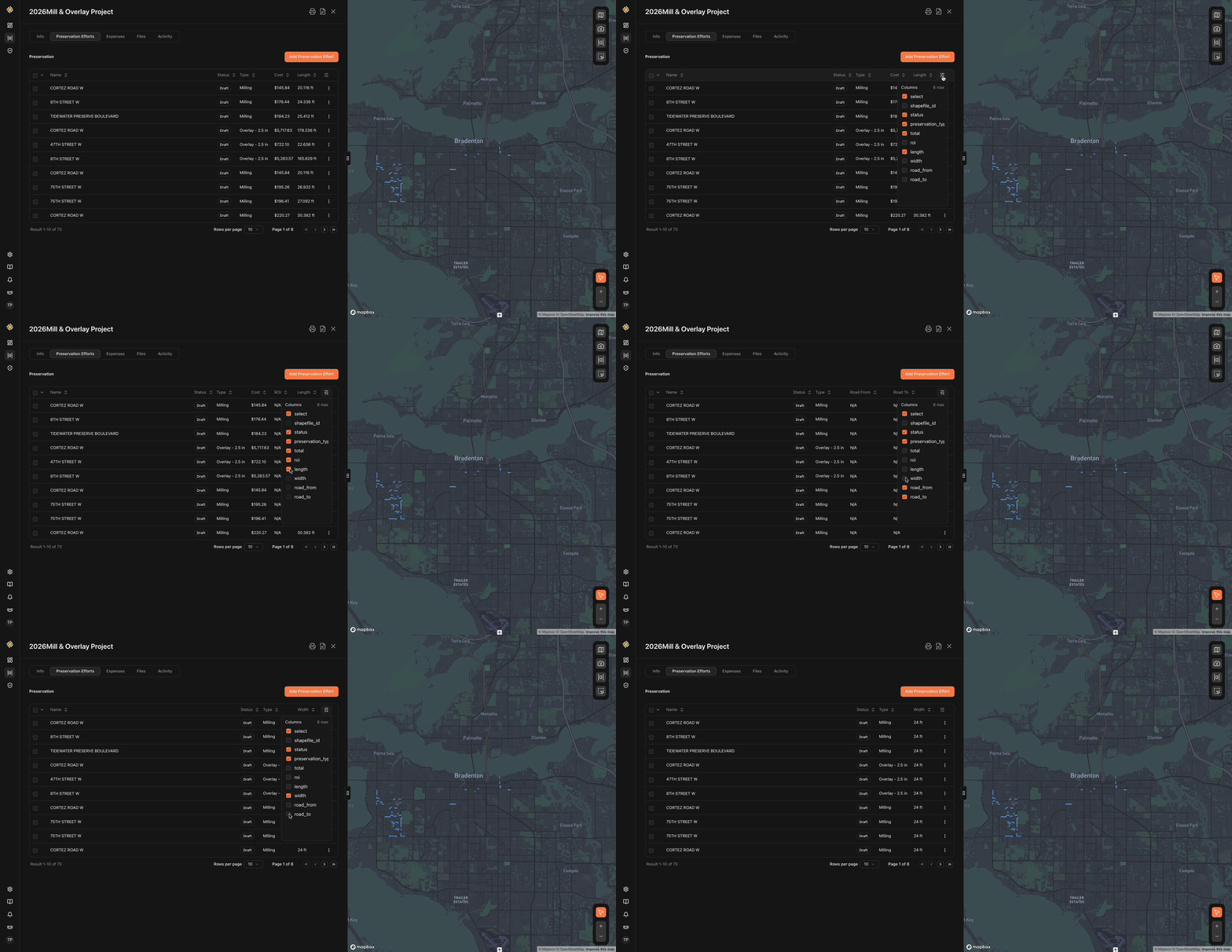
On the right, the project map shows all efforts by default. To focus on specific road segments, check the box next to them on the table.
Adding a Preservation Effort
- Click Add Preservation Effort in the bottom-right corner.
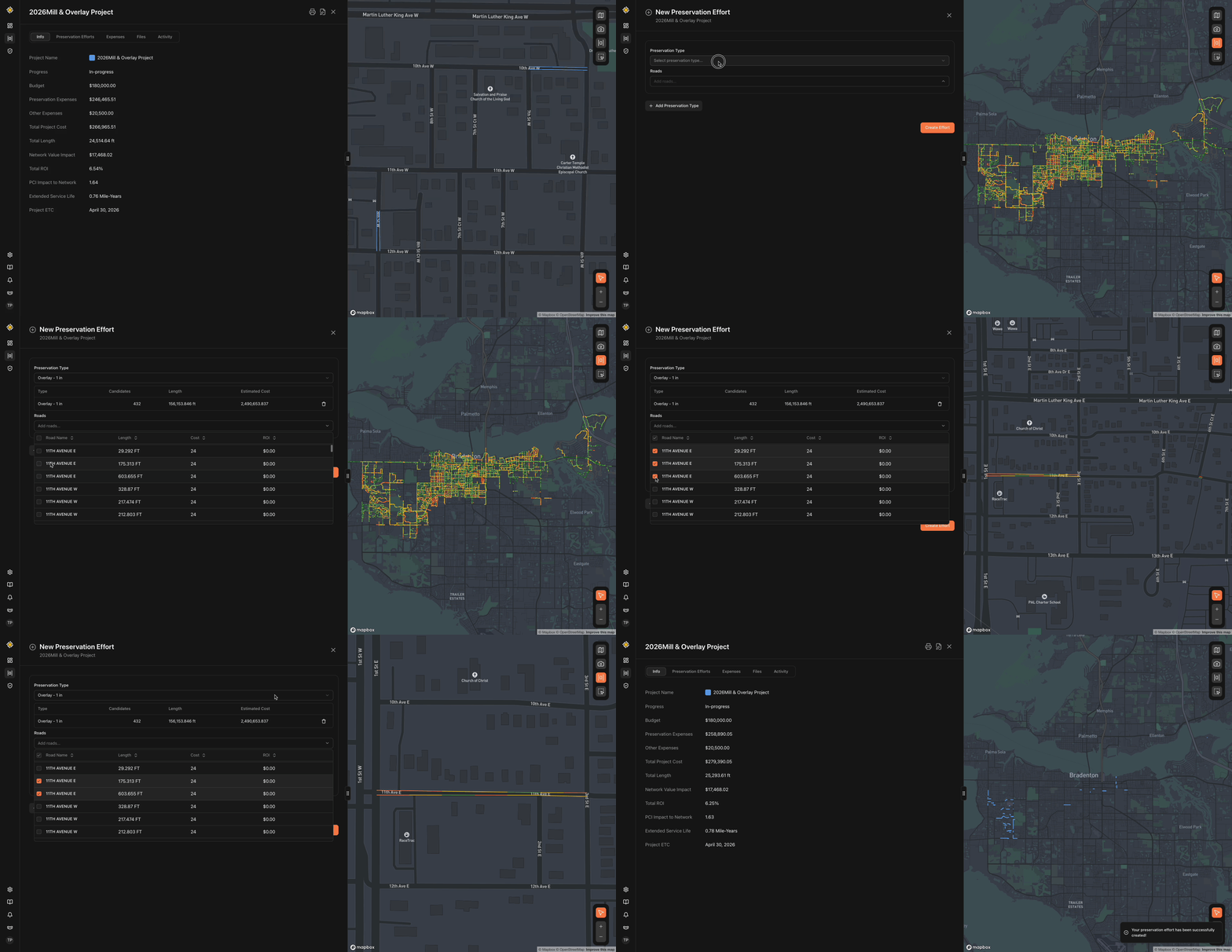
- Select a preservation type, then click Continue.
- Choose road segments from the list of eligible IDs. Select them individually or use the checkbox at the top of the table to select them all.
- Click Create Effort.
Editing a Project from this Tab
Click the pencil icon at the top of the screen. You can update fields such as Project Name (and color), Status, Budget, Mobilization Cost, and Project ETC. Click Save Changes when finished.
Coming Soon: Export Button
This will allow you to export a CSV file containing project effort details.
Expenses Tab
 The Expenses tab summarizes costs by preservation type and lists the total expense at the
bottom. Please note that this total does not include mobilization costs.
Files Tab
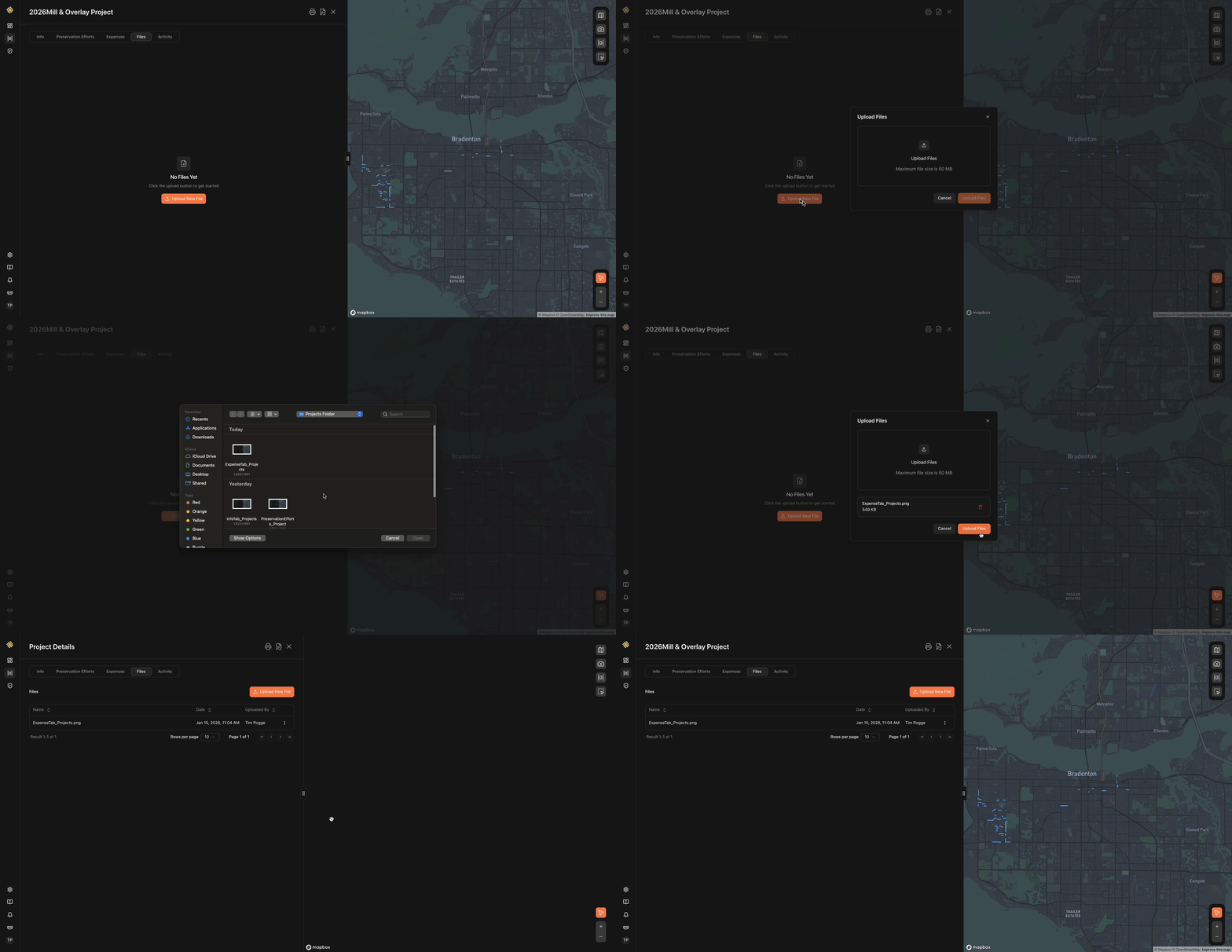 In the Files tab, you can attach supporting documents—such as roadway condition photos, design files, or maintenance records—directly to your project. Keeping files in one place makes it easier for your team to collaborate and reference important information later.
Supported File Types
- Images: JPEG, PNG
- Documents: PDF, DOC, DOCX, TXT
- Spreadsheets: XLSX, CSV
File Size Limit
- Maximum: 50 MB per file
If your file is too large or in an unsupported format, please convert or compress it before uploading.
Activity Tab
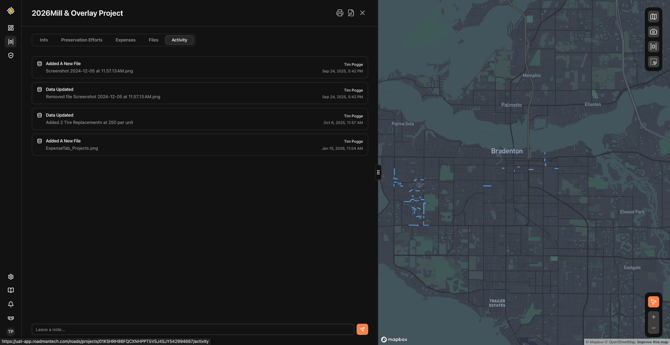
The Activity log keeps a complete history of project actions. It records notes added by team members as well as all uploaded files, along with the timestamp and username for each entry. This provides transparency, accountability, and a simple way to track changes over time.
For further questions, please contact our team via email at support@roadmantech.com!